
 vsS
If you're looking for a native, free tool that works across your Apple devices, you probably want to start with Screen Time. If you're looking for app blocking that's tied to your stated goals and a helpful agent that can check in with you, you should consider Badger. Start with one approach so you can tell which plan is controlling access. This comparison is based on the latest information at the time of writing (November 9, 2026) from Apple's support guides and Badger's product documentation.
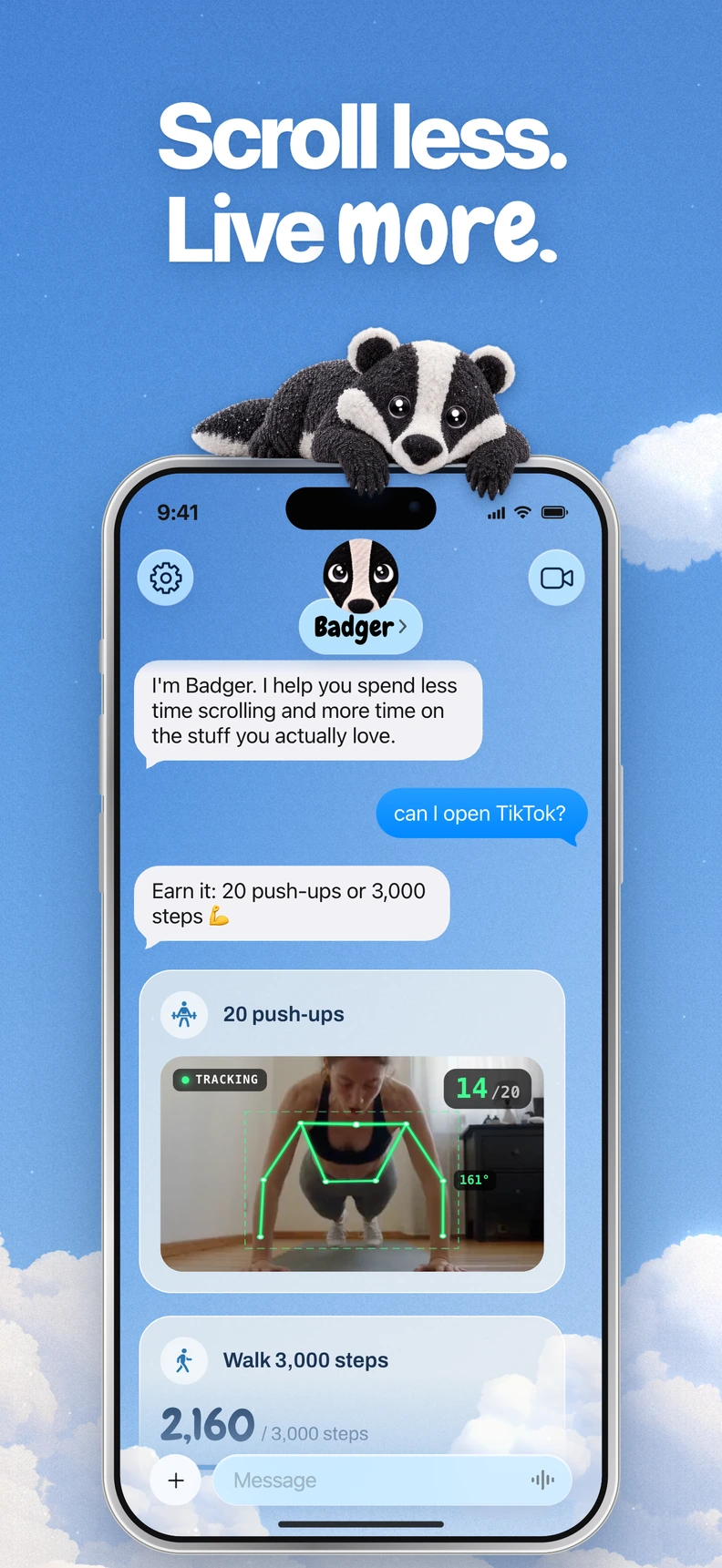
Badger is a personal AI agent focused on one thing: helping you live a more meaningful life. You can text it about what matters to you. It can make a plan, block distracting apps, and help you follow through.
Key Differences Between Badger and Apple Screen Time
Apple's Screen Time is a feature within your device's settings that you set up. You define schedules and set time allowances. A configured limit applies according to your chosen rules; if your circumstances change, you can adjust those settings.
Badger, on the other hand, is a personalized assistant that works with you. You tell it what you're trying to do, it can check in with you, can control access to apps, and can adjust your plan when an approach doesn't fit. You can discuss the goal and how the plan should change.
Feature Comparison
| Feature | Apple Screen Time | Badger |
|---|---|---|
| Platform | Built into iPhone, iPad, and Mac; schedules, allowances, and usage information can be shared across them with the same Apple Account and Share Across Devices | Available as an app on iPhone with iOS 18 or later |
| Blocking method | Set a schedule and limits for categories and apps | Select your apps through Apple's selector, organize them into groups, and set up a plan with Badger |
| Unblocking | Wait for the schedule or allowance to reset, request more time where available, or edit the settings if your passcode and family controls permit it | Follow the agreed plan, discuss changed circumstances, or use emergency unblock. A plan may include walking, a step goal, a gym check-in or a photo |
| Personalization | Can set up usage reports and limits, but you're on your own to manage changes | A personalized assistant that can remember what you're trying to do, check in, and even change a plan with you |
| Adaptability | Manually update settings | Let Badger know that your situation has changed and discuss adjusting the plan (Note: Repeated requests don't guarantee an active commitment will be cancelled.) |
| Cost | Native feature (free) on all supported Apple devices | App download and use is free, subject to weekly AI usage limits; see pricing |
Badger can be bypassed or removed. What Screen Time can enforce depends on device ownership, passcode, family setup, and OS version. Neither tool replaces your own decision.
Three Scenarios for Using Badger vs Apple Screen Time
Scenario #1: You Want Apple Device-Specific Rules
If you're a parent trying to manage your kid's iPad, or if you want to set a rule that applies across your Apple devices, Screen Time is a good option. With the same Apple Account and Share Across Devices enabled, schedules, allowances, and usage information can be shared across iPhone, iPad, and Mac. Badger is focused on iPhone app blocking, and its App Store listing also supports compatible iPads. It does not provide Android or desktop app blocking.
Scenario #2: You Want Rules That Apply Differently Depending on the Situation
If you're using the same app for work-related research, a purposeful break, and an unwanted late-night scroll, the one-hour limit is going to be equally applicable for all of them. Badger's plan, however, is to tie the app blocking to your stated goals. You tell it what you want to use your time for, and the conditions to regain access can be tailored to the situation. If you're trying something that's not working, you'll talk to Badger about changing it rather than edit a line in a settings panel.
Scenario #3: You Want to Tie Access to an Activity
Some plans with Badger have conditions to regain access such as taking a walk, completing a daily step goal, arriving at the gym, taking a photo, or completing other supported actions. This is a feature and not a requirement, and it will vary depending on the plan. Screen Time focuses on schedules and allowances, but the reports are genuinely helpful.
How to Set Up Screen Time on Your iPhone
Depending on the OS version you're running, you'll find the options in a few different places. For iOS 26, the steps are:
Set Up Time Limits:
-
Go to Settings > Screen Time > App Limits > Add Limit.
-
Go to Settings > Screen Time > Downtime > Scheduled to set up a recurring time window.
-
Block at Downtime - This option is available only after you've set a Screen Time passcode.
-
Always Allowed - Choose the apps and contacts that you want to always allow.
See Apple's iOS 26 guide to setting up schedules with Screen Time.
For iOS 27, this can be configured under Settings > Screen Time > Screen Time Schedule > Schedule > Add Schedule or Settings > Screen Time > Time Allowances with Match Screen Time Schedule and Manage Categories. The steps differ from iOS 26; see Apple's current guide. The newest features require iOS 27, iPadOS 27, macOS 27, watchOS 27, or visionOS 27 or later on the relevant devices.
See how to block apps on iPhone for more on how Badger does this.
Quick decision guide
- If you want to block apps on iPad and Mac as well as iPhone: lean toward Screen Time.
- If you want an agent that remembers your goals and checks in: choose Badger.
- If you want access tied to activities (e.g. walking, gym): Badger.
- If you want free native tools and don't want to install an app: Screen Time.
- If you want to change plan details through a chat: Badger.
- If you want to manage your child's device with family controls: Screen Time.
Emergency access and third-party integrations
In case of emergencies, Badger lets you unblock apps without going through AI approval or using AI credits, so you have a way to regain access. The Badger agent optionally integrates with a compatible external assistant, enabling it to list authorized app groups and letting the assistant request blocks or unblocks with a reason. Third-party integrations are optional and don't expose usage history or allow general phone control. See connect setup for technical details.
Testing it out
Still not sure? Start with a small set of distracting apps and try the approach that best fits your goal. Check when access changes and how you can restore it. If you want to try Badger's approach, download it from the App Store, pick two of your most distracting apps, and give it a try with one plan that has a walking goal. If it's not blocking correctly, see this guide on fixing app blocking on iPhone for typical cases.
Sources
Questions or corrections? Use Badger Support. More on the Badger blog.