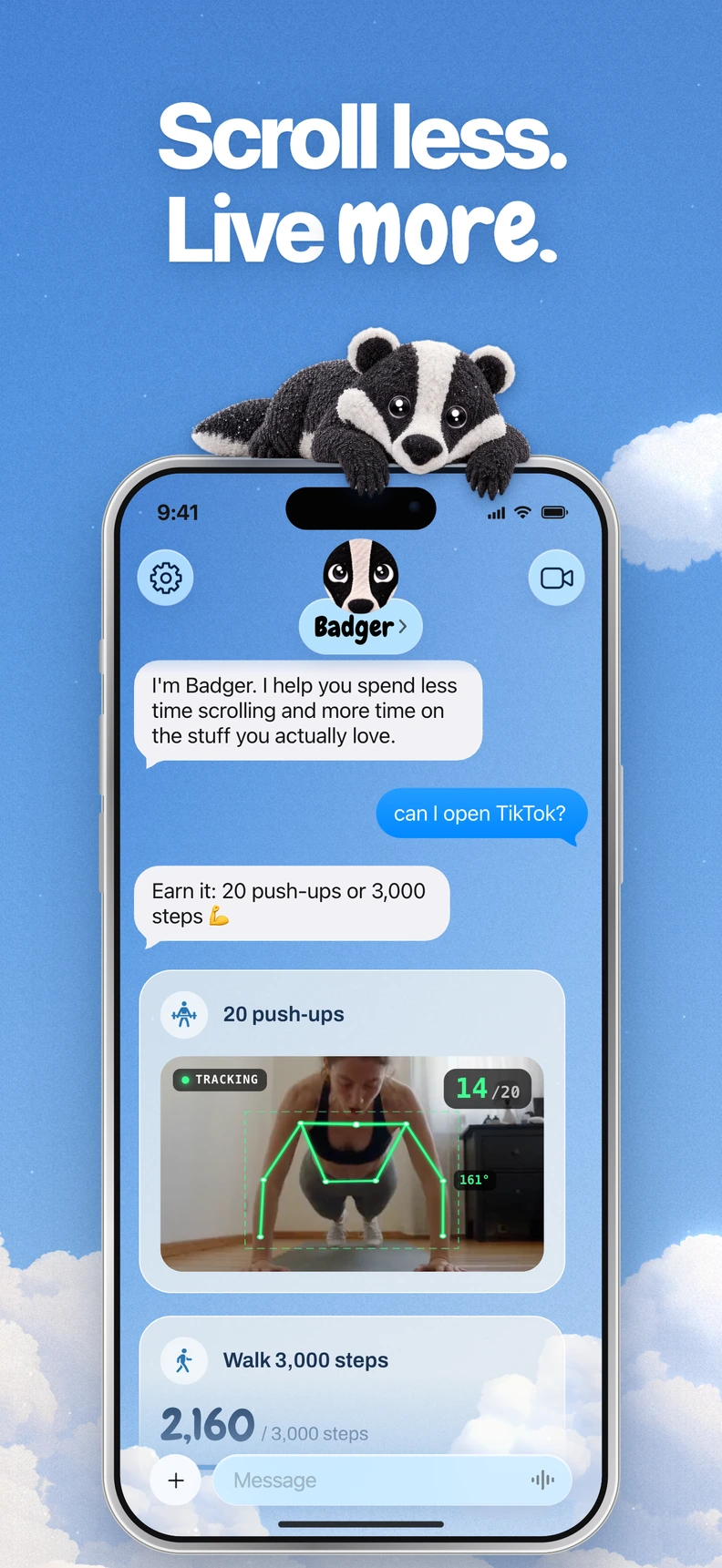


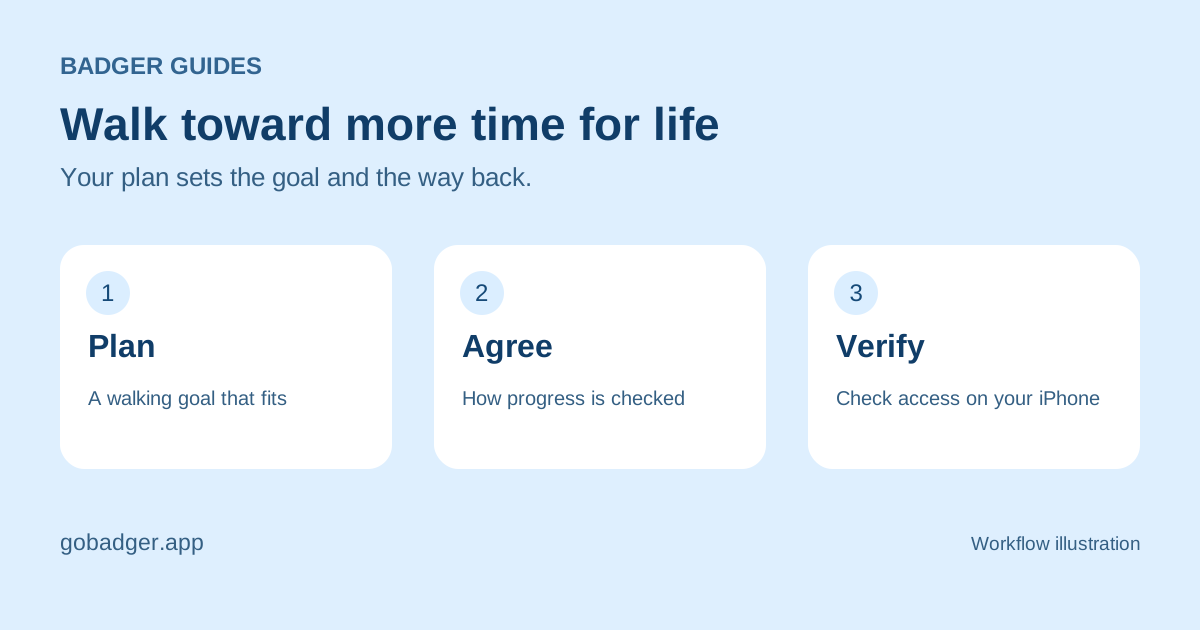
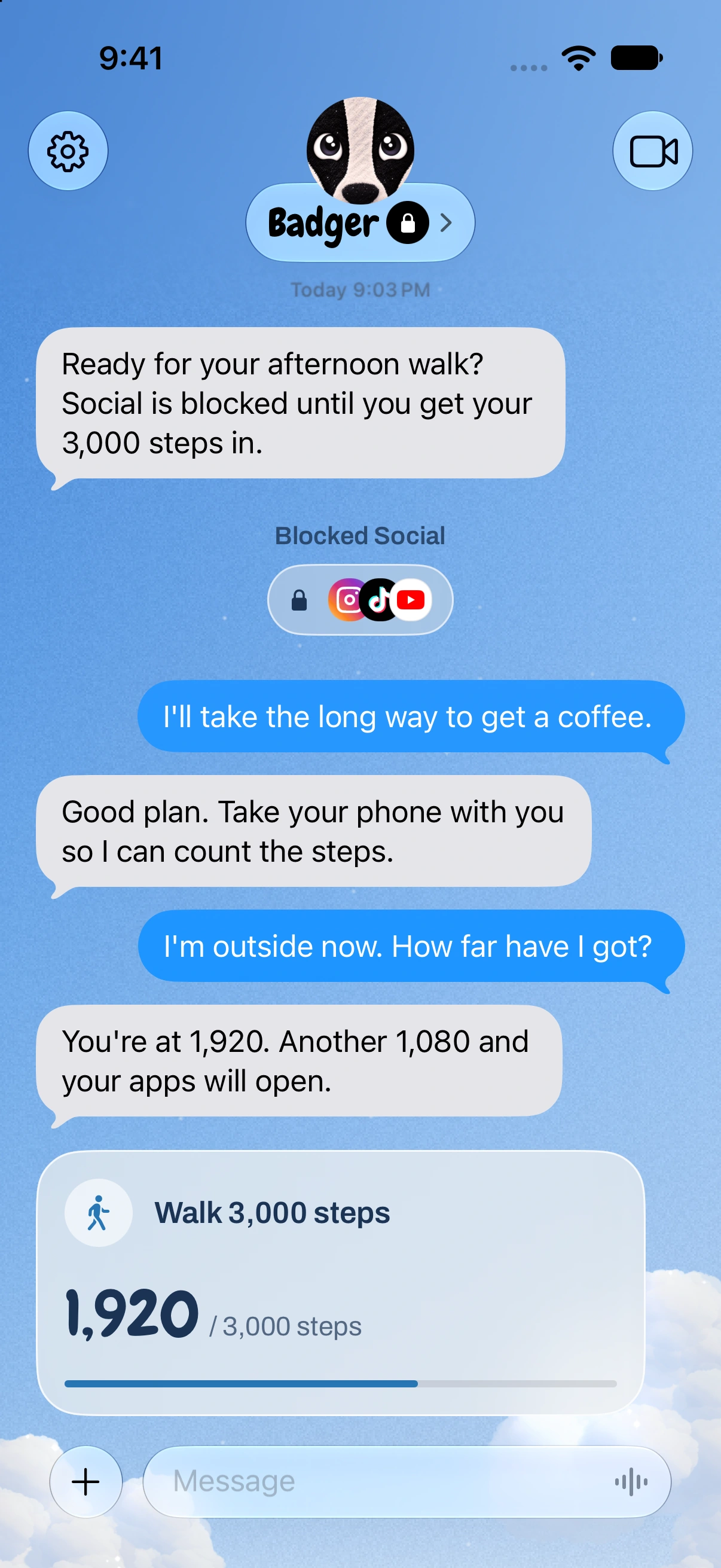
Badger can connect a walking goal to access to selected iPhone apps. You can make a plan around a new walk or your daily steps; choose the option that fits how you want to move.
Which one should you choose?
Badger can count steps you take in a real walk or it can use your daily step goal from Apple Health. And those are actually different things, not just two options for the same thing:
| Feature | Real walk | Apple Health daily goal |
|---|---|---|
| What it counts | The number of steps the phone's motion sensor records while you're on the walk | The number of steps you've taken that day (from Apple Health) |
| Where it needs to be | With you (in your hand, in your pocket, wherever) | Carry the iPhone, or wear an Apple Watch that records steps into Apple Health |
| When it counts | As you take them | Apple Health might have a delay so the step count might lag a bit behind what you've actually done |
| When you should use it | If you're going to go for a walk | If you're going to move about a lot during the day anyway |
If you wear an Apple Watch: You need your actual phone to go for a walk for the step count to work in real time. For a live walk, it doesn't count the steps you've already taken as part of your existing day's count (it only counts the steps you take as part of the plan).
How to set it up
It's pretty simple to set up, just a few steps, in a specific order: Badger is a free app to download that comes with a weekly AI allowance (there's no subscription on the current pricing page).
- Download the app and give it permission to control your Screen Time when asked. This is the permission that allows it to block apps.
- Select the distracting apps to block using the Apple picker and save them as a group with a name.
- Explain your goal and your walking plan to Badger, including where walking fits and the difference between intentional pauses and unintended scrolling.
- Set your step goal and the terms of unlocking your apps. Review the target and app access Badger proposes rather than assuming a universal steps-to-minutes conversion.
- Allow Motion & Fitness for a live walk, or the relevant Apple Health access and in-app sharing for a daily Health goal. These are separate from Screen Time authorization.
- Test it out. Do the walk and check the app you've selected to make sure it's working as you expect.
Making sure the app behaves as you expect is an important step; don't just assume it's working. Using the test to make sure your configuration is working is the best way to make sure you don't end up frustrated. If something doesn't work the way you want, see the troubleshooting guide and support page for common problems.
When in doubt, check
Let's review that permission thing, because it's important. When you give Badger permission to work with your Screen Time, it will use that to control app access. A live walk uses Motion & Fitness access. A daily Health goal uses the relevant Apple Health access and sharing permission; location and photo plans have their own requirements.
It's possible to use it as an app blocker without giving it the activity permission. It's possible to do that intentionally. If you want to, you can see how the app blocking works in general, without the walking stuff, in the guide to blocking apps on iPhone.
Plans should be adaptable
There are times when a walking plan won't be possible: when it rains, when you're traveling, when you're hurt. Badger is an AI agent and you should feel free to talk to it if that happens; it's a valid reason to change your plan. For example, a plan can involve arriving at a gym, sharing a photo, or doing something else Badger supports.
That said, arriving at the gym is not proof that you've completed a workout, and a photo isn't perfect either, so it's important to make sure that your plan terms are the way you want them.
The idea is not that leisure is morally inferior to exercise. You can plan your leisure time while keeping essential tools such as maps and messaging available. If you notice your plan is preventing you from accessing things that aren't what you're trying to change, that's the time to renegotiate your app groups; don't try to grind it out with willpower. There are legitimate needs that pop up, too. While there's no guarantee that just because you've asked for something before, you'll get it now, there is an emergency unblock that doesn't need AI approval or credit.
What you can expect
The specifics of access are agreed upon with you, so whatever arrangement makes sense for one season of life might not make sense for another. Share your intention, try it out, and change your approach if it doesn't work. Badger can remember the goals and context you share, proactively check in, and take action on app access. However, it can't automatically know what's going on in your mind or why you launched an app. The more specifically you state what you're looking for, such as "I want to deliberately take 20 minutes at 9pm", the more useful Badger can be than just "I'd like to use my phone less".
If you'd like to learn more about app blockers in general, the overview of AI app blockers and the comparison page will help put the walking plan into context. Plans can include activity and health data, and you can find out how that data is used in Badger's consumer health data privacy policy.
Start with one honest sentence
Open Badger and tell it about one authentic moment of your week. For example, "Instagram takes up more of my evening than I want. Help me choose a walking goal before I open it." Try the plan, open the selected app to check access after Badger accepts your completed walk, and tweak your goal once you know what it feels like to trade one thing for another. If you feel the walk is no longer the right option, tell Badger and choose something else. The plan is meant to support what you actually want, and the way to figure that out is to start by letting Badger know what happened.
Sources
Questions or corrections? Use Badger Support. More on the Badger blog.