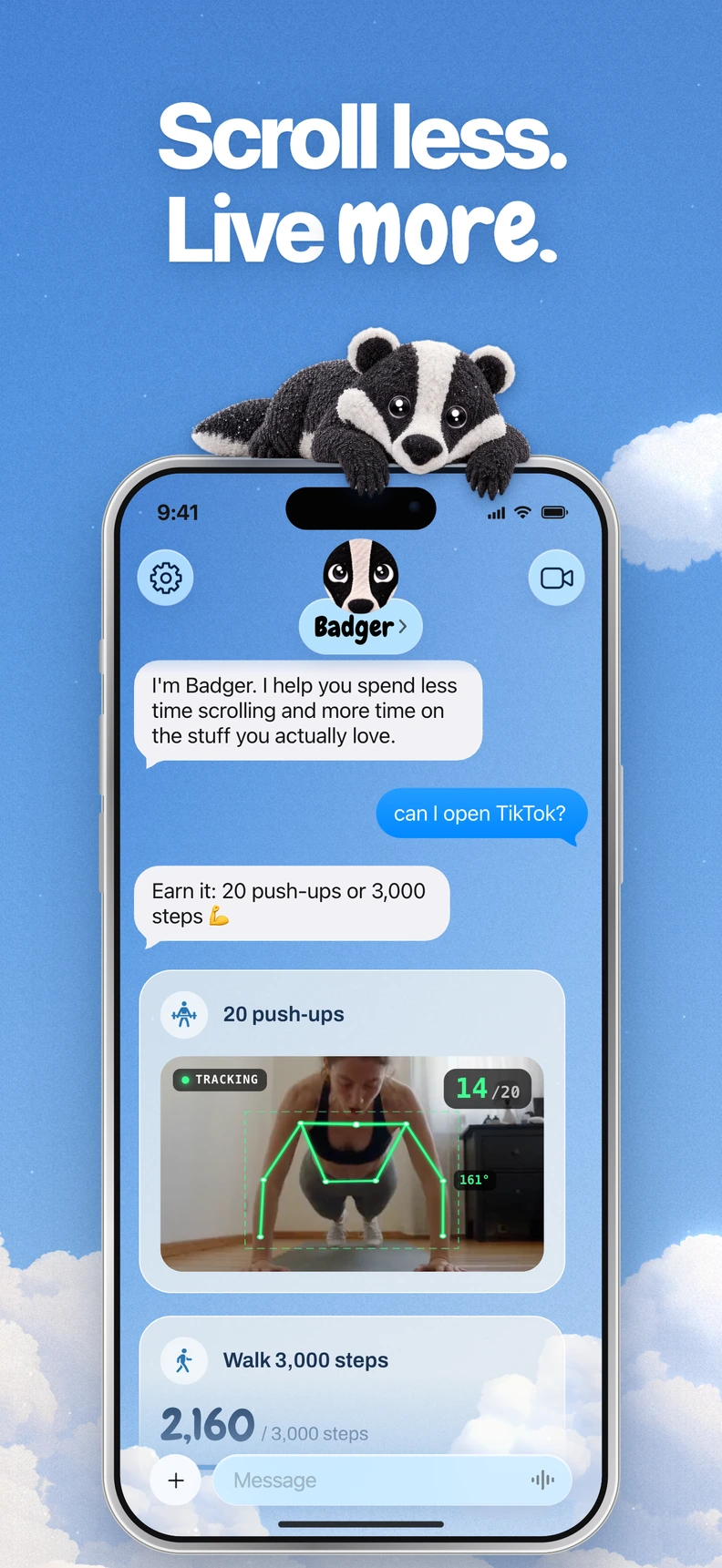


If a Badger block or unlock isn't happening, start with Screen Time permission, the selected apps and the current plan. These checks help separate a setup problem from behavior that needs support.
Check the selected apps and device
First open Badger. Confirm that your plan is currently active and has the right group selected. If the plan has multiple groups, make sure that you have the group you intended.
Just a reminder, app groups are the apps you select when you create them. If you installed a new app, check whether your selected apps or categories cover it. Check app groups in Badger Settings to confirm the apps are grouped as you expect.
Confirm that you are actually testing the app that you want to test. If you're expecting a blocked app but test Safari instead, or expect a block on your iPad when you set it up on your iPhone, the result will not match your expectation.
A block on one iPhone does not automatically apply to another device. Browser URLs and an app are not automatically the same target.
Check permissions and versions
Check Screen Time authorization and your iOS version first. Badger requires iOS 18 or newer; without Screen Time authorization, no block can take effect. The table below covers these baseline requirements.
| What to check | What that means | Where to find it |
|---|---|---|
| Screen Time permission | Badger uses Screen Time to block apps. Without authorization, no block can take effect. | Badger's setup prompt |
| iOS 18 or newer | Badger requires iOS 18 or newer. | Check your iOS version |
| iPhone for your blocking | Blocks apply to the iPhone you authorized. | Use Badger on that iPhone, not another device |
| Badger app version | Check that the app is up to date. | App Store listing |
| App grouping | Review the selected apps and categories, including any newly installed app you want covered. | App groups in Badger Settings |
Note that Apple also integrates Screen Time schedules and time allowances into your iPhone, which can cause app availability to change at the system level. You may want to check out Apple's own guide on how schedules and time allowances work.
Confirm that your plan is actually blocking
Badger connects blocking to what you want to do with your time, so blocking is tied to your specific plan. Depending on the plan, access may be conditional.
If your plan involves something like walking steps, a daily step goal, a gym arrival, or a photo, access may depend on whether you have met the plan's requirements. Check what your plan asks for.
If you recently changed the plan or earned access, check the current agreement before assuming the block has failed.
Take this moment to confirm your intention. If you had planned to use a social app to do work-related research, wanted to take a deliberate break from that app, or didn't intend to scroll social late at night, Badger can't know that unless you share your goals and context.
Badger remembers your goals and context when you share them. If your plan isn't suited to how you use the app, tell Badger so you can discuss an adjustment. You can check out the guides on how to block apps on iPhone and earning screen time by walking to go over both sides of this.
One transparent note: arriving at a gym is not proof that you completed a workout. Likewise, a photo check-in is not infallible. If these checks fail, tell Badger.
Tell Badger clearly what is happening
If something is happening unexpectedly, the best thing to tell Badger is what you expected, what happened, when, and which group. Avoid stacking conflicting requests in the same conversation.
Repeated requests do not guarantee that an active commitment is cancelled. Describe the situation to Badger once and discuss what to change.
Real needs and changed circumstances can be discussed. If you're asking to unblock something that doesn't match your current situation, describe the situation to Badger instead of simply saying "unblock this" so you can discuss adjusting the plan.
Connecting to an external assistant (optional)
If you connect Badger to a compatible external assistant through MCP/OAuth, it can list your authorized groups and request blocks or unblocks with a reason. If you are reporting an issue with an external assistant, confirm the connection is active and that the group is authorized. Even if the external assistant accepts your request, that does not confirm enforcement on your phone; an active commitment may also lead Badger to reject an unblock request.
The connection does not expose your usage history, group app membership, confirmed phone state, or general control of your iPhone. For information on connecting an assistant to Badger, visit gobadger.app/connect/setup. You do not need an external assistant to use Badger.
Restore access when you need it
If you need access back quickly, there is an emergency unblock option that does not need AI approval and does not consume your AI usage allowance. Visit the pricing page for the most up-to-date information on emergency rules.
Emergency unblock is for access, not account deletion. Account deletion is not a troubleshooting step. If Badger misfires, don't delete your account.
Submit a good support ticket
If you've checked all the above, contact support and provide the relevant details: your phone model, Badger version, iOS version, when this happened, and what you expected to happen versus what actually happened. Do not provide your passwords or unrelated private messages.
Use this template to give support the details needed to investigate:
Phone model and iOS version:
Badger version:
Group name:
What I expected (app, time, block or unlock):
What actually happened (including the time):
External assistant involved, if any:
Send the completed template to Badger Support.
Sources:
Questions or corrections? Use Badger Support. More on the Badger blog.