

Your Two Options
There are two good ways to get started with blocking apps on your iPhone.
Screen Time is a built-in feature in iPhone Settings. Using it, you can establish app limits and schedules without installing anything. Alternatively, you can install Badger: Your Willpower Agent, then collaborate with Badger to design a plan that pairs a block with an alternative activity you'd prefer.
You can start with one approach, then add the other if the built-in tools leave a gap.
Option 1: Use Your iPhone's Built-in Screen Time Options
The built-in Screen Time feature is part of the iOS operating system. Usage reports and the controls to restrict the apps you use can be found in Settings. There is no additional charge or subscription necessary to use Screen Time (Apple).
It's important to note that the names of the menu items have changed between versions. Make sure you verify which guide applies to your iPhone before you proceed.
Screen Time Schedule and Time Allowances for iPhone on iOS 27 or Later
Apple has a continuously updated guide with the current instructions for how to configure Screen Time Schedules and Time Allowances (Apple).
- To establish a repeating time period, open Settings > Screen Time > Screen Time Schedule > Schedule and Add Schedule.
- You can set time allowances for app categories on the Settings > Screen Time > Time Allowances screen. Use Match Screen Time Schedule to apply allowances during your schedule, and Manage Categories to organize categories. Share Across Devices is the separate setting for other Apple devices.
Apple mentions that the latest features are only available on devices running iOS 27, iPadOS 27, macOS 27, watchOS 27 and visionOS 27 or later.
App Limits and Downtime on iOS 26
Because the instructions are different when using the iOS 26 guide, do not follow the instructions for iOS 27 (Apple).
- Choose categories or specific apps by using Settings > Screen Time > App Limits > Add Limit and set the number of hours you want to allow per day.
- A recurring period of time (for example, every night) can be configured in Settings > Screen Time > Downtime > Scheduled.
- When you set a Screen Time passcode, you will find a new option called Block at Downtime that applies the Downtime restriction while keeping Always Allowed apps available.
- Using Always Allowed, you can choose to keep some apps and contacts accessible at all times.
If you use Share Across Devices with the same Apple Account, information about your schedules, allowances and usage can be shared with your iPad and Mac as well.
Option 2: Use Badger
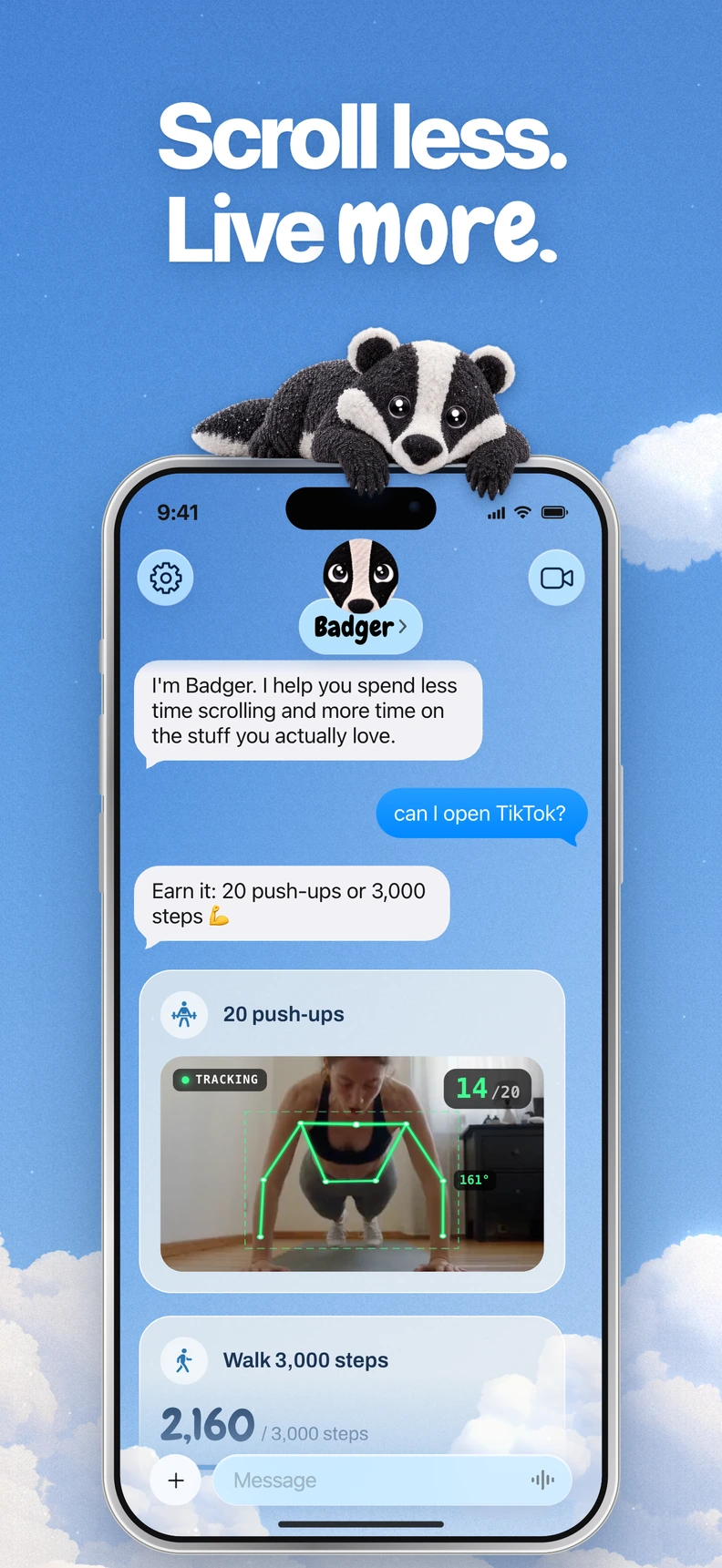
Badger is a personal AI agent focused on one thing: helping you live a more meaningful life. You can text it about what matters to you. It can make a plan, block distracting apps, and help you follow through. It is free to download and use today, with a weekly AI allowance and no subscription on the current pricing page. You'll need iOS 18 or later to use it.
Setup
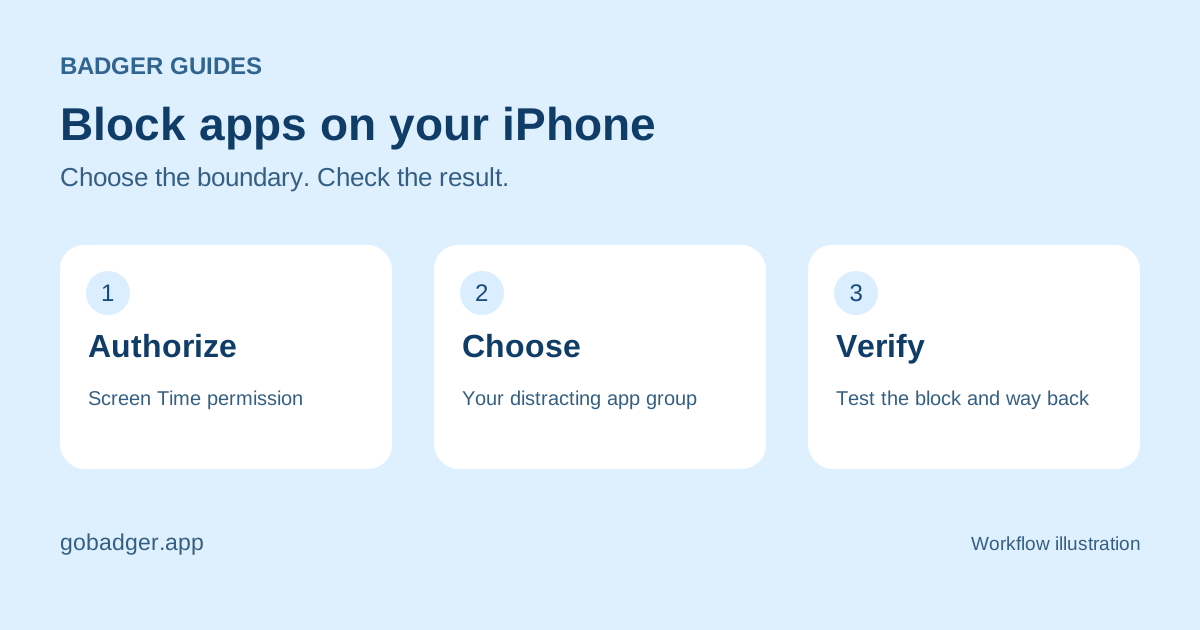
- Install Badger from the App Store, and follow the setup instructions.
- Authorize Screen Time when prompted, because Badger relies on Apple's own blocking system.
- Pick the real distracting apps in Apple's picker and save them as a group you've named. If you've already made your own groups, you'll find them in Badger Settings.
- Tell Badger which part of your day gets derailed and what you'd rather do with that time.
- View Badger's proposed plan and accept it or negotiate another one.
- When the agreed plan says an app should be blocked, open that selected app and confirm that blocking has worked.
The key difference from simple app limits is that your time is considered. For example, if you use the same app for focused work research, a purposeful break or mindless late-night scrolling, a good plan considers not only when help would fit but what you want. Your plan might be tied to an action, such as taking new walking steps, a daily step goal, arriving at the gym, a photo or another supported action. You aren't required to have all of your blocks tied to steps, and arriving at the gym is not proof of a completed workout.
Re-activating apps
With Screen Time, a passcode can gate changes, but whether a setting holds depends on who owns the passcode, your family setup and your OS version. Apple does not guarantee that any setting is override-proof. With Badger, you can discuss real needs or changed circumstances with the agent.
However, repeated requests to Badger do not guarantee that an active commitment will be cancelled. An emergency unblock is available without AI approval or AI credit. Badger can be bypassed or removed like any other app, so think of it as a deliberate friction device rather than something that can't be uninstalled.
Which tool is best for you?
Here are a few differences between the products based on the documentation checked at the time of writing.
| What you want | Recommended option | Why |
|---|---|---|
| Block a set time each day, or for a set duration of time, without installing an app | Apple Screen Time | Schedules and Time Allowances are built into your iPhone |
| Tie app access to an action you choose | Badger | A plan can involve walking steps, arriving at the gym or taking a photo, on terms you discuss with the agent |
| A plan that can adjust when an approach doesn't fit | Badger | The agent can remember goals you share and adjust a plan when an approach does not fit |
| Set all rules on iPhone, iPad and Mac | Apple Screen Time | With the same Apple Account, Share Across Devices shares schedules, allowances and usage information across iPhone, iPad and Mac |
| A way to request a block or unblock through another assistant | Badger, with an optional connection | Badger can optionally connect via MCP/OAuth to a compatible external assistant to request blocks or unblocks with a reason; active commitments may reject requests, and you don't need another assistant to use Badger |
Badger or Screen Time isn't working?
Check these basics first:
- Check what version of iOS you're using. The menu items are different if you are using iOS 26 or iOS 27.
- Make sure you are testing the app that's actually in the selected group or limit.
- Double-check the Screen Time authorization. Keep critical apps outside the selected group; in Screen Time, use Always Allowed to keep them accessible during a block. In Badger, they just shouldn't be selected.
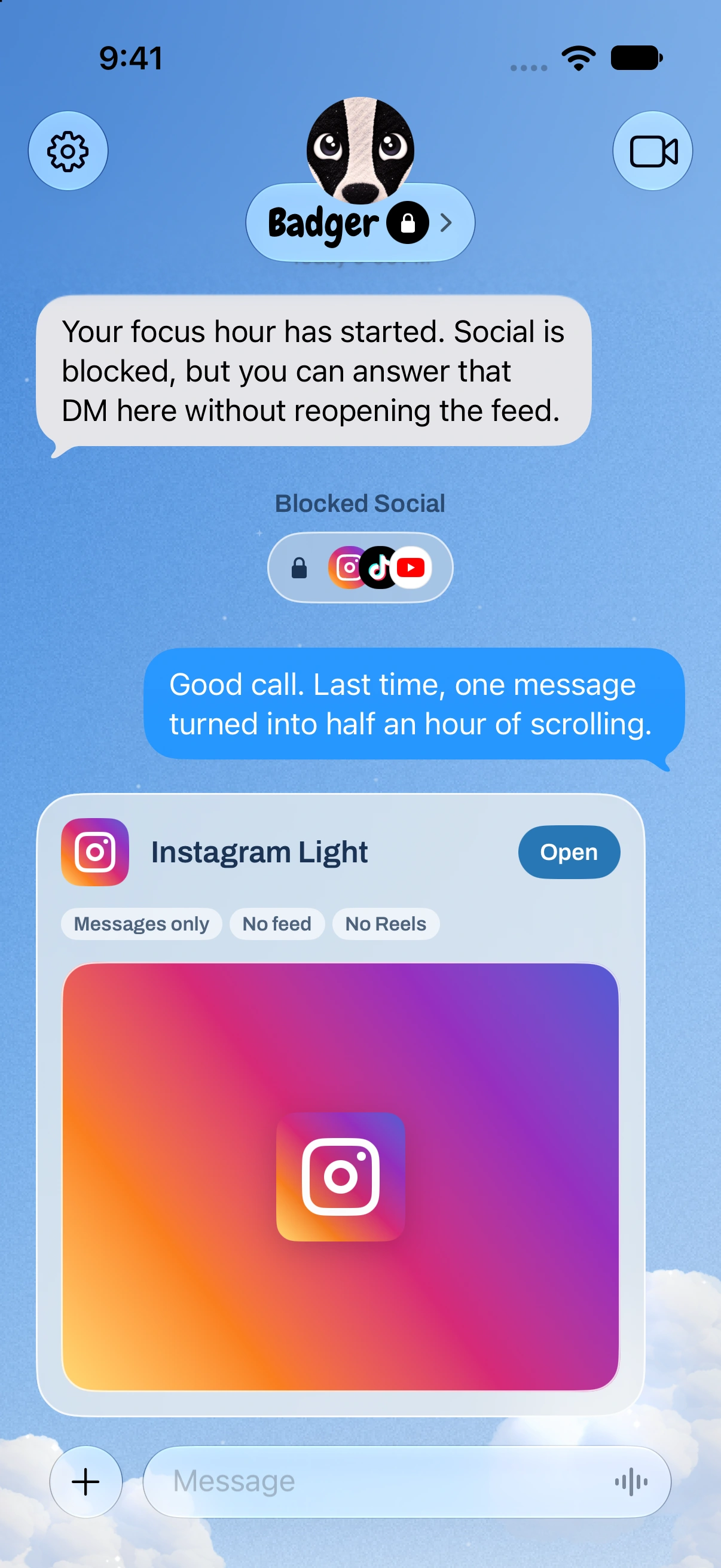
- Try Badger's Light social views and generated mini apps if your real issue is the pull of the full feed.
The detailed app blocker not working on iPhone guide goes into all of these fixes in detail.
Quick start to blocking apps
Start with one app that derails your day and put it in its own group. You can download Badger from the App Store, tell it which part of your day gets derailed and what you would rather do with that time, then review the proposed plan before agreeing to it.
Sources
Questions or corrections? Use Badger Support. More on the Badger blog.