

The ideal iPhone app blocker for you will depend less on the list of features it offers and more on what kind of constraints you're looking to impose. If, however, you constantly set time limits and immediately undo them, you may want a tool that connects blocking to what you want to do instead.
Here's a list of top iPhone app blockers, organized by use case. This list is based on current public pricing and App Store pages, not comparative testing. Prices are in USD as listed and may change.
Choose the help that fits
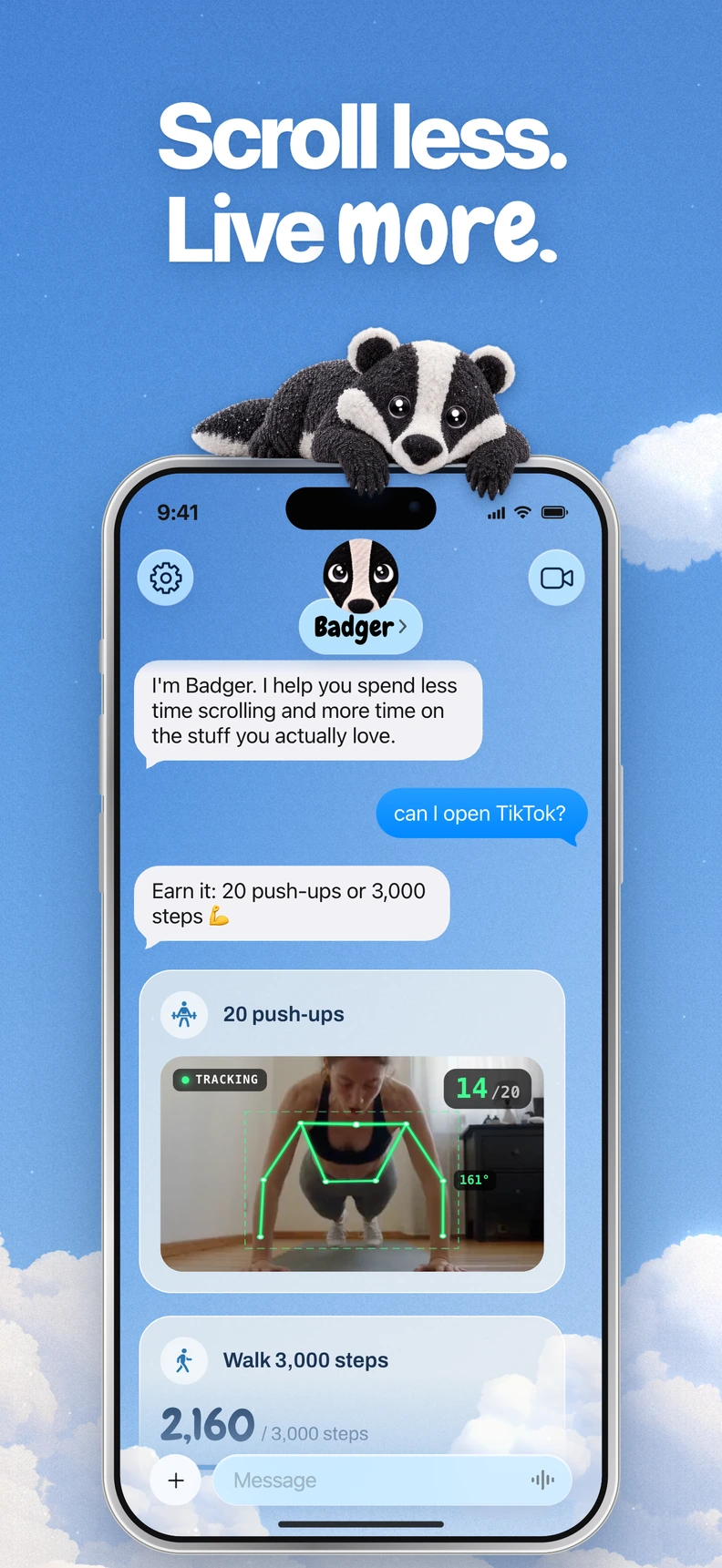
Top pick for a flexible time management plan, enacted with AI: Badger. Badger is a personal AI agent focused on one thing: helping you live a more meaningful life. You can text it about what matters to you. It can make a plan, block distracting apps, and help you follow through. App blocking requires iOS 18 or later. You select distraction apps through Apple's picker and authorize Screen Time. You can put apps into named groups. You and the app create a plan together. For example, if you'd rather take a walk during the day than open social media, you can create a plan that links your step count to those apps. Or you can create a plan that links app access to a daily step goal, a gym arrival or taking a photo. Badger remembers the context and goals you share, checks in proactively, and can adjust the plan when an approach doesn't fit.
You can talk to the app about actual life changes and adjust the plan. Repeated requests do not guarantee that an active commitment will be cancelled. It also has an emergency unblock option that doesn't require AI approval or AI credit. It's free to download and use today, with a weekly AI allowance that's detailed on the current pricing page. Badger can be bypassed or uninstalled. It may fit if you prefer discussing and adjusting a plan alongside blocking.
Top pick for beginners: Apple Screen Time. Screen Time is included with iOS, providing usage tracking and time management in your Settings app, with no extra subscription needed. The naming of features may vary depending on your iOS version: On iOS 26, you'll see App Limits, Downtime and Always Allowed; on iOS 27 or later, the current guide uses Screen Time Schedules, Time Allowances and Match Screen Time Schedule. If you have the same Apple Account signed in on multiple devices and have Share Across Devices enabled, you can sync schedules, allowances and usage information between your iPhone, iPad and Mac. If you want to put a cap on how much time you spend with certain apps each day and trust yourself to keep the passcode, Screen Time will do the trick.
Top pick for free app blockers with good time management: ScreenZen. ScreenZen, a free, donation-supported tool that doesn't require a subscription, is available for iOS, macOS, Windows and Android. Its App Store listing describes the capability to progressively increase delays to launching specific apps, set brief windows of time during which you can use the apps, configure rules for specific days and times, set goals, enforce strict time limits, lock settings, offer guided breathing exercises, and build streaks. The optional Halo, an add-on hardware product, is a physical companion for making a location distraction-free, but you don't need it to use the basic software. If you're looking for a cost-free tool that you can use to adjust the level of friction you want to experience with certain apps, ScreenZen is a solid option.
Top pick for scheduled multi-device app and website blocking: Freedom. Freedom lets you sync a blocking session across devices you select, all with the same account. Supported platforms include Mac, Windows, iOS, Android and Chromebook/Linux, with different features available on each platform. The free version allows you to manage unlimited devices, create custom blocklists, and start immediate sessions up to two hours long. Sessions are synced across selected devices. The Premium version allows longer and scheduled sessions as well as a Locked Mode, and is priced at a listed $3.33 per month when billed yearly or $8.99 monthly. If your distraction behavior transfers between your smartphone and your laptop, Freedom can help you manage time with either or both devices.
Top pick for a physical app blocker: Brick. Standard Brick is listed at $59. The physical device pairs with your iPhone or Android phone (iOS 17+, Android 12+), and the app lets you choose app and site groups and modes. Typically, you'll end a block session by scanning the Brick, but remote activation and scheduled blocking are also available. There's also a Strict Mode and five Emergency Unbricks, so it's not literally keyed shut. If you're constantly able to break the restrictions on your device, try putting the Brick device on the other side of the room. Brick Night is a separate $129 product for sleep purposes.
Top pick for a scheduled time management tool with community features: Opal. Opal lists iOS, Android and Mac support. Its iOS listing describes schedules, time and open limits, reports, blocklists, friends, rewards, and Shortcuts/Focus integration; features vary by platform. The free version includes one rule, plus basic timers. The Pro version, which includes Hard Mode and extra reporting, lists $99.99 billed yearly or $399 lifetime. Its monthly pricing panel has conflicting billing labels, so confirm that option at checkout. Hard Mode restricts normal unblocking, though a weekly Emergency Pass can lift active restrictions for an hour and cancel an active Hard Mode timer. If you're looking for a tool that helps you define rules, track your usage, and feels like a community, Opal is a good option.
Top pick for a conversational app blocker: Superhappy. Superhappy, from Razzed, LLC, is marketed as an AI screen-time coach. Its App Store listing describes blocking selected apps and having an intentional conversation with the AI coach to unlock them, after which you can choose a time-limited access window; the coach blocks them again when it ends. There are daily limits, streaks and sessions specific to different times of day. The app is free to download with some features gated behind a Premium subscription. If your weak moment is while you're unlocking an app, this app addresses it head-on.
The quick take
| Tool | Price | Type | Ideal for |
|---|---|---|---|
| Apple Screen Time | Free (built-in) | Built-in iOS controls | Minimalist control |
| ScreenZen | Free (donation-supported, optional Halo add-on) | Cross-platform app | Friction-based blocking |
| Freedom | Free plan; Premium at $3.33/mo (yearly) or $8.99/mo | Subscription app | Unified device blocks |
| Brick | $59 upfront, no subscription | Hardware + app | Hardware separation |
| Opal | Free tier; Pro at $99.99/yr or $399 lifetime | Subscription app | Rule-based systems |
| Superhappy | Free (Premium features) | Freemium app | Dialog-based unlocking |
| Badger | Free with weekly AI allowance; no subscription today | AI-enabled iOS app | Goal-linked plans you can discuss and adjust |
How to pick the right tool
Start with a reality check. When your screen-time reductions don't work, why? Is it because you never set any limits in the first place? In that case, the built-in Apple Screen Time controls are your best bet, and they're free.
If you've set limits that you regularly bypass, you'll need to decide which approach you'd like to take:
- a friction tool such as ScreenZen
- a hardware tool such as Brick that adds physical distance from an override
- rule-based tools such as Opal and Freedom
- an in-the-moment dialog tool such as Superhappy
- a goal-oriented plan like Badger
You might be using apps for work at noon and doomscrolling for two hours at midnight, so you may want different support at different moments. That's why a plan you can discuss and adjust can fit changing circumstances. That's the space Badger fills.
There's also the question of cost. If you're looking for a basic free tool, start with Apple's built-in Screen Time controls or ScreenZen. A hardware-based option such as Brick may suit you if you're okay with a one-time expense and keeping the device away from your phone.
Budget follows type. Free software covers the basics; subscriptions can add scheduled sessions or reporting, while physical devices add a one-time cost and the option to put the device away from your phone. If you want to evaluate blocking before spending anything, Screen Time and ScreenZen cost nothing.
If you're ready to try a goal-based plan, check out the iPhone app blocker page on Badger's site for how it approaches the concept, and the guide to blocking apps on iPhone for the steps to get set up. For more detail, read the individual comparisons below.
Start by picking one specific use case from the table above that you'd like to solve, set up the solution today, and then make a plan to adjust it if the first approach doesn't fit.
Sources
Questions or corrections? Use Badger Support. More on the Badger blog.