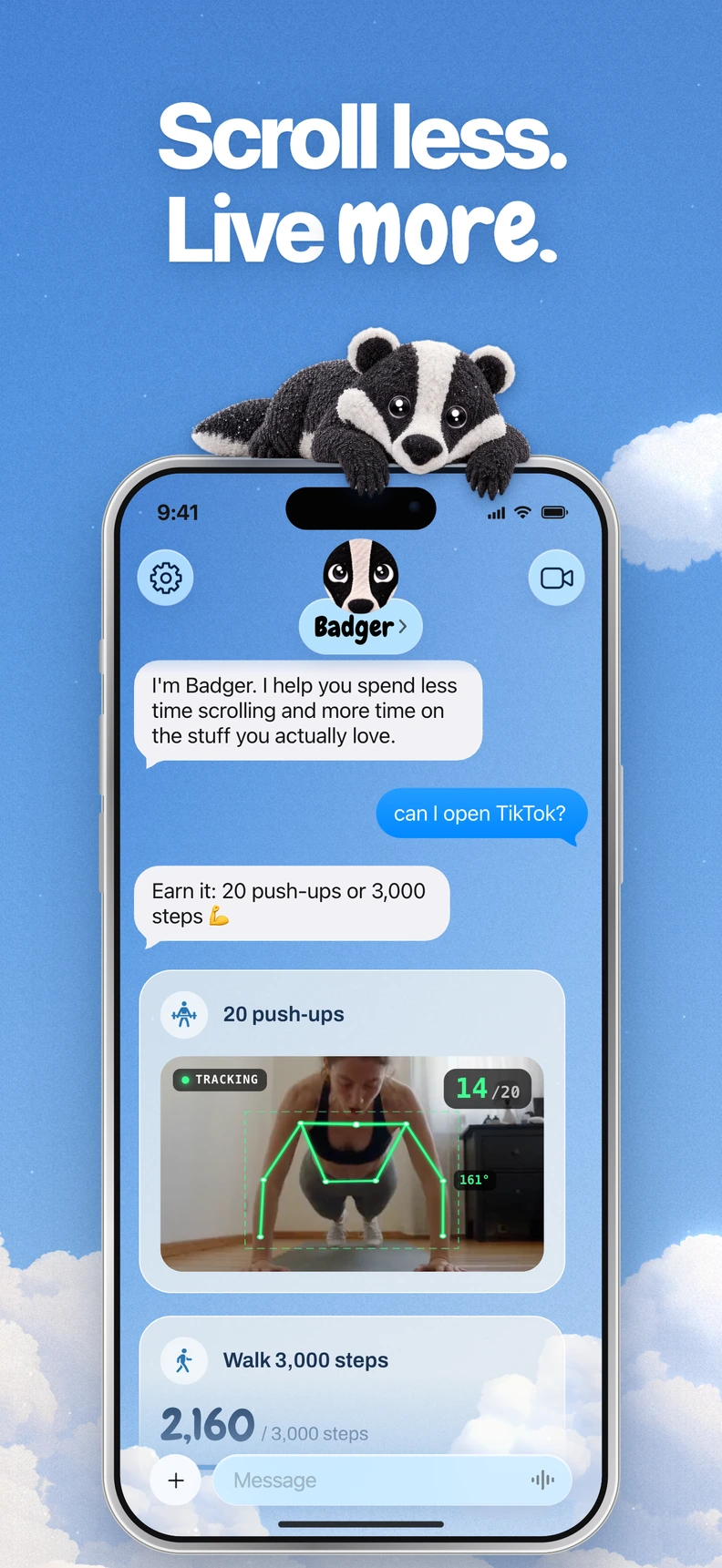


You tap Instagram, meet the limit screen, and dismiss it without really reading it. Again. You were going to go outside, finish your book, maybe get good at chess. Instead, you're negotiating with a setting you chose yourself.
A useful social media time limit app should help you get to those other things, not just get better at closing apps. Badger is a personal agent built around that difference: it figures out when to step in, then gives you something better to do. The true measure isn't whether a lock appears. It's what happens after you tap through it.
Fixed Timers and Adaptive Limits Side by Side
You open a blocked app for the fifth time. The screen hasn't changed. Neither has your reaction: mildly annoyed, already looking for the override.
That doesn't mean every timer is useless. It means a stop sign and a next step are different tools. A fixed timer gives you a rule. An adaptive intervention adjusts the interruption around how you use your chosen apps.
Fixed timer vs adaptive intervention
| Feature | Fixed timer | Adaptive intervention |
|---|---|---|
| When it steps in | At a set daily limit, same for every app in the selected group | When your use runs long on the apps you named |
| What sets the limit | You pick a number once | It learns your line and lowers it a little at a time |
| The lock | Hard block, the same every time | Graduated: a pause, a plan or a wait before access |
| Quiet days | Still counts against the same limit | Measures real use, so nothing happens if you're not on the apps |
| Where it fails | You raise the number or tap through the screen | It loosens or tightens instead of pushing you to quit |
| What you do next | Nothing built in; you sit at a locked screen | Something to do, like a pact, a check-in or a walk |
The timing matters. A daily cap can stop you halfway through something useful because you used the allowance earlier. An adaptive approach aims to notice when deliberate use has turned into lingering.
The way you set the limit matters, too. Picking a number is simple and predictable. Adjusting it gradually means less manual tuning, but you give up some of that predictability. That's a real trade-off, not a reason everyone should choose the adaptive option.
On quiet days, usage-based intervention should stay quiet. You shouldn't have to deal with a prompt about Instagram when you haven't opened Instagram. A schedule serves a different purpose: protecting a period you've already decided to keep clear.
Pick the right job for the tool
Apple's built-in Screen Time limits are free and simple. They're a sensible starting point if you want one number for one app. You can also set separate limits, rather than give every app an identical allowance.
Parental control apps such as kids360 handle another job: helping a parent manage a child's device through controls such as daily limits and schedules. That's useful family administration. It isn't the same as choosing how to manage your own habits.
Our approach adapts to how strict you need it to be and gives you something to do beyond the locked screen. That doesn't make adjustment foolproof. You still need to notice whether the intervention changes your next move or becomes another prompt you dismiss.
Judge the limit by your next action, not by how impressive the lock looks.
Do you want a rule that never changes, or a tool that adjusts to you?
What a Good Limit App Measures Before It Steps In
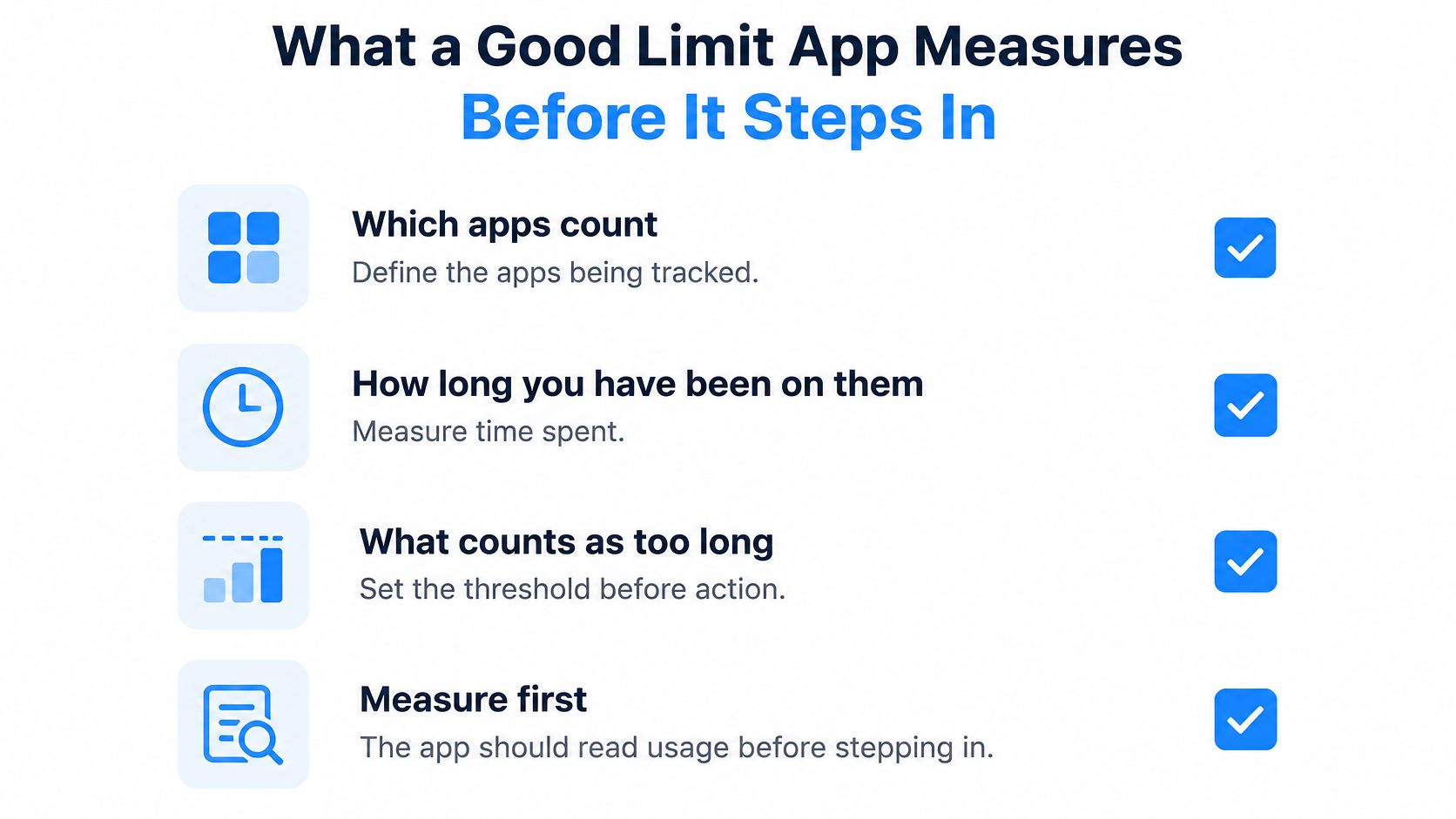
Before anything gets blocked, a useful app needs clear answers: Which apps count? How long have you been on them? What counts as too long?
Start with measurement. Reading actual usage is different from firing a reminder at the same hour every evening. Both can be useful, but only the former tells you whether you've spent time in the apps you meant to control.
Use this checklist to separate measurement from the intervention itself.
Choose the apps before choosing the trigger
Through Apple's Screen Time selection, you choose app groups. You could put Instagram, TikTok and YouTube together while leaving Messages and Maps alone. Review the actual selection rather than assuming a category contains exactly what you intended.
Then choose what starts the restriction. Our plans can lock selected apps immediately, on a schedule, after a daily usage allowance, or when you arrive at or leave a saved place. Those triggers answer different questions: stop now, protect this period, limit accumulated use, or support a routine tied to a location.
You choose the groups and authorize Apple Screen Time. Your iPhone then applies the blocks in your plan. Without that authorization, no block can take effect. Our app runs on iPhone with iOS 18 or later.
If you're still working out what your usage totals mean, this guide to an app that tracks screen time helps you start with observation rather than guesswork.
Run this check before committing
- Your actual apps: It covers the apps you really use, so the main distraction doesn't escape through an unselected app.
- Useful triggers: It supports a schedule or usage allowance, so you can match the restriction to your problem.
- Essential access: Calls, messages, maps and urgent work remain available, so the plan doesn't interrupt something necessary.
- Your control: You can change or end the plan, so an awkward setup doesn't become a reason to abandon it.
- A clear next step: It explains what happens at the limit, so you know how normal access and exceptions work.
Test this in an afternoon. Select a small group, create a temporary restriction, and check both a selected app and an essential app you left out. Try the normal release path, inspect the usage record, then restore the plan you want.
Don't mistake a successful setup screen for a successful test. Open the apps and check.
Why Friction Beats a Hard Lock Screen
In a randomized field experiment, the Danish Competition and Consumer Authority tested reflection, planning and waiting with 269 adolescents aged 13–17, and all three interventions reduced social-media activity by approximately 31–36% without reducing participants' satisfaction.
That's a reason to take small interruptions seriously. It isn't a promised result for you. The participants were teenagers in Denmark, and the experiment doesn't establish a universal outcome for adults or other markets.
Make the interruption ask something useful
A hard lock decides for you: access denied. Friction leaves a decision in your hands, but makes you take it deliberately. That distinction matters if your current override has become muscle memory.
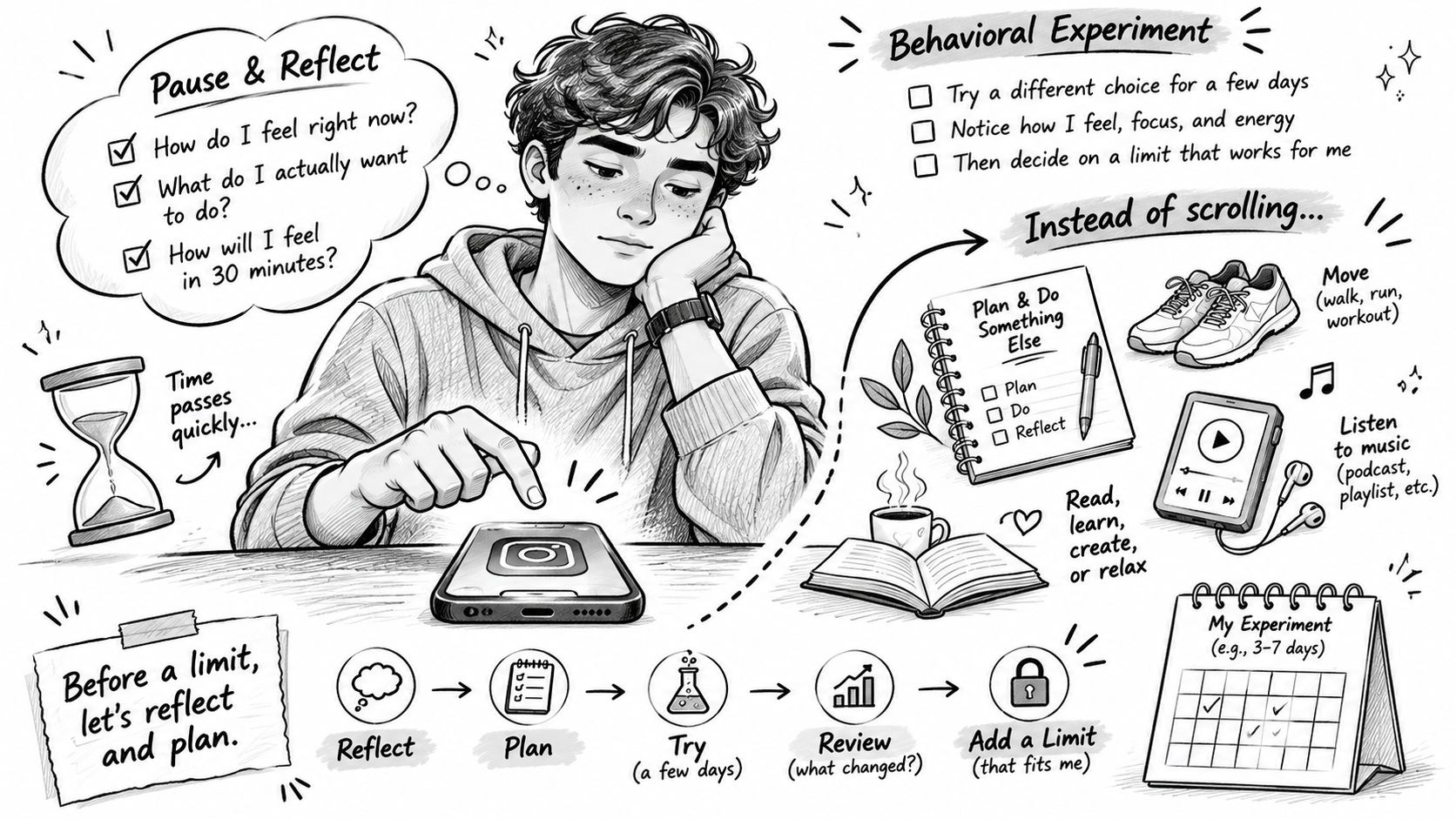
Try one of these before opening your usual feed:
- Reflection: Ask yourself what you came here to do, then name the task before opening.
- Planning: Write a short plan, such as opening for ten minutes to reply to one message, rather than entering without an endpoint.
- Waiting: Put a brief pause between the urge and access, then decide whether you still want to continue.
The ten-minute plan is an example, not a recommended dose. Your purpose could be checking a friend's post, finding a saved recipe or replying to a message. The important part is knowing what finished looks like.
This is the habit-change sequence to try before adding a heavier restriction.
Add effort only where it helps
Our access options include scanning a registered NFC tag or barcode, completing a short pause such as math problems or a breathing exercise, or showing the app on a live call. These create different kinds of interruption. A tag requires a physical action; a breathing exercise can happen where you're sitting.
Neither is automatically better. A physical step might suit the moment when you keep reopening a feed from the sofa. It might be unnecessarily awkward when you're out and need access.
If you're considering a dedicated focus tool, KeenVerdict lets you compare Opal with similar apps. Use the comparison to inspect the release process, not just the list of blocking modes. A feature that sounds strict may still be the wrong fit for your day.
Start light: Use the smallest interruption that changes your decision. Add effort only when you keep opening without thinking.
Don't turn every access step into an obstacle course. If a reflection question works, keep it. If you answer automatically and continue every time, change the step rather than congratulating yourself for having a very stern lock screen.
Replacing Scrolling With Something You Actually Do
Blocking an app leaves a gap. If you haven't chosen what goes there, opening another feed is an easy next move. You need a replacement that's easier to start than a fresh negotiation with yourself.
Choose something visible and finishable: a walk, a few pages of a book, a chess puzzle, some Spanish practice or a small drawing. Not a complete personality renovation before dinner.
A replacement should fit your actual day, not an imaginary version with unlimited energy.
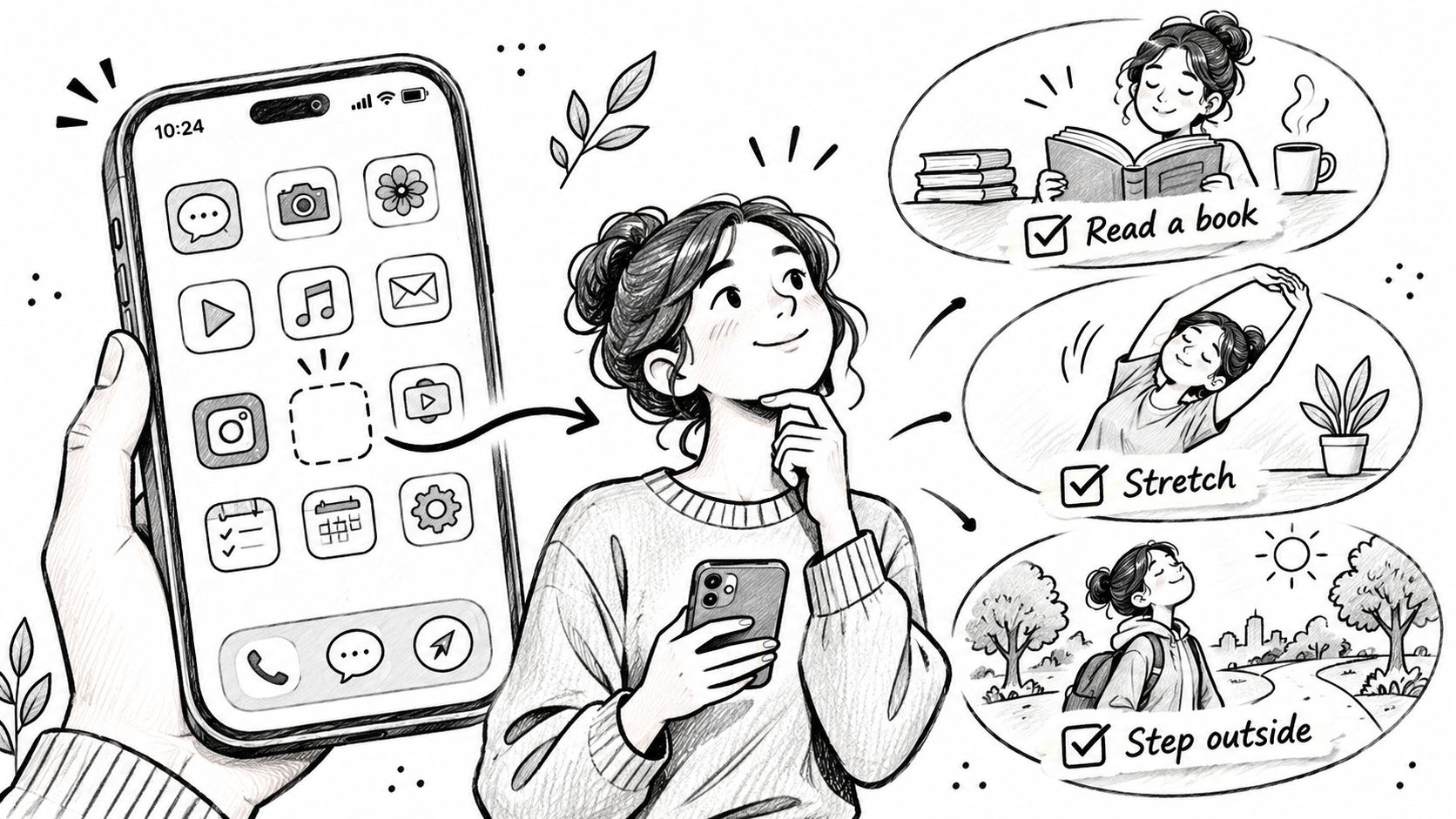
Give yourself an action with an ending
A 2025 randomized trial published in BMC Medicine reduced students' average screen time to about 129 minutes per day versus 264 minutes in controls during the intervention, but the difference largely disappeared after the first follow-up week. Short-term restriction and a durable routine aren't the same thing.
Don't treat lower screen time as proof that everything else improved. Check what you did with the opening. Did you read, rest, move, make something, or just switch screens?
Put the replacement where you can start it. Leave the book beside your usual seat. Keep a sketchbook open. Choose the walking route before you're standing by the door wondering where to go.
If distressing feeds are the specific problem, these practical ways to stop doomscrolling can help you choose what to change around the scrolling moment.
Make it a small promise with other people
A pact is one simple promise you keep with a small group. Sample pacts include Walk more, Read more, Learn Spanish, Get better at chess, Draw and Touch grass. Describe yours by the action: read a few pages every day, walk regularly, or practice a language.
Inside a pact, you can see who in your group has done today's activity. You can poke someone who hasn't, chat and react to what people post. The point is company, not appointing your friends as unpaid phone police.
Here's a look at the approach in practice.
Our plans can tie access to a concrete action. Walking can earn time on selected apps, a gym check-in can open them, and a photo from the kitchen can form part of a plan. Some plans use walking steps, a daily step goal, a gym arrival or a photo check-in as the condition.
Whether small-group accountability keeps people going after the novelty fades remains an open question. Try it yourself for two weeks and notice whether the group helps you follow through. Call it habit maxing, hobby maxing, life maxing, or just making room for side quests. The useful part is doing something you wanted to do.
Ignored Limits, Workarounds and Emergency Access
You raise the allowance, turn off the restriction or remove the app. That is the workaround, and every regular blocker user finds it eventually. What matters is what the app puts in front of you at that moment: a locked screen and nothing else, or a reason to pause and a record of why you tapped through. Treat each override as information about the setup.
Restrictions alone don't give consistent results. A 2025 study of 70 smartphone users indexed by PubMed found no significant overall time-by-group effect, although participants reported better wellbeing and lower stress at follow-up, with larger benefits among people with higher problematic smartphone use. Strictest blocker wins is too simple a picture.
Separate a real task from an automatic open
Before overriding, name the task. Replying to a friend about a changed meeting place is specific. Opening Instagram because you just closed Instagram is something else.
The same app supports both. Ask two questions: can you describe what you need, and will you recognize when you've finished it? A yes on both makes the visit a task. A no on either makes it a reflex.
A useful exception has a purpose and an ending.
For a more deliberate restriction setup, this guide to blocking screen time can help you think through the boundary you want.
Know the escape route before you need it
Leave calls, messaging, maps, medical care and work you must respond to available. Emergency access exists for genuine interruptions, so keep the tools you rely on out of the distracting-app group in the first place.
Our standard emergency unblocks are limited to five per calendar month, counted in UTC, with no rollover. Emergency unblock works independently of our AI services and your AI usage allowance.
Learn those details before an awkward moment arrives. Know which apps are covered, how the release option works and what you'll do if the plan interrupts a legitimate task. If a limit app leaves you no way to handle a real need, you will uninstall it, and the limit goes with it.
Keep a simple record when you tap through:
- Intended task: Write what you were trying to do before access.
- Actual action: Note whether you completed that task or drifted into the feed.
- Useful adjustment: Decide whether the app selection, timing or friction needs changing.
After a week, look for patterns. Repeated necessary tasks mean the boundary is drawn wrong. Repeated aimless opens mean the interruption needs more weight, or the moment after it needs something better waiting. That second failure is the one most limit apps ignore: they record the tap-through and stop there, with nothing on the other side but the feed you were trying to leave.
You're tuning a tool. A short log and an honest look at why you reached past it beat a courtroom argument with yourself.
How to Set Up a Limit You Will Keep Today
Start with a small experiment you can review. You don't need to redesign every app, notification and evening routine before you can make a useful change.
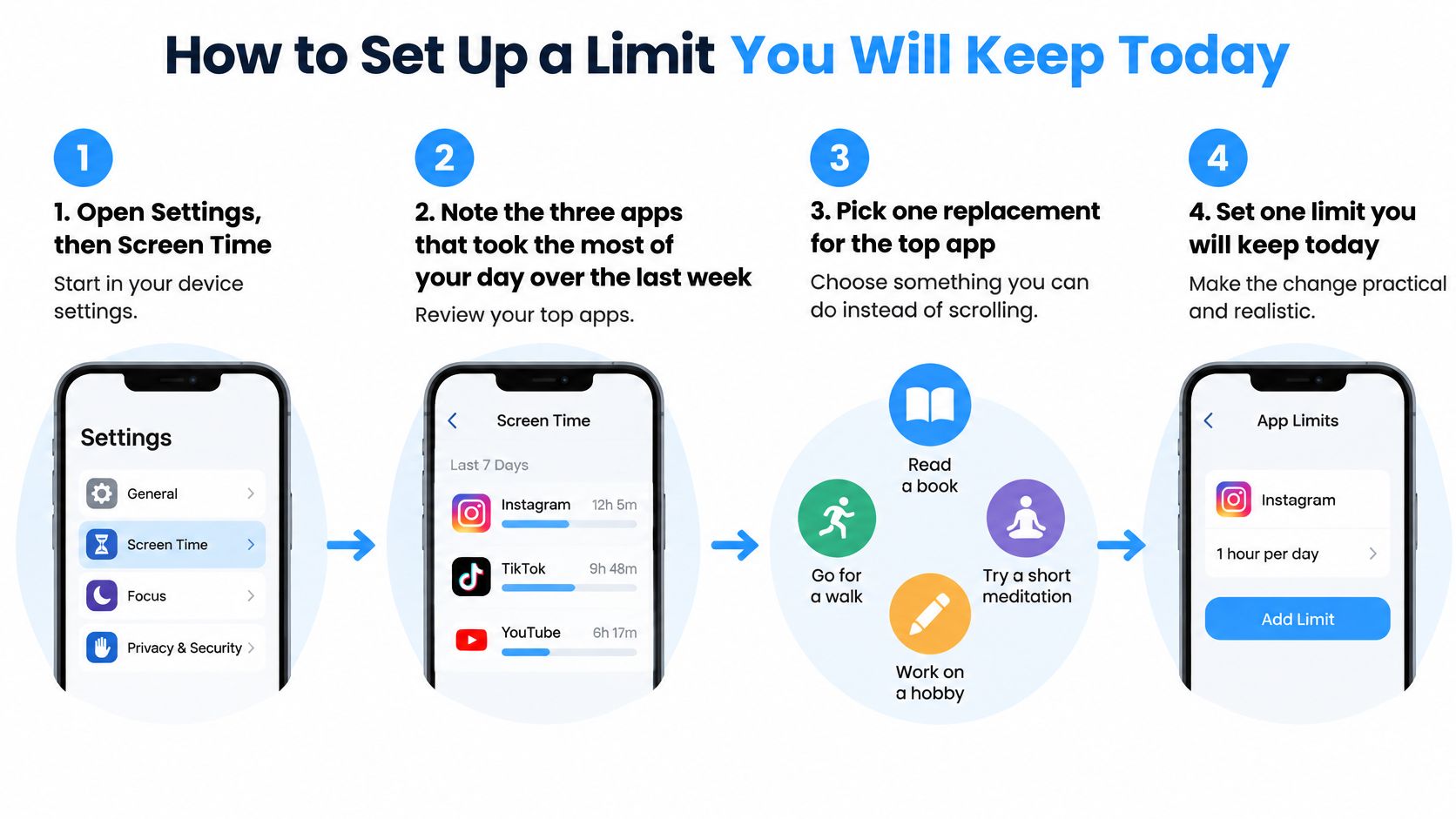
Use this setup flow, then add the pause and review steps below.
Build the smallest workable plan
Check your actual use. Open Settings, then Screen Time, and note the three apps that took the most of your day over the last week. Choose from your own record, not whichever app you think you should feel bad about.
Pick a replacement for the top app. Choose something you can finish in under 20 minutes, such as a short walk or a drawing. You can also begin these decisions in our chat by naming the apps and the activity you want to make room for.
Write why you open it. Be plain: checking a group chat, finding something funny or killing time. A useful reason helps you distinguish a task from an open-ended visit.
Add a 30-second pause. Breathe, read your reason and decide whether to continue. This is a practical starting experiment, not a scientifically established ideal duration.
Run the plan for a week. Count how often you opened the app anyway and note whether you finished your replacement. Recording both stops you from judging the week only by a screen-time total.
Adjust each Sunday. Tighten the plan if you broke it every day, or loosen it if it was unnecessarily restrictive. If you never reached the limit because you were doing what you wanted, you may not need to change anything.
Keep the setup reversible
In our chat, you can ask for a plan that steps in on the named apps and choose the friction it uses. Select the app groups and grant Screen Time authorization so your iPhone can apply the restrictions.
You can change or end the plan, use emergency unblock, or remove our Screen Time access in iOS Settings at any time. Test the plan while you have time to fix a selection mistake.
If your replacement is studying or focused work, Comredix's independent rankings of productivity timer apps offer another useful comparison. A work timer helps structure the activity you chose; it doesn't have to do the job of controlling a feed.
A good first week includes more deliberate pauses, fewer automatic opens and a replacement you finished. Look for a different next action, not a perfect usage chart.
Pick the Strictness You Will Actually Keep
The right limit app is the one whose blocks you stop fighting after the first week. A built-in timer fits when you want a clear cap and already know what you'll do instead. A parental control app fits when you're managing a child's phone. An adaptive personal agent fits when you keep dismissing blocks and want both adjustable intervention and a better reason to leave the feed.
Strictness can change with your week. You might want firm boundaries during exams and lighter ones over a quiet weekend.
Which limit fits your situation
| Situation | Best fit |
|---|---|
| One hard cap on one app | Built-in Screen Time limit |
| Managing a child's phone | Parental control app |
| Tapping through blocks and want steering | Adaptive personal agent |
| Locking in for exams or deadlines | Stricter setting, with messages, maps and school apps left open |
Badger is iPhone only and requires iOS 18.0 or later. It blocks apps through Apple's Screen Time authorization, so no restriction takes effect until you grant that permission.
Each account has a weekly AI usage allowance. Settings shows what remains and when it resets. If it runs out, chat, calls and other AI-based features may be unavailable until the allowance resets. That matters if you plan to keep adjusting your plan through conversation, since an empty allowance means you wait for the reset rather than texting mid-week.
Choose a plan you can trust
Badger doesn't guarantee that apps will lock or release, or that check-ins and notifications will fire, at a particular moment. Keep anything you'd need urgently, like calls, messaging, maps or medical care, out of the locked group. Never let an essential deadline ride on a restriction changing at a precise time.
Pick based on the part you're missing:
- A clear boundary: Start with a built-in cap.
- A deliberate decision: Add a pause, a math problem or a breathing exercise before the app opens.
- A better next action: Choose a replacement and, if it helps, a small group keeping the same promise.
Today, write down your top app, your replacement and your friction step. Set them up this week, then judge whether you're doing more of what you wanted.
Badger offers adjustable limits and pacts with a small group, so leaving a feed can lead to walking, reading or learning something you care about. Download Badger from the App Store at Badger and start with the app you keep reopening.
Questions or corrections? Use Badger Support. More on the Badger blog.