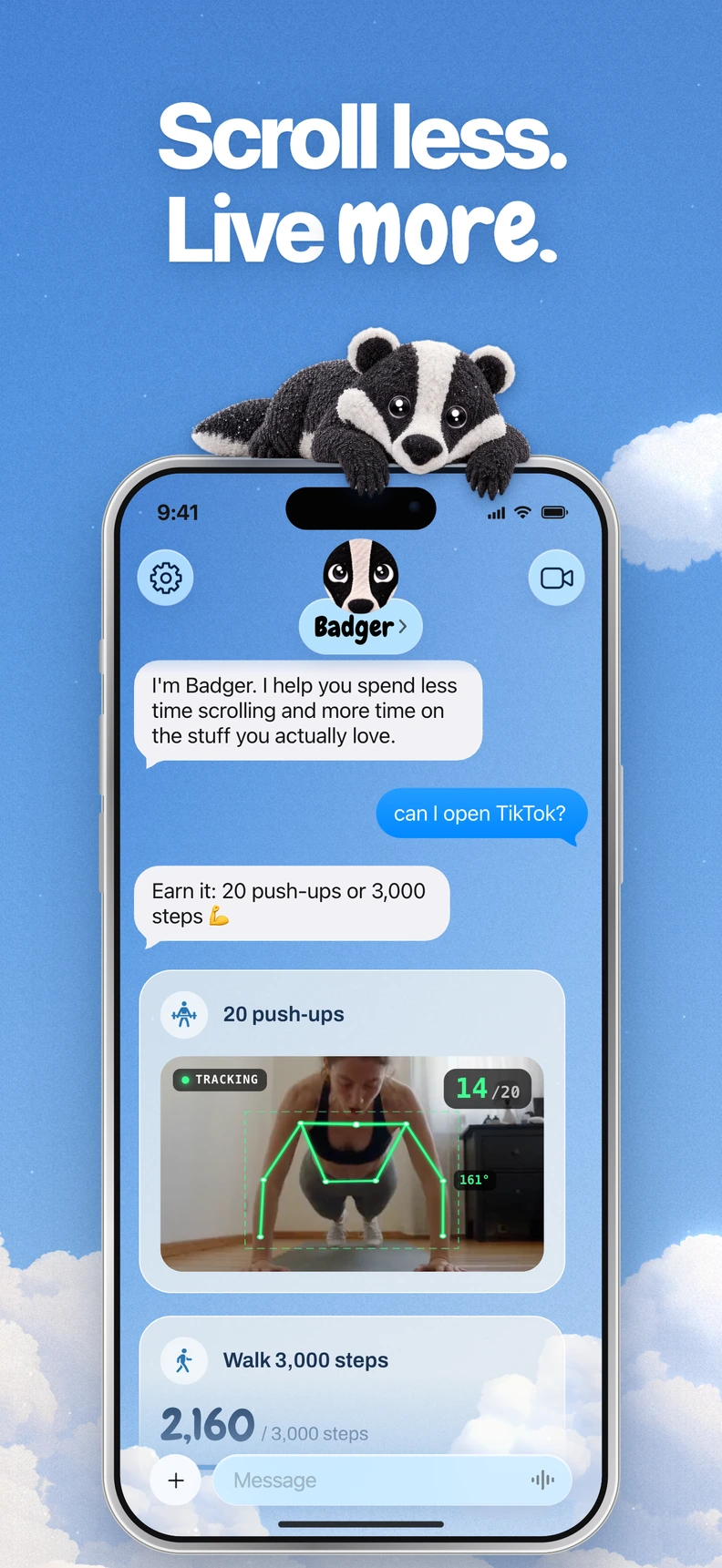


Seven in ten U.S. adults under 30 say they spend too much time on their smartphone, according to Pew Research Center, as do about two-thirds of adults ages 30 to 49. So if you've downloaded a blocker, ignored it, and gone straight back to TikTok, you don't need another lecture. You need something useful to do after you see the number.
Your Phone Has Been Keeping Score
An app that tracks screen time is a quiet logger that records how you use your phone, so you can check actual activity instead of guessing. Think step counter for your thumbs. Less sporty footwear.
Say an afternoon of checking Instagram felt like twenty minutes, but your report shows two hours. That's a hypothetical example, not a verdict on your afternoon. The useful question is whether you meant to spend it that way.
Start with curiosity: Which part of that phone time would you happily keep, and which part would you rather spend elsewhere?
You might want the chat with your friend and the YouTube cooking tutorial. The feed you opened while waiting for pasta water? Maybe less so.
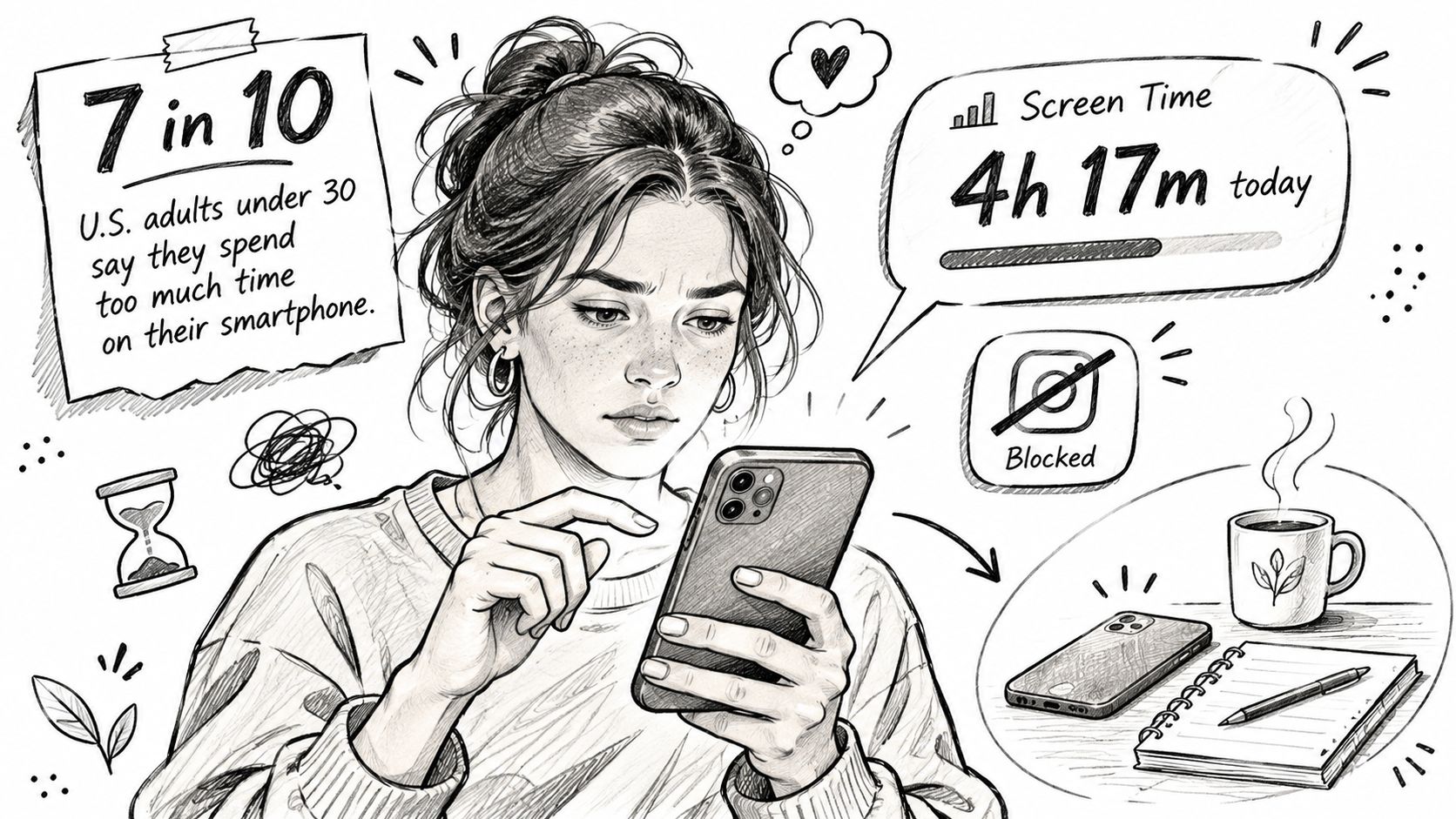
How much is only the starting question. App patterns, interruptions, and what happens after a limit matter too. A useful report gives you a number you can interpret and a clear next move, so you can get fitter, get smarter, or get good at something.
What a Screen Time Tracker Actually Shows
| Metric | What it tells you | Where to look on iPhone |
|---|---|---|
| Total screen time | Overall phone use for the day or week | Settings, Screen Time, Activity Reports |
| App and category time | Which apps and categories take the most minutes | Activity Reports, sorted by app |
| Pickups | How often you reach for the phone | Activity Reports, Pickups section |
| Notifications | How many alerts could pull you back in | Activity Reports, Notifications section |
| Limits and Downtime | Whether your own rules are holding | Screen Time, App Limits and Downtime |
| Website time | Which websites account for browser use | Activity Reports, Websites section |
Apple's introduction to Screen Time describes daily and weekly reports covering app and website time, categories, pickups, and notifications, alongside limits and scheduled restrictions. These are different views of your behavior, not interchangeable scores.
Total time hides the shape of a day. In a hypothetical example, forty minutes watching one video looks different from forty pickups lasting a minute each. The first might need a stopping point. The second might need fewer reasons to reach for your phone.
Read the pattern behind the total
A daily view helps you inspect an unusually scroll-heavy afternoon. A weekly view helps you judge whether your rule fits ordinary life, including days when you need your phone more.
Check notifications alongside pickups. An alert might explain why you opened the phone, but a notification count doesn't prove that every alert caused an opening. Look for connections rather than assuming them.
Browser time deserves its own look, too. A broad Safari label doesn't tell you whether you were reading something useful or drifting through websites. Website details add context where they're available.
- Start with intention. Decide which use you want to change before setting a limit.
- Check the app. A category such as entertainment can bundle together activities you value differently.
- Compare tools carefully. If you're considering another tracker, Awesome Tools' Screen Charm pricing and alternatives is a useful place to compare options, not a reason to download everything.
Short on time? Check which app you open first after a pickup, alongside its usage time. That's a more useful clue than treating the biggest total as the whole problem.
Why the Number Disagrees With Your Gut
In a review of 49 comparisons between self-reported and logged screen time, only 3 were within 5% of the logged average, while 23 over-reported and 23 under-reported, according to a review available through the National Library of Medicine. Memory can miss in either direction.
You might remember the long video and forget the little checks between tasks. Or an afternoon of repeated interruptions might feel longer than the logged use. Your gut isn't broken. It just isn't a stopwatch.
Device reports aren't perfect truth either
The same review notes that Apple uses proprietary definitions and algorithms that can change, and that its output hasn't been validated against raw device logs. That leaves uncertainty about how particular activity is handled. Don't assume background activity, notifications, pickups, and active viewing all contribute to a total in the way you expect.
A third-party tracker disagreeing with Apple isn't automatically evidence that either app is useless. First check whether you're comparing the same device, reporting period, and kind of activity.
- Read the trend. Look across several weeks rather than making a big decision from an odd day.
- Inspect individual apps. A repeated pattern in one app is easier to investigate than a mysterious overall total.
- Question abrupt changes. A spike after an update deserves checking before you tighten every restriction.
A screen time total is a measurement to interpret, not a ruling you have to accept without context.
Try a three-day check as a personal experiment. Each evening, write down your estimate for one app before opening its report, then compare them. Note whether you were actively watching, messaging, or leaving something running.
This won't validate the tracker. It will show where your own estimate and the report tend to part ways, which makes the number easier to use sensibly.
Tracking Is Not the Same as Acting
Seeing the number isn't the same as changing what you do. A 2021 systematic review in the International Journal of Behavioral Nutrition and Physical Activity found only a small overall benefit from screen-time interventions, although goals, feedback, and planning were associated with better outcomes.
That doesn't make tracking pointless. It means a dashboard shouldn't get all the credit for a plan it hasn't helped you make.
A rigid block can feel like a fence with no gate. If the thing you wanted is still on the other side, and there's nothing appealing where you're standing, climbing over starts to look reasonable.
Give yourself somewhere to go
Analysis of continuous feeds in Academicus describes how infinite scrolling removes normal stopping cues and can pull attention away from the user's original intention. You can supply your own cue, but it needs a next action attached.
- Catch the moment. Interrupt the unwanted session while there's still a choice to make.
- Name the action. Put your sketchbook on the desk, or leave your walking shoes by the door.
- Check follow-through. Notice whether you started the alternative.
- Keep an honest exit. Urgent needs shouldn't become a battle with your settings.
A report and a habit plan belong together:
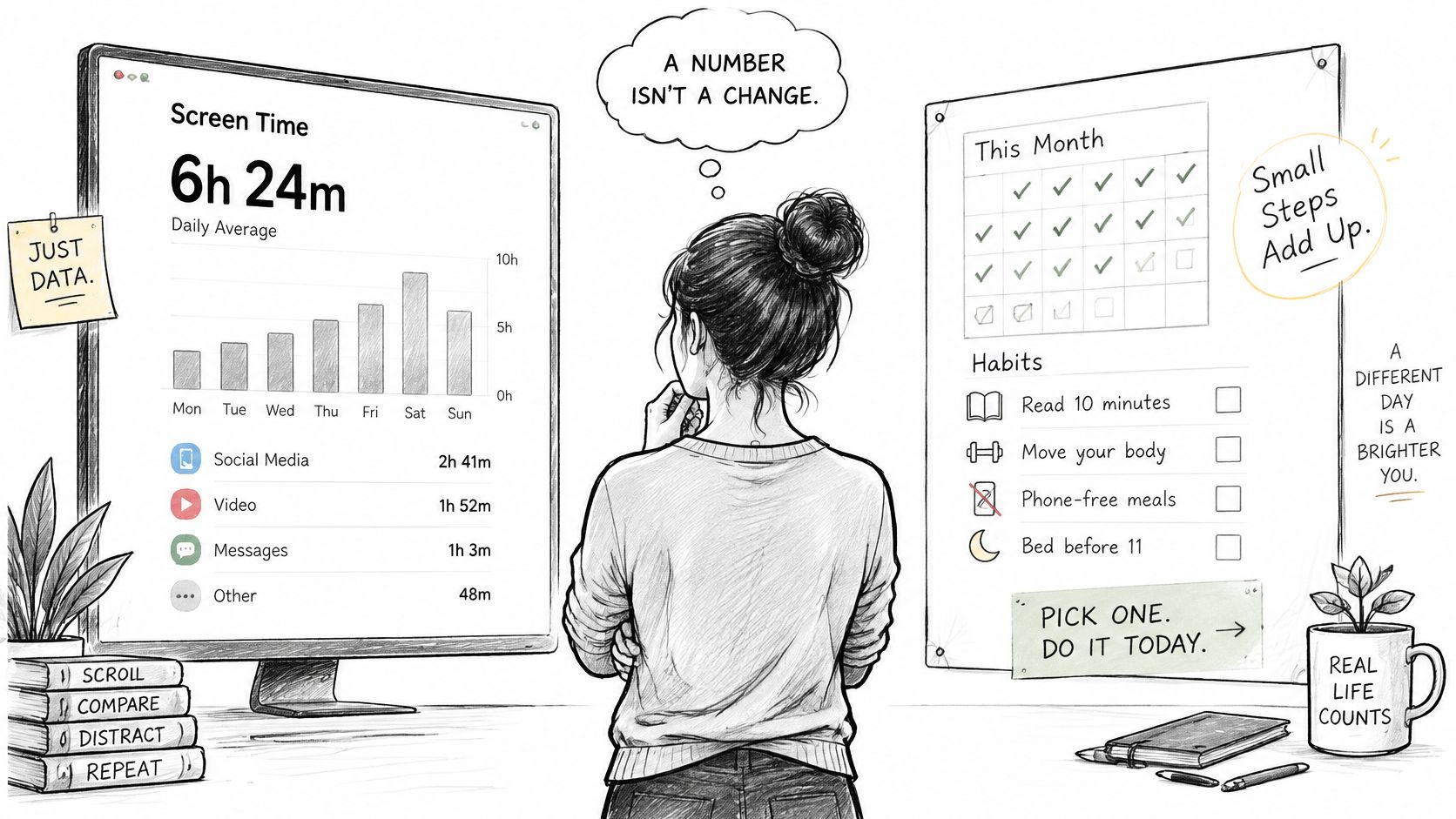
If you're deciding how to block screen time, decide what the block is making room for first. Stricter isn't automatically more useful.
The key test comes afterward: does the tool help you carry on with something you chose, or do you return to the same app when the block ends?
Tracking Apps Compared by What Happens Next
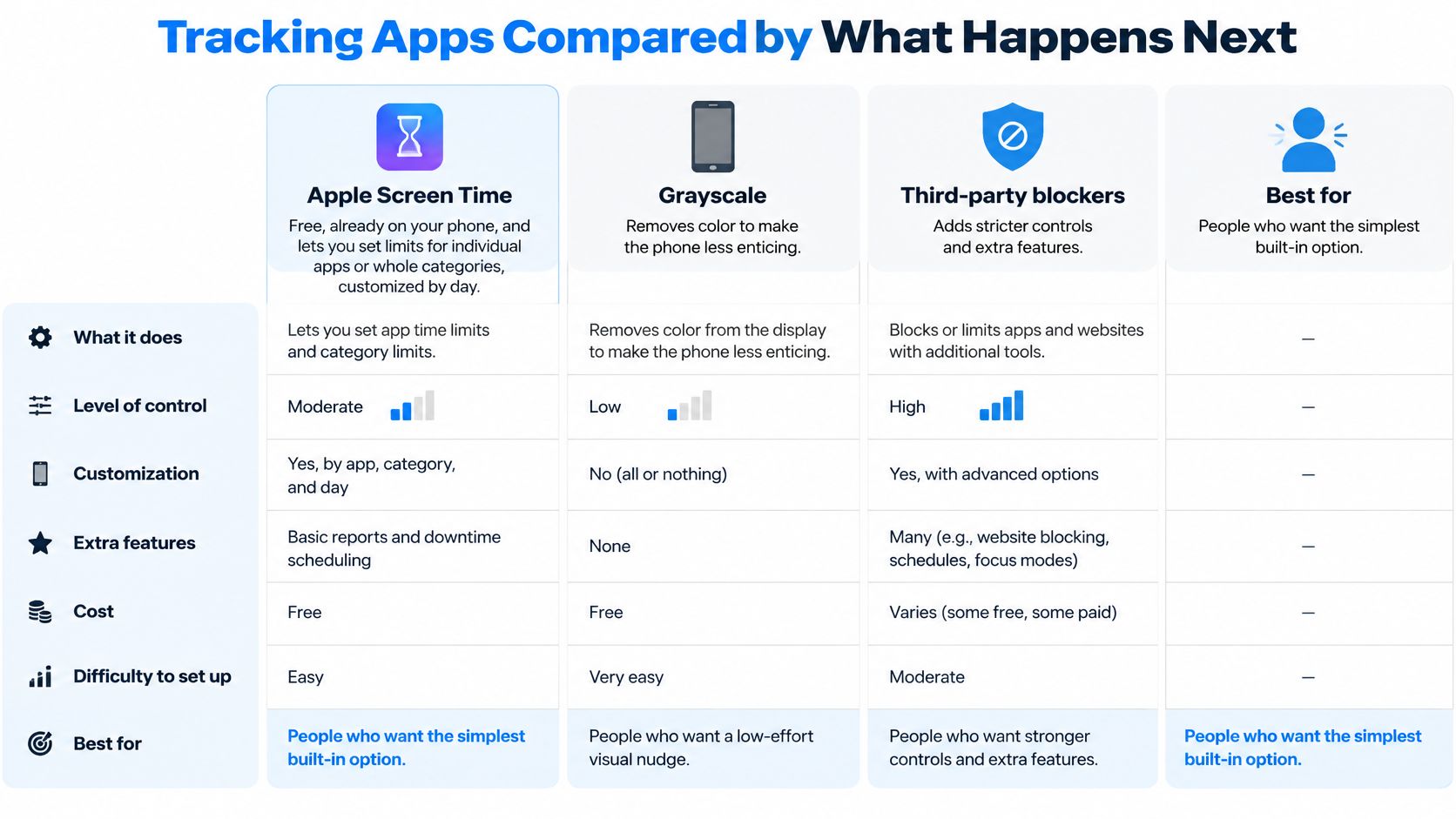
A screen time reading is a starting point. The useful comparison is what each tool lets you do after you see it. Apple Screen Time is built into the iPhone and supports app or category limits you set by day, as explained in Apple's Screen Time guide. It suits people who want a simple place to start.
Dedicated blockers add controls such as schedules and timers. Grayscale changes the phone's display to make it less appealing, but it does not provide a tracking report or suggest another activity. A tool can restrict access, prompt a different action, or mainly help you understand your habits. Those are different jobs.
This visual compares the approaches:
What each tracking option does when you hit a limit
| Option | What sets the rule | What happens on a tap | What you get next | Where it falls short |
|---|---|---|---|---|
| Built-in Screen Time limits | You choose the app and daily allowance | Limits may be ignored, depending on passcode settings | A limit reminder, not a planned activity | Easy to dismiss when you control the settings |
| Dedicated app blocker | You set timers or schedules | The app is blocked under the selected mode | Restricted access; a replacement activity may be up to you | Fixed rules can fit poorly; resistance to bypassing varies |
| Badger | You choose app groups and authorize Apple Screen Time | Selected apps can be blocked right away, on a schedule, after a daily allowance, or by location | Access can be earned back through actions such as walking, a gym check-in, or a photo check-in | Requires an iPhone and Screen Time authorization |
Badger uses Apple's Screen Time and Family Controls frameworks, so its app blocks depend on Screen Time authorization. The point is what can happen after the block: a walk can earn time on selected apps, or a gym check-in or photo can be part of the plan. You choose the action; the number alone doesn't do that.
For a video alongside the comparison:
If you're looking to understand work patterns rather than manage phone access, this RescueTime review for productivity tracking offers another comparison angle. Choose based on what you want to happen after you notice the number.
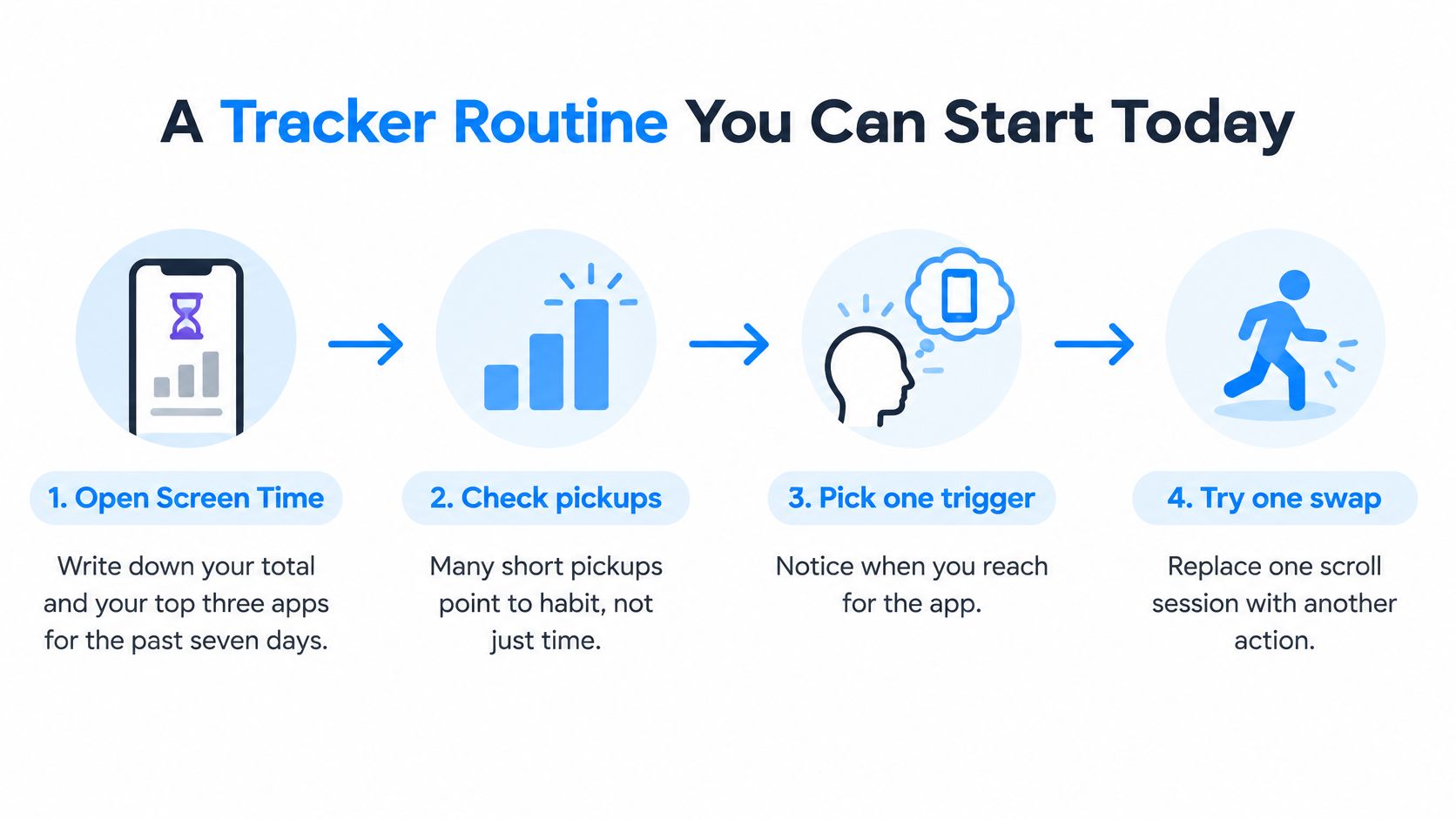
A Tracker Routine You Can Start Today
Start without downloading anything. This is a small experiment, not a complete personality renovation.
Open Screen Time. Write down your total and your top three apps for the past seven days, so you have a baseline rather than a vague impression.
Check pickups and the first app opened, especially when your target app appears. Repeated short openings call for a different plan from a long, intentional session.
Name the moment. Note whether you reach for the app after waking, between tasks, or in bed, because a recognizable cue gives your rule somewhere to attach.
Choose a replacement you want. Sample pacts like Draw, where you make something small, or Read more, where you read a few pages every day, give you a concrete starting action.
Set a rule for that moment, while leaving urgent tools out of the block. Don't lock apps you may need for calls, messaging, maps, medical care, or work you must respond to.
Review after a week and compare the pattern. Keep, soften, or change the rule based on what happened, rather than treating an awkward day as failure.
The visual version keeps the setup simple:
Make the replacement easy to start
Put the book where your phone usually sits. Leave the drawing materials open. For sample pacts like Touch grass, choose somewhere you'd enjoy walking rather than assigning yourself a grim march.
If you'd rather have the step-in handled for you, text Badger your goals, talk through a plan, and ask it to block distracting apps. You can also ask it to adjust when your day changes.
Your group can add a little company: check progress, share what you made, or give someone a gentle poke. Call it habit maxing, hobby maxing, or life maxing if you like. Side quests still count as doing something with your afternoon.
Keep the experiment small: Make the alternative easier to begin, not just the app harder to open.
For more options, Tech Today's guide to healthier device habits for everyday users can help you choose a manageable change. If staying with the replacement is the tricky part, try these ideas for improving your attention span.
After a week, look for fewer automatic openings around your chosen moment. That's a useful sign, not a promised result or a demand for a perfect total.
Pick One Change and Test It This Week
A week is enough time to learn something. Pick one change, run it for seven days, and watch what the number does. You are checking whether one small move shifts the pattern, not chasing a perfect total.
Choose the tool that matches the situation. For a free, manual nudge, set Apple's built-in limit on the app you most want to change. For an exam or a deadline, a dedicated blocker gives you a firmer boundary for that stretch. Whatever you pick, leave the apps you might need urgently alone: calls, messaging, maps, medical care, or work you must respond to.
If you keep overriding your own rules and want somewhere better to put your attention, try a pact-based personal agent. Badger: Your Willpower Agent is available on the App Store, is iPhone only, and requires iOS 18.0 or later. It blocks through Apple's Screen Time, so you authorize Screen Time once and your iPhone applies the blocks in your plan.
- Choose an app. Pick the one tied to the time you want back.
- Choose a moment. Test an evening when you can catch the urge to open it.
- Choose a replacement. Have the book, shoes, or sketchbook ready before that urge arrives.
For a feed-specific plan, use these practical steps for how to stop doomscrolling. Results vary, and no tool can promise you a specific cut in screen time.
Badger gives your screen time number a next move: a personal agent that steps in and brings you back to a pact you want to keep with your group. Visit Badger for the App Store download, and try one app, one moment, and one better thing to do.
Questions or corrections? Use Badger Support. More on the Badger blog.