

You opened TikTok while waiting for your shoes to dry. Now you're on the sofa, still in socks, watching someone rank supermarket pasta. The walk, the book, and the sketchbook are all still there.
You don't need another screen-time report. You need a block that doesn't fold at the first tap, plus something you want to do when it holds. Getting fitter, learning Spanish, getting good at drawing. Much better than becoming an unpaid pasta judge.
Pick the Built-In Block That Fits Your Habit
A daily habit needs App Limits. A nightly habit needs Downtime. A rule you keep undoing needs passcode-protected restrictions. Start with the smallest control that matches how you get distracted.
Trying to block screen time with the wrong setting creates extra admin. Focus can quiet your phone during an essay, but it won't stop you opening Instagram yourself. An App Limit can interrupt a feed, but it won't give your whole evening a clear stopping point.
iPhone built-in blocking options compared
| Option | What it does | Where to find it | Best for |
|---|---|---|---|
| App Limits | Sets a daily time per app or category, then shields it when time runs out | Settings > Screen Time > App Limits | Apps that eat your evenings |
| Downtime | Restricts apps except the ones you allow, on a schedule | Settings > Screen Time > Downtime | Bedtime and study blocks |
| Focus | Silences notifications and can hide selected Home Screen pages, not prevent app access | Settings > Focus | Work sessions and short app pauses |
| Content & Privacy Restrictions | Restricts supported apps, purchases, content, and selected changes behind a Screen Time passcode | Settings > Screen Time > Content & Privacy Restrictions | Closing specific ways you undo your rules |
| Always Allowed | Keeps selected exceptions available during Downtime | Settings > Screen Time > Always Allowed | Phone, Messages, Maps, and essential communication |
Choose the control, then check its limits
App Limits suits the app you open without noticing. Pick individual apps when you need precision. Pick a category only after checking what's inside it, because a broad category can catch something useful.
Downtime suits a predictable window. Turn on Block at Downtime if you want enforcement rather than a reminder. Always Allowed deserves just as much attention as the blocked list.
Content & Privacy Restrictions isn't a master switch that freezes every setting. It controls specific permissions and changes. Focus isn't a lock either, since hidden apps remain reachable through other routes.
Practical rule: Use Focus to reduce invitations. Use Screen Time to restrict access.
Third-party tools need your permission too. Apple's Authorization Center documentation requires Family Controls authorization, approved on your device with Face ID, Touch ID, or your device passcode, before compatible apps can use Screen Time controls.
That permission isn't evidence that an app is unbreakable. It's your agreement to let it manage selected access.
How to Block Apps with Screen Time Step by Step
Set this up when you're not already bargaining with yourself about another video. Keep the blocked list narrow enough that you can test it properly, and leave essential tools alone.
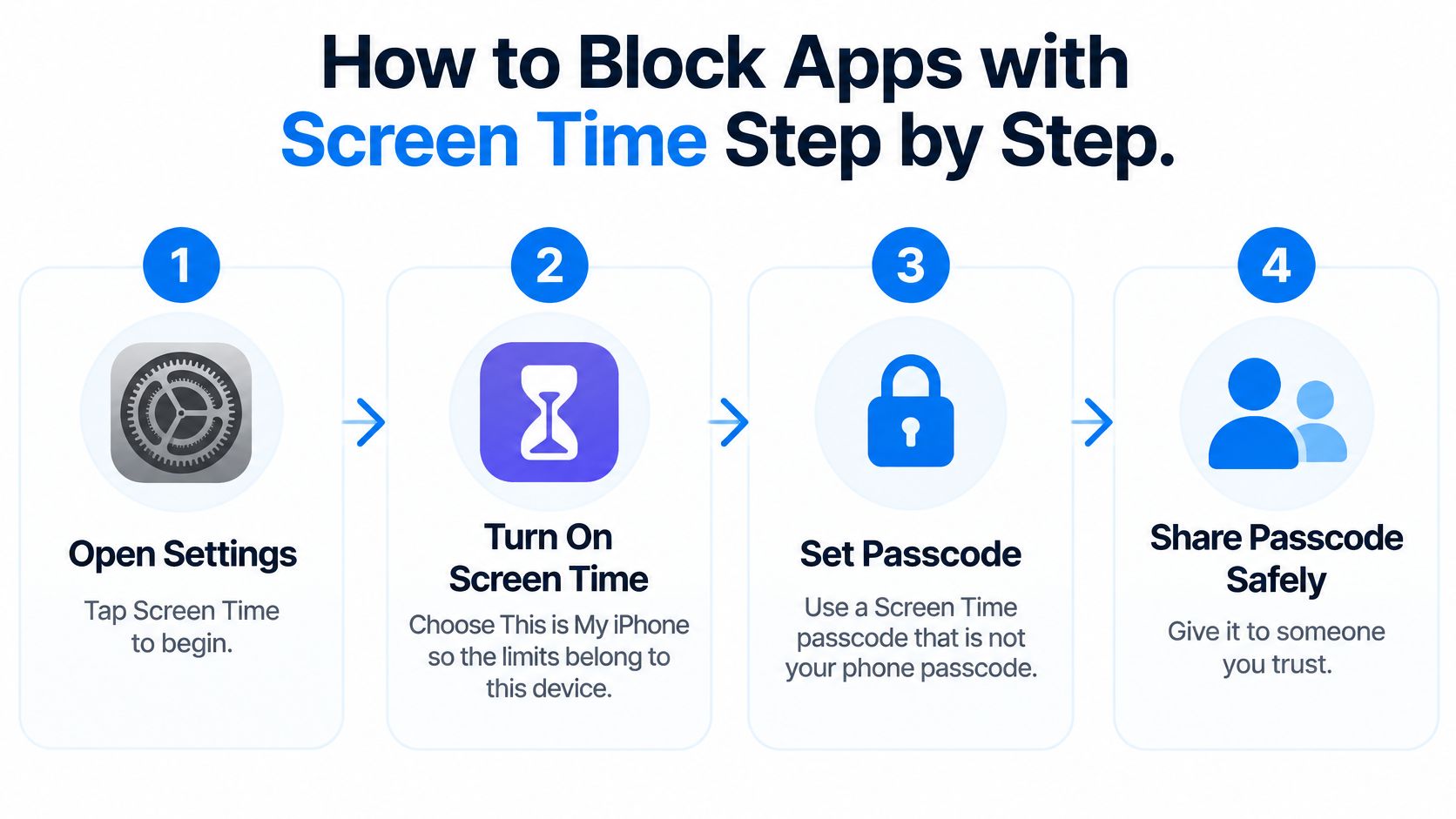
The opening setup looks like this. Your labels may differ with your iOS version.
Build and test the restriction
Open Settings, then Screen Time. If you see Turn On Screen Time, follow it and choose This is My iPhone when offered; newer versions may show App & Website Activity instead. Make sure activity tracking is enabled, because staring at an inactive dashboard won't create a limit.
Set a separate Screen Time passcode. Look for Lock Screen Time Settings or Use Screen Time Passcode, and choose something different from your device passcode. If you want a stronger barrier, let someone you trust hold the Screen Time code, not your Apple Account password.
Open App Limits and tap Add Limit. Select the apps or categories, set a daily allowance you can realistically keep, and check the selected list before saving. The easy mistake is restricting Instagram while leaving your equally tempting YouTube feed untouched.
Turn on Block at End of Limit. Open the saved limit and confirm the switch is enabled, with Screen Time settings protected by the passcode. Without enforcement, you may have built a polite suggestion with excellent branding.
Set Downtime and review Always Allowed. Choose a start and end window, enable Block at Downtime, and preserve the tools you need for calls, messaging, maps, medical care, and urgent work. Check your alarm and morning routine too, especially if you rely on a third-party alarm app.
Test the actual blocked app. Use a temporary short test allowance, reach it, and confirm that the restriction overlay appears and extra access requires the expected approval. Restore your intended allowance afterward, since a successful test setting isn't necessarily a sensible daily plan.
Approve any tool you want to manage access. Badger uses Apple's Screen Time to block your chosen apps, and no block can take effect without Screen Time authorization. Approve the device prompt yourself rather than assuming installation alone has enabled blocking.
Check your recovery route. If you forget the Screen Time passcode, use the recovery option with the Apple Account, formerly Apple ID, used when setting up passcode recovery. Keep that login accessible, and don't create a mystery account just to make an impulse harder.
Keep the escape route sensible
A friend holding the Screen Time code can add useful friction. Agree beforehand on when they'll approve access, such as a genuine work need, rather than negotiating every time an app closes.
Don't lock anything you may need urgently. That includes medical apps, navigation, calls, messages, and work you must respond to. A good setup interrupts an unwanted habit without turning an ordinary problem into a scavenger hunt.
The goal is to make opening a feed less automatic, not make your phone unsafe to use.
Test the exceptions as carefully as the restrictions. Being able to call someone matters more than winning an argument with your own Settings app.
Why Blocks Get Bypassed and How to Close Gaps
Tapping Ignore Limit repeatedly is a setup problem, not a personality diagnosis. Start by checking enforcement and who controls the passcode. Then look for the route you use to get around the block.
| Bypass | What to change | Honest limit |
|---|---|---|
| You tap through the limit | Enable Block at End of Limit and protect changes with a trusted person's Screen Time code | Recovery and authorized changes still exist |
| You move to your iPad | Enable Share Across Devices for compatible built-in Screen Time settings on the same Apple Account | A third-party block on an authorized iPhone doesn't automatically transfer |
| You change the schedule or clock | Protect Screen Time changes and keep Date & Time set automatically | Don't assume every clock setting is locked on every setup |
| You open the website instead | Restrict relevant sites through Web Content controls, or include the browser in your limits | An app restriction isn't automatically a complete website restriction |
| You switch to another feed | Include the apps you substitute into, then inspect total use | A lower number for one app can hide time elsewhere |
| You revoke a blocker's permission | Decide whether the plan is still useful before disabling access | Personal authorization remains under your control |
Check what changed, not just what got blocked
A restriction overlay proves that an intervention appeared. It doesn't prove you spent the evening differently. Check whether you immediately reopened the app, switched browsers, or picked up another device.
In a randomized trial, the nominal control group independently reduced social-media use by about 38%, so the planned difference between conditions wasn't achieved, according to the trial indexed by PubMed. That isn't proof that people always migrate to another feed. It's a reason to measure actual behavior rather than assume everyone follows the assigned rule.
For your own setup, write down what happened after an override. Needed directions? Preserve Maps. Wanted the same feed through Safari? Close that route. Changed your mind about the whole plan? Adjust the plan instead of maintaining a fictional victory.
Know what you can still turn off
Badger's blocks apply to the iPhone you authorized, not automatically to another device. You can change or end a plan, use emergency unblock, or remove its Screen Time access in iOS Settings at any time.
Apple also explains that individual authorization can be withdrawn in Screen Time settings in its Screen Time API walkthrough. That control belongs to you.
If the overlay never appears, work through this iPhone app-blocker troubleshooting guide. Fix a permission or selection error before deciding you need harsher rules.
Which Blocker Fits Your Level of Strictness
How hard do you want the block to be to bypass? Be honest about that. A gentle pause is useful if you only need to notice what you're doing. It's decorative if you've already learned to dismiss it without reading.
Use this comparison to choose the kind of friction you'll tolerate.
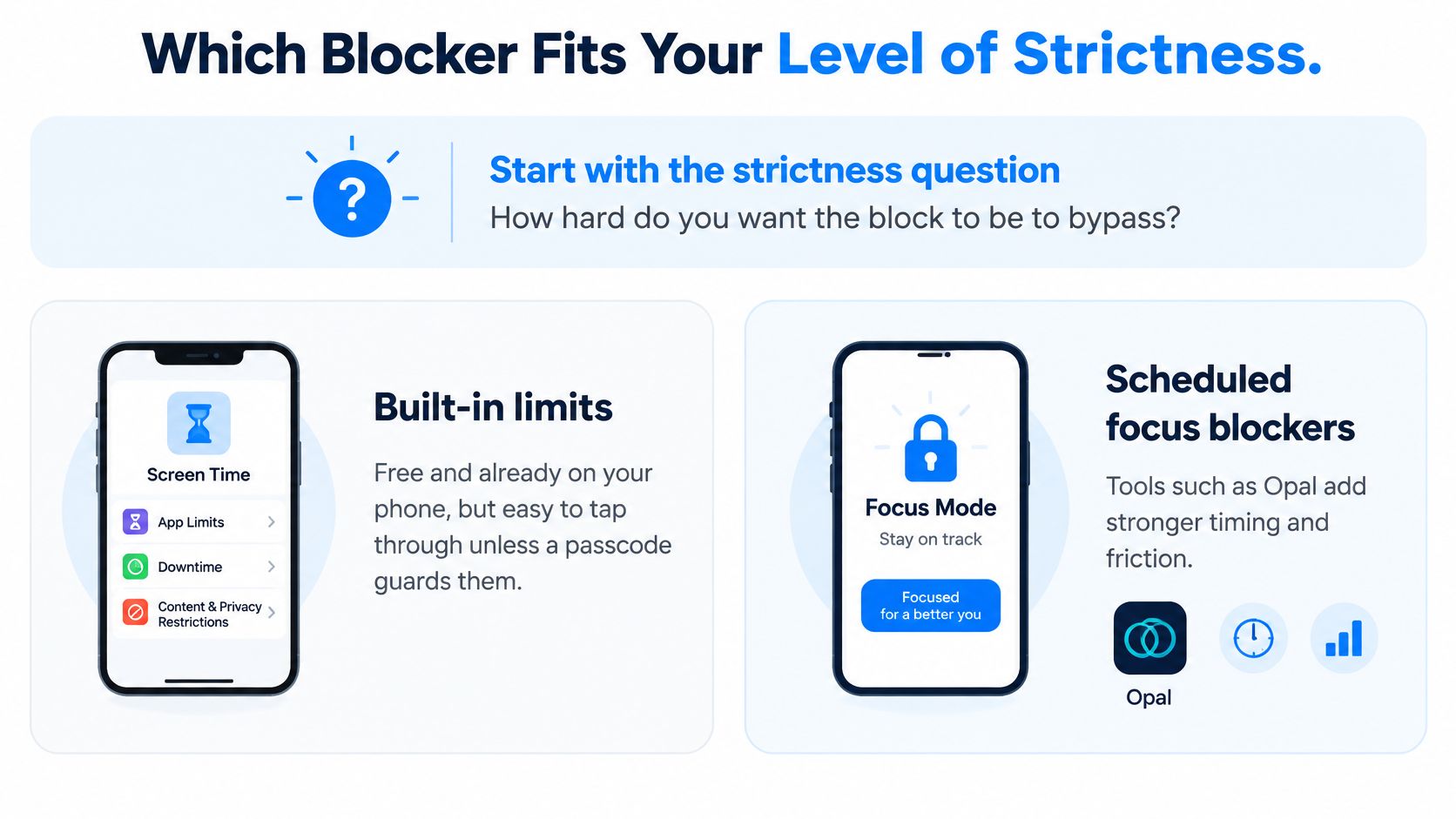
Blocker types compared by strictness
| Type | How strict it holds | Strength | Trade-off |
|---|---|---|---|
| Built-in Screen Time limits | Easy to override unless a passcode protects them | Free and already on your phone | You still need to keep the rule |
| Scheduled focus blockers such as Opal | Can add stronger friction during a configured session | Good for work and study windows | A schedule alone won't catch every unplanned scroll |
| Hard-lock blockers | Designed to hold firm once configured | Useful for exam weeks and deadlines | Too much restriction can make you abandon the setup |
| Adaptive agent such as Badger | Adjusts strictness to you | Steps in based on actual app use and offers something else to do | Works best when you want to change the habit, not only lock an app |
Match the tool to the messy part of your day
Opal's scheduled sessions make sense when you know when you need protection. That's a real strength. If your problem is opening a feed whenever you feel mildly bored, a calendar window may not cover it.
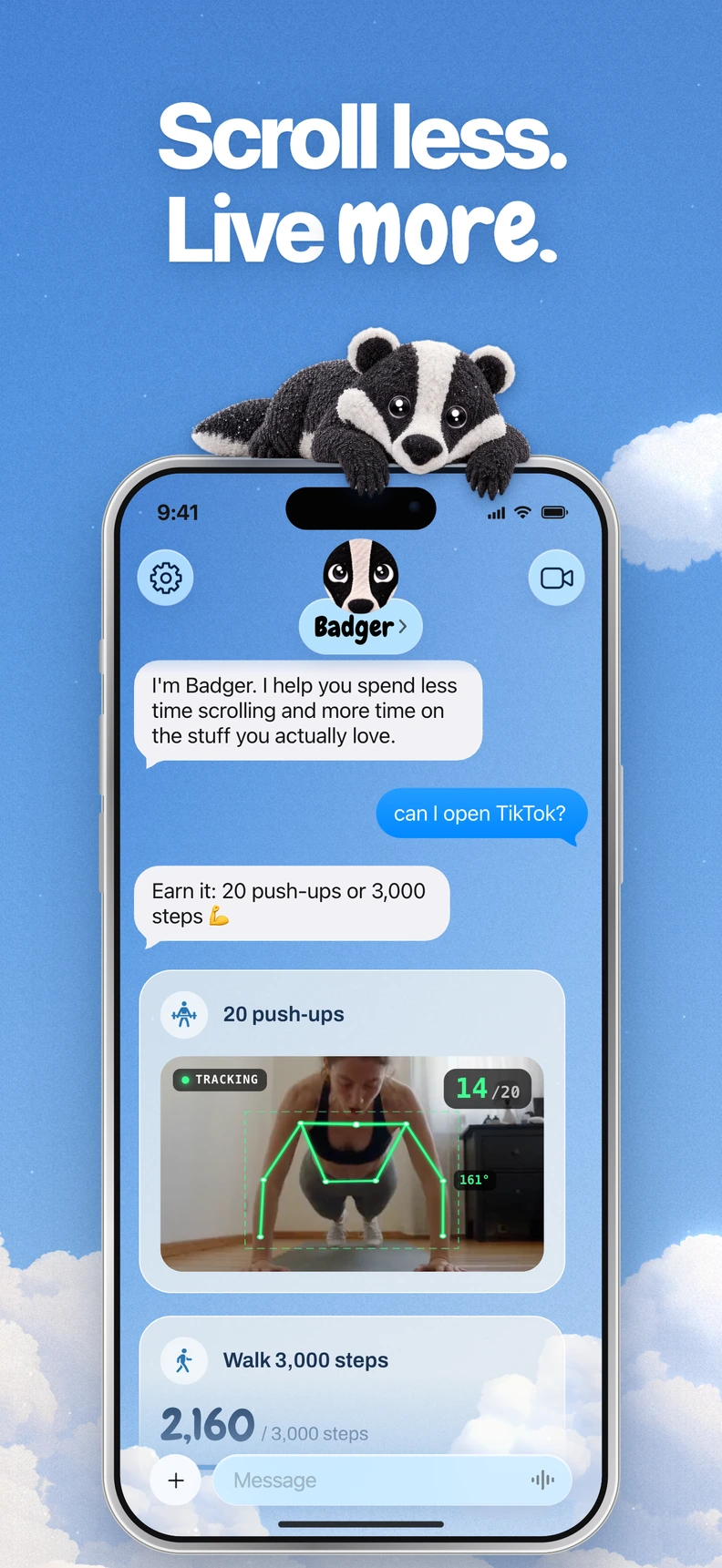
Badger is a personal agent, not just an app blocker. It uses Apple's Screen Time and Family Controls frameworks to restrict chosen apps, adapts to how strict you need it, and brings up something you wanted to do instead.
It can act immediately, on a schedule, after a daily usage allowance, or when you arrive at or leave a saved place. Access can also connect to an action, such as walking, checking in at the gym, or sharing a kitchen photo as part of a plan.
Start from your actual use
I'd record app-level and total use for at least seven days, then choose a manageable starting threshold, following the baseline protocol described alongside this randomized screen-time trial. The same trial assigned 111 university students to conditions including a three-week ceiling of two hours daily, with average use of 129.46 minutes daily in the intervention group versus 264.19 in controls.
Those are group comparisons, not a before-and-after promise for you. They also don't establish lasting change after the intervention.
Choose the strictness you'll keep using, not the strictness that sounds impressive tonight.
For a broader feature comparison, use this guide to the best app blockers for iPhone. Pick around your failure point, not the longest feature list.
Swap Scrolling for Something You Will Actually Do
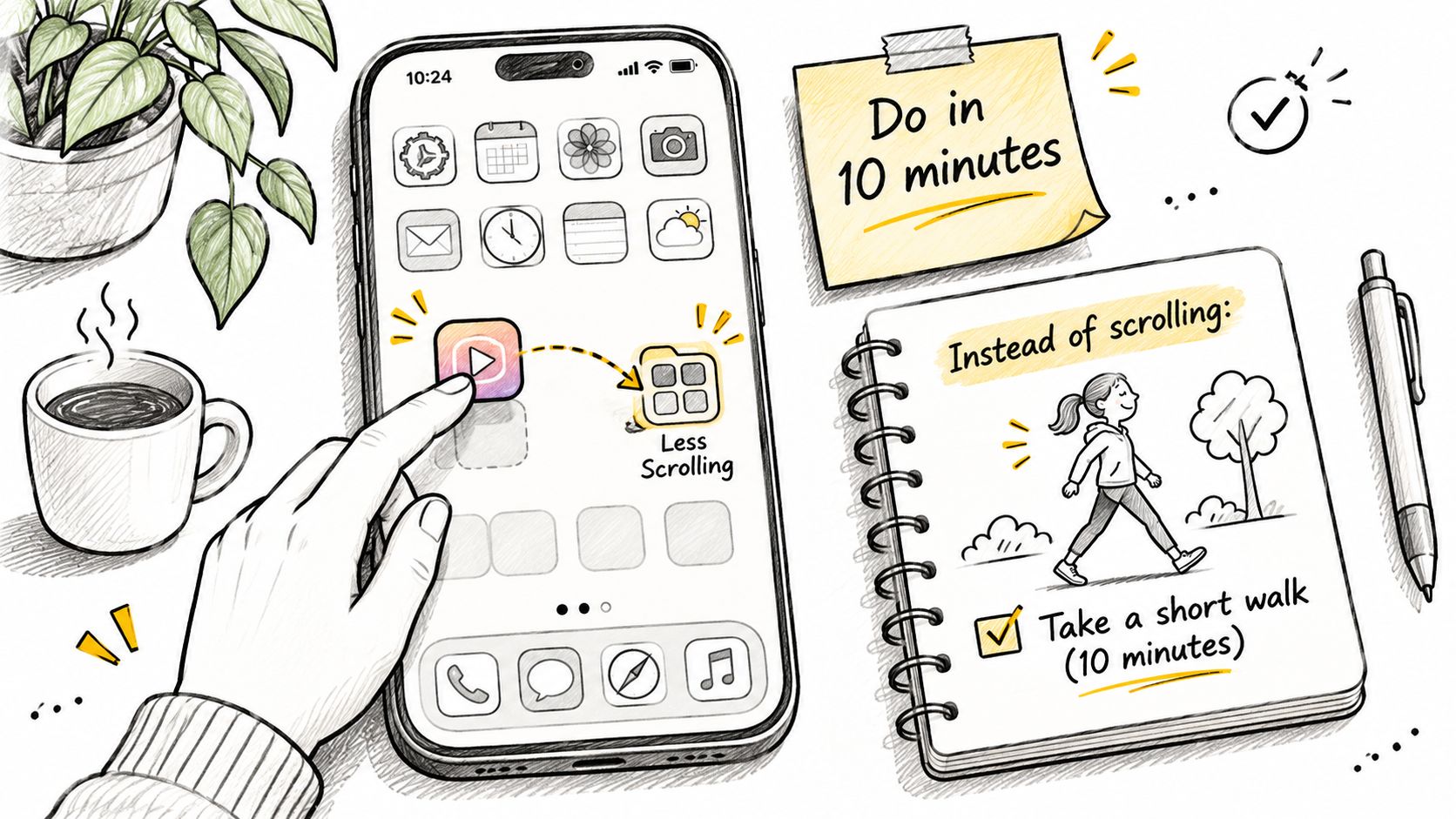
Put a book beside your seat, leave your sketchbook open, or put your walking shoes by the door. Write the next action on a sticky note: read a few pages, sketch something nearby, walk to the park. Make it easy to begin before you have time to negotiate.
Moving the app out of sight can support that choice. It won't enforce the rule by itself.
For scale, DataReportal's early-2025 figures put typical internet users' social-platform use at two hours and 21 minutes daily, as reproduced in this Global Institute submission hosted by the UNFCCC. That's context, not a target you're supposed to beat.
Make the promise about doing something
A pact is one simple promise you keep with a small group of people. Sample pacts like Read more, Learn Spanish, Draw, and Walk more describe a direction, not another scoreboard to obsess over.
- Read more: Read a few pages each day and keep your next book easy to find. If remembering what you've read helps, Quotabl's guide to apps to track and remember books offers a useful starting point.
- Learn Spanish: Practise words you could use in an ordinary conversation.
- Draw: Keep making small sketches without requiring each one to become portfolio material.
- Walk more: Get outside along a route you enjoy, rather than choosing a route purely for a step total.
In Badger, you can join solo, invite friends by link, or get matched into a small group. You can see who in your group has followed through, chat, and poke someone who hasn't done theirs yet. Keep the poke friendly. Nobody needs a tiny digital headteacher.
Give the interruption somewhere to send you
Text Badger about your goals, make a plan, and ask it to take action. When the day changes, ask it to adjust rather than abandon everything.
Plans can connect app access to registered NFC or barcode scans, a quick pause with maths or breathing, or showing Badger on a live call. If movement sounds more appealing, see how to earn screen time by walking.
Keep the next action concrete while you watch.
Side quests are small tasks for getting outside or trying something new. Call it habit maxing, hobby maxing, life maxing, or choosing to touch grass. The label matters less than having something ready when your thumb goes looking for a feed.
Set One Block Today and Check It Works
Choose the app that keeps derailing your evening and set a limit you can keep. Protect the setting, enable Block at End of Limit, then set the limit low enough to trigger tonight and run a real test. A toggle that looks reassuringly blue has never stopped a determined thumb.
Watch what happens when the limit hits. If the overlay appears and apps you may need in a hurry, like calls, messaging or maps, still work, you've made a useful start. If nothing happens, check the app selection and the Screen Time authorization before adding more restrictions, because without that authorization no block can take effect.
Keep today's setup small
- Choose the replacement: Leave the book, shoes, instrument, or sketchbook where you'll use it.
- Keep the promise manageable: Try a pact like Walk more or Read more for a few days before adding another.
- Review the escape: Notice whether you needed legitimate access or wanted the same feed through another route.
Badger is an iPhone app that uses Apple's Screen Time to block the apps you choose, and it requires iOS 18.0 or later. You tell the personal agent what you want to do, and it steps in when your selected apps start taking more time than you intended. A block on the iPhone you authorized doesn't automatically apply to another device, and Badger doesn't guarantee a screen-time or productivity outcome.
Know what you're allowing
Badger sends no messages, photos, voice, calls, activity, Screen Time, Apple Health, or location information to an AI service until you tap Allow. Each account has a weekly AI usage allowance, and Badger Settings shows how much remains and when it resets.
You keep the exits too. You can change or end a plan, remove Screen Time access in iOS Settings, or use an emergency unblock that removes the locks without Badger's approval. An emergency unblock ends the plans it releases, and Badger won't block those apps again until you ask it to.
You can start without handing over every permission or building an elaborate routine. A working limit and a book within reach are enough for today. Make the next useful action easier than the next workaround.
Badger offers a personal agent, pacts, and a small group to help turn a blocked feed into something you wanted to do. Visit Badger to choose your next step. Download Badger on the App Store at gobadger.app.
Questions or corrections? Use Badger Support. More on the Badger blog.