
 vs

Choose Freedom if you want a blocking session to cover selected devices together. Choose Badger if your priority is a personal agent helping you build and adjust an iPhone plan.
The Features
| Feature | Badger | Freedom |
|---|---|---|
| Devices | iPhone and iPad (iOS/iPadOS 18+) | Mac, Windows, iOS, Android, Chromebook/Linux (Features vary by platform) |
| Blocking process | Use Apple's app picker to select apps to block, enable Screen Time permissions, and group them into named app groups and make a plan with Badger. | Create blocklists to use on sessions that sync between the devices you choose on your account. To use this, you'll need to select apps to block in the installed app on each device, as opposed to just using the web dashboard. |
| Unblocking | Follow the conditions of your plan. If your circumstances change, you can chat with Badger about the change. Use Emergency Unblock in case you need to get unblocked immediately. | Sessions end on schedule. Freedom Premium includes Locked Mode, which prevents you from stopping sessions early. If you use Freedom on Mac and Windows, you can also set website exceptions. |
| Personal support | Your AI agent remembers the goals and context you share, proactively checks in on you, and adjusts your plan as needed. | You can use scheduled and recurring sessions as well as focus sounds. |
| Pricing | Free to download and use today, with a weekly AI allowance. There is no subscription on the current pricing page. | Free tier includes unlimited devices and immediate sessions up to two hours; Premium adds longer sessions, advance scheduling, recurring schedules, and Locked Mode. The yearly option is $3.33/month equivalent, the monthly option is $8.99, and the promotional lifetime offer is $99.50 against a displayed $199 reference price. |
The comparison uses each product’s published features and current plan information.
Why Freedom Might be For You
Imagine you're trying to work but are constantly tempted by apps on your phone, Slack, and random news articles on your Mac browser. Freedom is great in this situation because you can block these distractions simultaneously with a single session. Once you've selected apps to block on each device, you'll start a block session that blocks them all together.
Their free tier is actually quite good, it's not just a demo! You get unlimited devices, you can create custom blocklists, use immediate sessions up to two hours, block apps on your desktop, listen to focus sounds, and sync sessions across devices!
If you decide to upgrade to Premium, you get the benefit of extending sessions beyond two hours, using scheduled and recurring sessions, scheduling ahead, and Locked Mode if you know you'll talk yourself out of keeping a block in place.
You can create and edit website blocklists in Freedom’s web dashboard. Choosing native apps to block is different: select those inside the installed Freedom app on each device. Also, while Freedom is more than just a browser extension, it does have varying features across different platforms, so be sure to check the docs to see what you can use on the device of your choice.
Why Badger Might be For You
Now, let's say you have a different situation. Let's say you primarily find yourself getting distracted by apps on your iPhone, and the issue is more about not getting what you intended to do with your time.
For example, you might open up Instagram to just text someone back and then, forty minutes later, you don't even remember why you opened it in the first place! In this case, sometimes you might use a blocklist to block certain apps, but it's not always the case. Imagine the case where you need to do some work research, or you take a deliberate break, or you accidentally get sucked into scrolling at night.
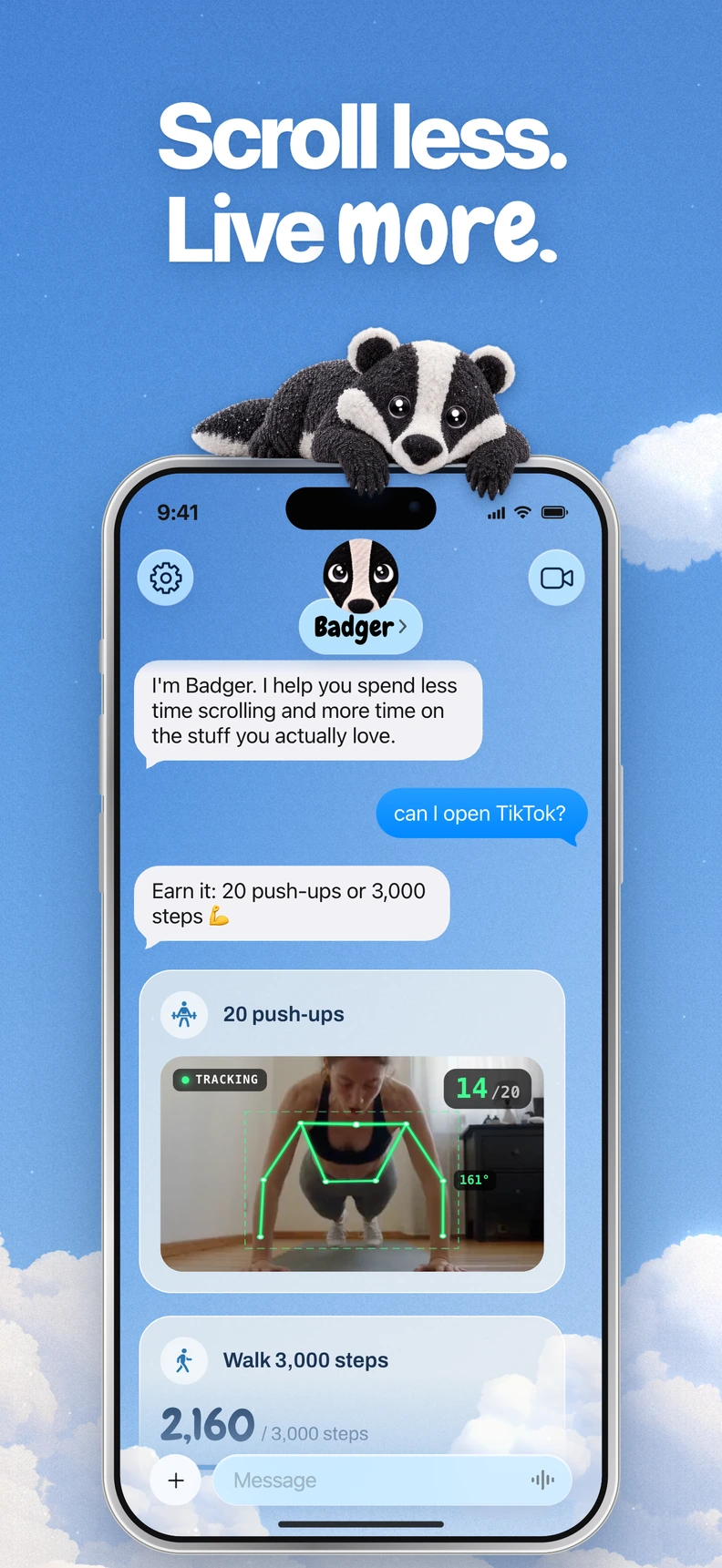
In these cases, blocking everything might not be the best approach. Badger is a personal AI agent focused on one thing: helping you live a more meaningful life. You can text it about what matters to you. It can make a plan, block distracting apps, and help you follow through. You'll use Apple's app picker to select your apps, enable Screen Time permissions, and then group your apps by name. Then, you can text Badger to create a plan.
It could involve taking new walking steps, a daily step goal, going to the gym, taking a photo, or any other action that Badger supports. Your plan will determine when or under what conditions you can access the apps you want to block. Each plan has different goals and terms of access. You can chat with the agent about these, as they are not fixed conversion rates.
What makes Badger a different blocker is that its agent remembers the goals and context you share, proactively checks in with you, and adjusts the plan if a strategy is not fitting. It is not mind-reading (it doesn't know what you were thinking when you opened the app), so how useful it is will depend on how much you tell it. Sharing your goals gives Badger context to tailor its support; Freedom centers on the sessions and blocklists you configure.
Badger works like any iPhone blocker. You can bypass it or remove it, and it's not a native Mac or Windows app but an iPhone and iPad app. Repeated requests don't guarantee that an active commitment will be cancelled, but you can discuss a real need or unforeseen circumstance with Badger. If you need to break through a block for an emergency, you can do it without the AI vouching for you.
One optional add-on: If you're using a compatible third-party assistant app, Badger has an optional MCP/OAuth connection that can list your authorized groups and request blocks or unblocks with a reason, without exposing your usage history or giving it general control over your phone. You can find the setup instructions in the connect guide.
A Quick Checklist for Deciding
Here's a quick set of questions to ask yourself in order to decide:
- Is the iPhone your primary distraction field, or do you want one blocker for both your phone and your computer?
- Do you want to configure shared blocking sessions, or discuss a plan and changed circumstances with an agent?
- Do you benefit from tying app access to an action like a step goal, or would you think of it as another layer of work on top of work?
- Do you want a service that remembers your goals in between sessions?
- Which features do you need from each free plan, and would you use the extras in Freedom Premium?
If your first question points to "cross-device", start with a free Freedom plan. If your answers point towards "iPhone" and "adjustable", then Badger is what you're looking for.
Short FAQ
Can the two serve different needs? Yes. They can address different devices and situations. For example, Freedom can cover your desktop during work hours while Badger supports your iPhone plan on the go.
Does Freedom only block websites? No, it does block websites, but a free Freedom plan also blocks desktop apps. It can run sessions on Mac, Windows, iOS, Android, and Chromebook/Linux. The features vary by platform though. Freedom's web dashboard can't select native apps for you, so you select them in the installed app on each device.
What if I need to access a blocked app at once? You can do so with the emergency unblock on Badger (no AI approval or AI credit required). With Freedom, note that Locked Mode, a Premium feature, is designed to prevent you from stopping a session early.
Is Badger free? Yes, Badger is free to download and use today. It comes with a weekly AI allowance, and no subscription is currently on the pricing page. You can find the current allowance and emergency rules on the pricing page.
Your Next Step
Decide based on the reality of your main distraction field. If it is on your iPhone, grab a free copy of Badger from the App Store, select one or two apps with Apple's picker, and describe a single realistic situation, such as wanting social feeds blocked at night while working toward a daily step goal. You want to start with a small, actionable plan, not a huge one that you won't follow through on. If you need blocking across multiple devices, set up Freedom's free plan on each machine first.
If you want to compare Badger against other alternatives before making a final decision, the full comparison page gives you an overview of the landscape. If you're wondering about the practical side of blocking apps on iPhone, see the step-by-step guide in blocking apps on iPhone.
Sources
Questions or corrections? Use Badger Support. More on the Badger blog.