
 vs
Choose Badger if you're trying to block app usage on your iPhone and prefer to have the block linked with an actionable, reviewable plan. Choose BlockSite if you need your blocking rules to extend to a desktop browser or Android device; Badger does not offer blocking on those platforms.
These two apps cover different bases than you might expect. Many people could be smart to use both.
Feature breakdown
All data points in this table are collected directly from the respective websites. Last checked November 9, 2026.
| Feature | Badger | BlockSite |
|---|---|---|
| Device support | iPhone (iOS 18 or later) and iPad (iPadOS 18+) (App Store listing) | Browser extensions plus mobile apps, including iOS and Android |
| Blocking methods | Choose the apps via Apple's picker, enable Screen Time access, organize them into named groups | On iOS, app usage limits are implemented via Screen Time access; scheduled website blocking requires the BlockSite VPN |
| Access return | Access terms vary by plan; emergency unblock without AI approval or credit | When a limit or scheduled window ends, or when you edit the rule yourself |
| Personal support | Personal agent to remember goals and context you share, proactively check in, and adjust plans when an approach doesn't fit | Schedules, focus sessions, categories, redirects |
| Pricing | Free to download, with a weekly AI allowance; no subscription on the current pricing page | Paid plans, promos on the homepage; not a single permanent global price |
One point to clarify: BlockSite requires the BlockSite VPN for scheduled website blocking on iOS, not app usage limits (which rely on Screen Time).
Badger explained, plus the agent
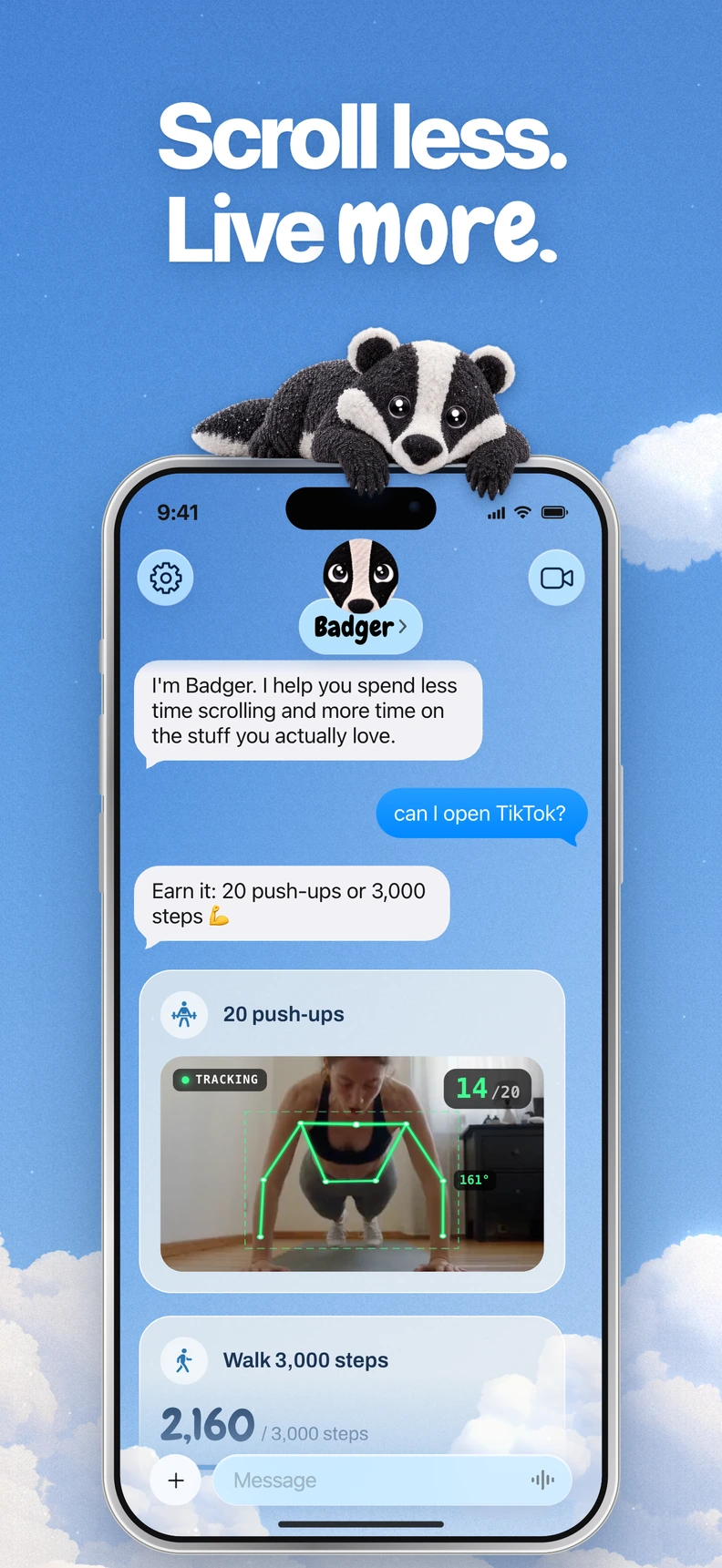
Badger is a personal AI agent focused on one thing: helping you live a more meaningful life. You can text it about what matters to you. It can make a plan, block distracting apps, and help you follow through. You'll use the Apple picker to choose the apps you're distracted by, enable Screen Time access, and from there, create named app groups and plan with Badger, verifying your blocks on the phone.
The key distinction is that you'll be making a plan that incorporates your blocks, rather than just a simple block list. Your plan can include actionable goals, like adding walking steps, setting a daily step count, going to the gym, taking a photo, all of which are supported. The plan can integrate steps, location, and photos, if you allow the app to use them.
The agent can remember your goals and context you share, proactively check in with you, and potentially adjust the plan if your approach isn't working. It won't read your mind; the agent acts based on what you tell it and what your plan can verify, not on your thoughts, feelings, exact activity, or reason for opening the app.
There are a few important caveats:
- Going to the gym isn't the same as working out
- Photo evaluations are not perfect
- Badger can be circumvented or deleted
The app is built to allow you to talk to the agent and work out your plans; if your circumstances change, you can talk to the app. Discussing a change does not guarantee that an active commitment will be cancelled, even after repeated requests. You don't need AI approval or credit in order to emergency unblock. The app also has light social experiences and generated mini apps for you to go to instead of a full-blown distraction feed.
BlockSite explained
BlockSite centers around the app and site blockers, schedules, focus sessions, categories, and redirects. The app breaks down iOS blocking into two features: App-usage limits are built using Screen Time access, while scheduled website blocking is done through the BlockSite VPN.
Keyword blocking in iOS blocks keywords in website URLs, not on the page, and won't hide Google or Bing search results. This is important if keyword blocking is your primary method.
The one area where sync marketing and help articles disagree is sync functionality: the dedicated sync article currently says desktop-to-desktop and Android-to-Android sync are supported, describes Android-to-desktop as still rolling out, and says iOS sync is not available. If you're an iPhone user, read that page rather than assume blocks travel between phone and computer.
Three questions to help you choose
Dynamic blocking?
You might use the same app in the morning while researching a work project, in the afternoon during a scheduled break, and at night while mindlessly scrolling. Not all of this time is lost. Badger can draw on the goals and context you share, check in proactively, and adjust a plan when an approach doesn't fit.
BlockSite lets you configure different blocking times. A schedule alone does not know your intention for a particular visit; decide whether configured rules or discussing the plan suits you.
Laptop or Android?
Badger publicizes itself as an iPhone blocker, so it doesn't have any functions to block on Android or native Mac or Windows devices. If your distraction follows you onto a desktop browser or an Android device, consider BlockSite's browser extension or Android mobile app, respectively.
This might well be the deciding factor for you and be all that you need to know.
Once-and-done?
BlockSite's categories and schedules let you configure recurring rules. If circumstances change, you can edit those rules, subject to your settings.
Badger's plans are designed to be negotiated, though not all negotiations result in removing the block.
Quick summary
- Badger, if your problem is mostly on your iPhone: Badger fits your device, and BlockSite's iOS app is also an option if you'd rather manage rules yourself.
- BlockSite, if you're on a desktop browser or Android: you'll need BlockSite or some other cross-platform blocker on that side, regardless of phone app.
- Badger, if you'd like a plan connected to a specific thing: Badger supports actions such as walking steps, a daily step goal, or even getting to the gym (see supported actions).
- BlockSite, if you'd like to block keywords and categories: BlockSite has built-in URL keyword matching for this.
- Price matters: Check the prices for both services today. Badger's pricing page shows the current plan allowance and emergency-unblock rules, and BlockSite has various promotions, so don't consider the price in this article as final.
Common questions, short answers
Do they sufficiently overlap to use both?
Yes. It might make sense to use the BlockSite extension on a work laptop and a Badger plan on the iPhone.
Does the agent know why you opened an app?
No. The agent operates off of your plan, shared context, and whatever the plan can verify using permissions.
Can a different AI assistant interact with Badger?
Optionally, you can connect a compatible assistant via MCP/OAuth to tell it the list of allowed groups and ask it to request the blocking and unblocking of applications for specific reasons. Setup.
Is this required to use Badger?
No. You don't need another assistant to use Badger.
Getting started
If the iPhone is the place you're fighting bad habits, then download Badger from the App Store and start blocking an application group now. The how to block apps on iPhone guide walks you through the selection, Screen Time authorization, and the first plan.
If distraction on a laptop or Android device is where you lose time, consider BlockSite for that device and Badger for your iPhone.
Sources
Questions or corrections? Use Badger Support. More on the Badger blog.