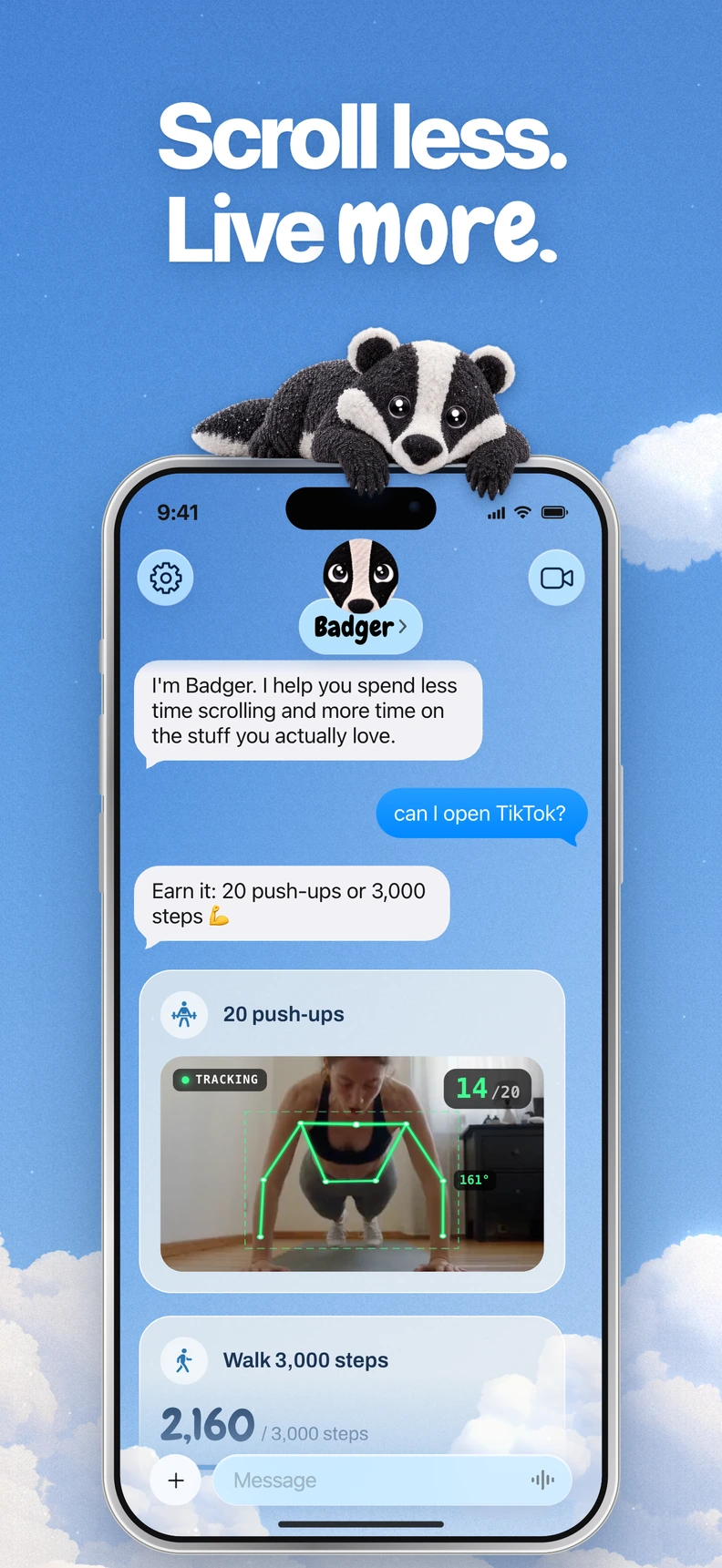


You opened TikTok while waiting for your shoes. Now you're on Instagram, the shoes are still by the door, and the walk hasn't happened. You don't need another reminder that you wanted to get fitter, read more, or get good at something. You need an easier way to start.
Learning how to block apps is useful. But the better setup does more than close TikTok: it catches the move to YouTube or Safari and leaves something worth doing within reach. Block the feed, catch the leak, have a pact ready.
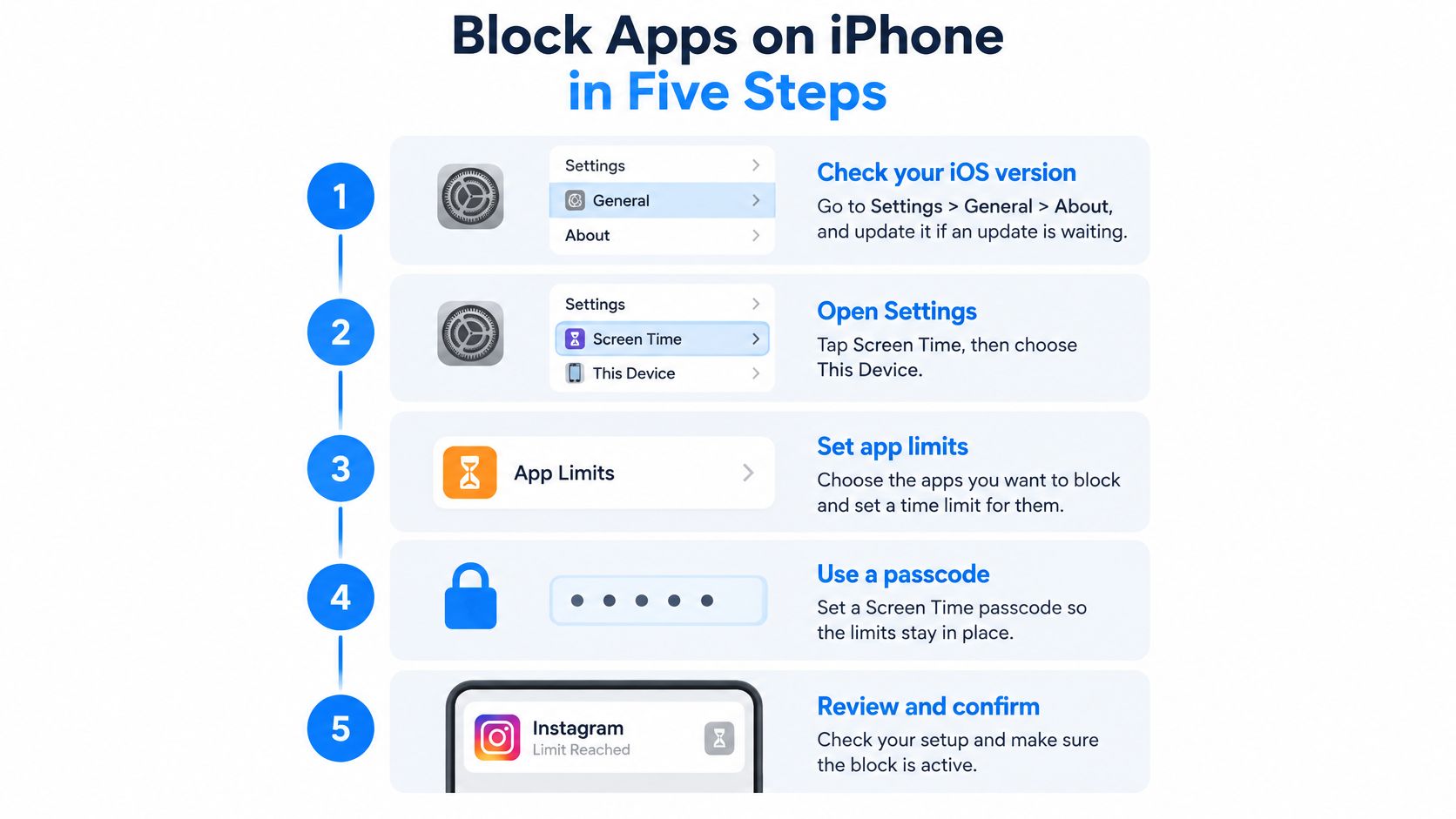
Block Apps on iPhone in Five Steps
Check your iOS version. Open Settings → General → About. Then check Software Update under General and install an available update. Menu labels can differ across iOS versions, so don't worry if your screen doesn't match an older tutorial exactly.
Turn on Screen Time and protect the settings. Open Settings → Screen Time, enable App & Website Activity if needed, and choose This is My iPhone if that prompt appears. Set a Screen Time passcode using Lock Screen Time Settings or the equivalent option on your version. A passcode adds a pause before an impulsive settings change, but it isn't a promise that you can't bypass your own limit.
Third-party permission is a separate step. Installing an app doesn't let it control your other apps: Apple's Family Controls documentation requires explicit authorization through its Screen Time-related system. Notification permission isn't blocking permission.
Choose the apps under App Limits. Tap App Limits → Add Limit, then expand a category to choose individual apps or select the whole category. Pick TikTok alone if that's the problem. Choose a broader selection if you already know you hop between feeds. Set your allowance and enable Block at End of Limit where available.
Set Downtime for quiet hours. Choose a schedule that matches when you want fewer distractions. Check Always Allowed before testing so you retain the calls, messages, and essential apps you need. Enable Block at Downtime where available if you want enforcement rather than a reminder.
Test the actual restriction. Open a selected app after its allowance runs out or during Downtime. Check what happens, including whether you can ignore the limit. A configured schedule and a working block aren't the same thing.
Use this visual while checking your setup:
Permission comes before enforcement
App Limits refresh daily and can be disabled or deleted, as Apple's App Limits guide explains. Setup gives you a boundary, not permanent commitment.
Badger uses that same explicit Screen Time authorization to lock the apps you select and step in on its own. Without authorization, no block can take effect.
Built-In Options Compared With Badger Groups
| Option | What it blocks | When it kicks in | How to undo it |
|---|---|---|---|
| App Limit on one app | One selected app | Daily allowance that resets each day | Delete the limit or turn it off |
| App Limit on a category | Every app in a category such as Social Networking or Games | One allowance shared across the whole selection | Delete the limit or turn it off |
| Downtime | Everything except calls, messages and always-allowed apps | On a schedule or until the next day | Turn off Downtime in Screen Time |
| Badger app groups | The apps and categories you select in each group | On a schedule, after a daily usage allowance, or at a saved place | Change or end the plan, or remove Screen Time access in iOS Settings |
Read this as a choice between what you're restricting and what triggers the restriction. Don't start with the strictest option just because it sounds more serious.
Apple's Screen Time guide distinguishes scheduled Downtime from App Limits and confirms that apps selected together share an allowance. That shared allowance is useful when your problem isn't Instagram specifically, but opening whichever feed still works.
Choose the smallest useful boundary
Downtime fits predictable hours, such as bedtime or a regular study window. A single-app limit fits one stubborn app while leaving unrelated tools alone.
A category limit fits repeated feed-hopping. Check the selection carefully, though. A useful app can sit in the same category as something you want to restrict.
Practical rule: Restrict the activity you keep drifting into, not everything your phone can do.
Apple's built-in tools do fixed schedules and daily allowances well. They're a sensible starting point when you know the rule you want and don't need help choosing what comes next.
Third-party blockers often add their own rule sets and dashboards. Some people like having detailed controls to configure. Badger differs by adapting to how strict you need it to be and giving you something to do instead of leaving you at a locked screen.
Our Badger versus Apple Screen Time comparison helps you weigh those approaches. If blocking is only part of your difficulty getting started, the app recommendations from Nick Donahue LICSW offer a broader executive-functioning resource.
Catch the Leak and Fix What Breaks
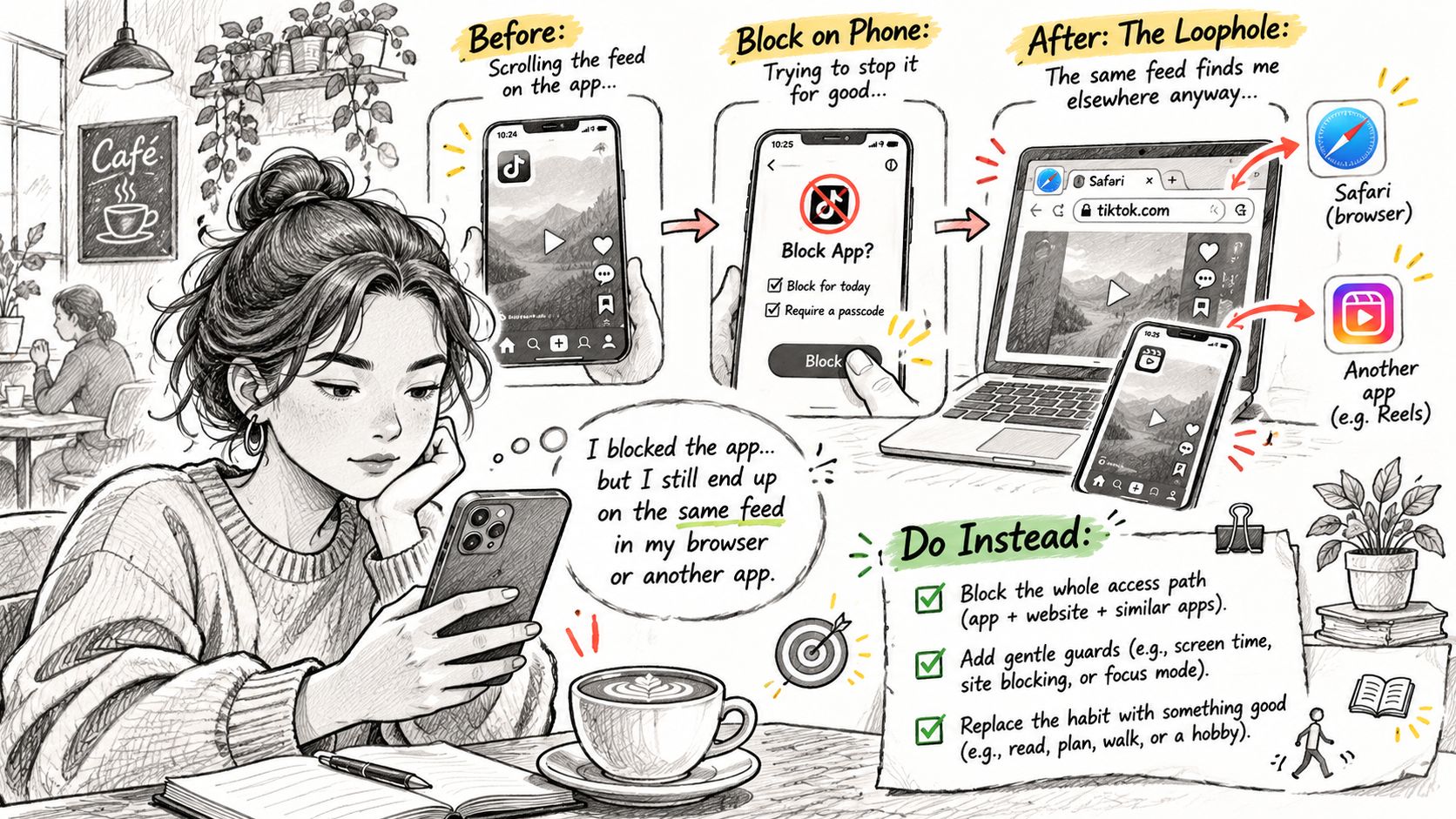
You block Instagram. Your thumb opens Safari. Technically, you followed the rule. Functionally, you're watching the same feed in a less convenient window.
This is the detour worth noticing:
Find the next place you scroll
Check what replaced the blocked app. Look at Screen Time's most-used list each week. If TikTok drops while YouTube rises, investigate that change before celebrating the smaller TikTok total.
Cover the relevant category. Group the feeds you move between. Don't expand the restriction to unrelated apps just to make the setup look thorough.
Restrict the website too. An app and its browser version are different targets. In Screen Time, look under Content & Privacy Restrictions → Web Content; the intermediate menu name can differ by iOS version. Add the relevant website to the restricted list and test Safari separately.
Keep essentials out. Don't lock apps you might need urgently, including calls, messaging, maps, medical care, or work you must respond to. Review category selections for accidental inclusions.
A 2025 JAMA Network Open study found that U.S. youths with phones at school spent nearly an hour per school day on smartphones, mostly on social media, while 94% already had time limits or app restrictions through the study's device-management system (JAMA Network Open). That doesn't prove every restriction fails. It does show why having controls isn't the same as changing the behavior.
Diagnose the failure before adding more strictness
Use the symptom as your starting point. These are checks to make, not proof of a single cause.
| Symptom | Likely cause | Fix |
|---|---|---|
| Block never starts | Screen Time isn't authorized, or iOS needs updating | Allow Screen Time, check the active rule, and update iOS |
| Website still opens in Safari | A web address isn't the same target as the app | Restrict the website in Screen Time settings too |
| Block works on iPad, not iPhone | The iPhone hasn't received its own setup or authorization | Set up and test the block on the iPhone you use |
| Downtime keeps switching off | Downtime was disabled, or related limits were changed or deleted | Re-enable Downtime and check the schedule and limits |
| Need an app right now | The block is active and you have a real need | Use the available emergency unblock, then keep that app allowed |
For Badger-specific checks, use our iPhone app-blocking troubleshooting guide. Emergency unblock is available in the app and doesn't depend on your AI allowance or Badger's AI services.
Keep this video alongside your troubleshooting checks:
Badger doesn't guarantee that any app will be blocked or unblocked at a particular moment. Don't use a blocking setup as a safety system. A failed block is a reason to adjust the setup, not a verdict on your willpower.
Adaptive Blocks That Learn Your Line
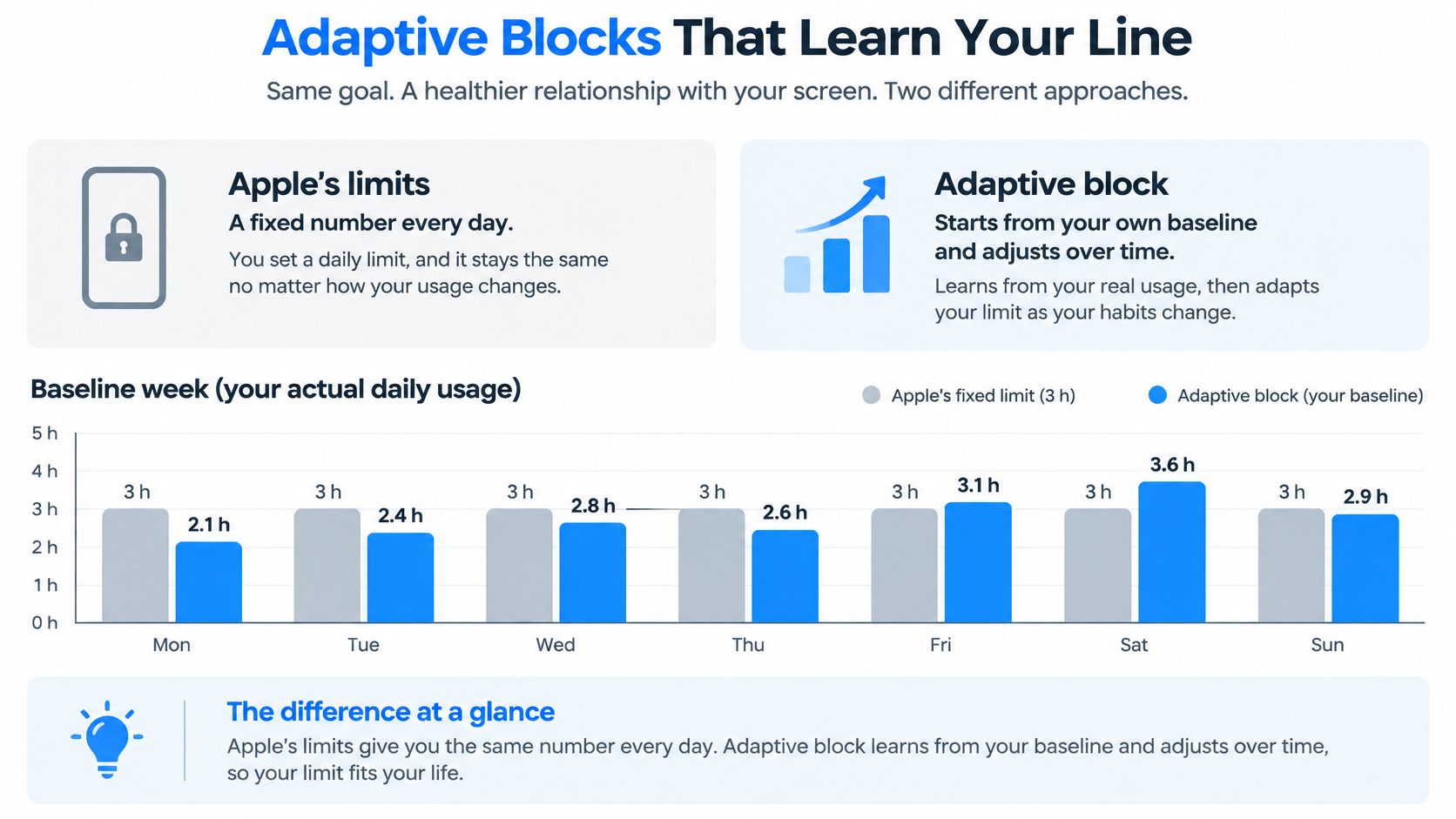
Apple's daily allowances stay at the number you set unless you change them. An adaptive block starts with your actual use and adjusts the boundary over time.
That distinction matters when the same app serves different purposes. Watching a specific YouTube tutorial differs from opening Shorts with no stopping point. Your settings should support the use you want, not make every opening feel like a mistake.
Start with a baseline, then adjust
- Record a baseline week. Pick the apps you want to change and note when sessions drift beyond their original purpose.
- Give each app its own threshold. Don't assume a useful allowance for Instagram also fits YouTube.
- Tighten gradually. Reduce access a little, then notice whether you keep the rule or immediately start finding exits. Ease up if strictness makes you abandon it.
- Review after one and two weeks. Check whether the block activated, whether target-app use changed, and whether you moved elsewhere or stopped using the setup.
The difference looks like this:
In a 2025 randomized study published in PNAS Nexus, 467 participants took part in an intervention blocking mobile internet for two weeks, and reported average daily screen time in the intervention group fell from 314 to 161 minutes, then rebounded to 265 minutes at follow-up. The intervention blocked mobile internet, not individual apps, so it isn't a forecast for your app limits.
A sharp drop during a restriction isn't the same as a routine you'll keep afterward. That is the practical reason to tune the boundary instead of treating the first hard limit as the answer. If the block is too loose, you barely notice it. If it is too tight, you spend the day looking for side doors. The useful setting sits between those two failures.
Add enough friction, not maximum friction
The systematic review behind the following comparisons reported different effects for warnings, input tasks, and deliberate access. These effect sizes aren't percentages or promised minutes saved.
| Friction type | Reported effect | What it means for your setup |
|---|---|---|
| Simple warning | Small effect | Useful as a reminder, weak as a block |
| 10-digit task before opening | Moderate effect | Stronger than a warning; makes you pause |
| 30-digit input before opening | Larger effect among these input options | May feel too demanding |
| Negotiated or deliberate access | Strong activation effect, reduced distraction initiation | Useful when you want a pause with deliberate control |
Don't read these separate comparisons as a universal ranking of blockers. Use them to ask whether your current interruption is too easy to dismiss or too annoying to keep. A warning works when you need a cue. Input works when the pause should cost attention. Deliberate access works when you want a decision point, not a wall.
Badger locks the apps and categories in the app groups you choose, using Apple's Screen Time authorization. You can set a block right away, on a schedule, after a daily usage allowance, or when you arrive at or leave a saved place. Blocks apply to the iPhone you authorized, so a block on one iPhone does not automatically apply to another device. App groups can be checked in Badger Settings.
You can change or end a plan, use emergency unblock, or remove Badger's Screen Time access in iOS Settings at any time. Emergency unblock ends the plans it releases, and Badger is designed not to block those apps again until you ask it to. Strictness should serve your goal, not become the goal.
Pick Something Better to Do
A locked feed leaves a gap. Decide what goes in it before you're bored and holding your phone.
A pact is one simple promise you keep with a small group of people. It should describe an action you can begin, not an impressive new identity you have to maintain.
Choose something you actually want
- Sample pacts like Walk more or Touch grass: Go outside, take a walk, and give yourself a change of scene.
- Sample pacts like Read more: Keep a book handy and read a few pages as part of your day.
- Sample pacts like Learn Spanish: Practice the language in a short session and try using what you learn.
- Sample pacts like Get better at chess: Play with a friend, work through a position, or review a mistake.
- Sample pacts like Draw: Leave a sketchbook open and make something small without needing it to look good.
Match the activity to what you're missing. If you want movement, don't replace TikTok with another seated task just because it sounds productive. If you miss making things, put the drawing supplies where your phone usually lands.
Make the first action obvious enough that you don't need to plan it while the block is active.
Let your group make it personal
Your group is where the pact lives. Friends in the same pact can see progress, chat, and give you a poke when you haven't done it yet. Keep the tone helpful, not courtroom.
Badger is a personal agent, not just an app blocker. It figures out when to step in on the apps that eat your time, then points you toward the pact you said mattered. The point is getting fitter, learning something, or getting good at a hobby. Blocking is the mechanism.
Call the small wins side quests, habit maxing, hobby maxing, or life maxing if that makes it more fun. You're still doing something concrete, with people who know what you're trying to keep.
You can start without an app: agree on a promise with friends and send a check-in when you've done it. For the moments when opening a feed feels automatic, our guide to how to stop doomscrolling offers more ways to interrupt that pattern.
Confirm Your Block Before Tonight
Don't spend tonight perfecting a dashboard. Build a small setup you can test during the exact moment you usually start scrolling.
Pick three apps. Choose the ones that take most of your attention. Start with the app you open first, not the one you feel you should dislike.
Set one boundary. Use an App Limit or a Downtime window. Keep the rule simple enough that you can tell whether it activated correctly.
Stage the replacement. With sample pacts like Read more or Walk more, put the book within reach or leave your shoes by the door. Agree with your group on what counts as done each day, so the block lands on a plan instead of an empty evening.
Test at the usual moment. Try opening the feed when you'd normally reach for it. Then watch for the leak: if your thumb drifts to a second app the moment the first one blocks, that app belongs in the group too. Leave calls, messaging and maps available, since you may need those urgently.
Book a review. Check after a week, then again the following week. Tighten an easy bypass and ease a restriction that makes you quit. Notice what you did with the space you made.
When you want help adjusting
Text Badger to talk about your goals, make a plan, and ask it to take action. It can block distracting apps and help you adjust when your day changes, while your group gives the pact somewhere to happen.
Badger runs on iPhone only. You don't need it for tonight's checklist, but it's an option if you want a personal agent that steps in without making you manage every intervention yourself. Nothing blocks until you grant Screen Time authorization, and an emergency unblock removes its locks whenever you need it without asking permission.
Visit Badger to choose a pact, find your group, and give the time you're protecting somewhere to go. Get Badger on the App Store from gobadger.app.
Questions or corrections? Use Badger Support. More on the Badger blog.