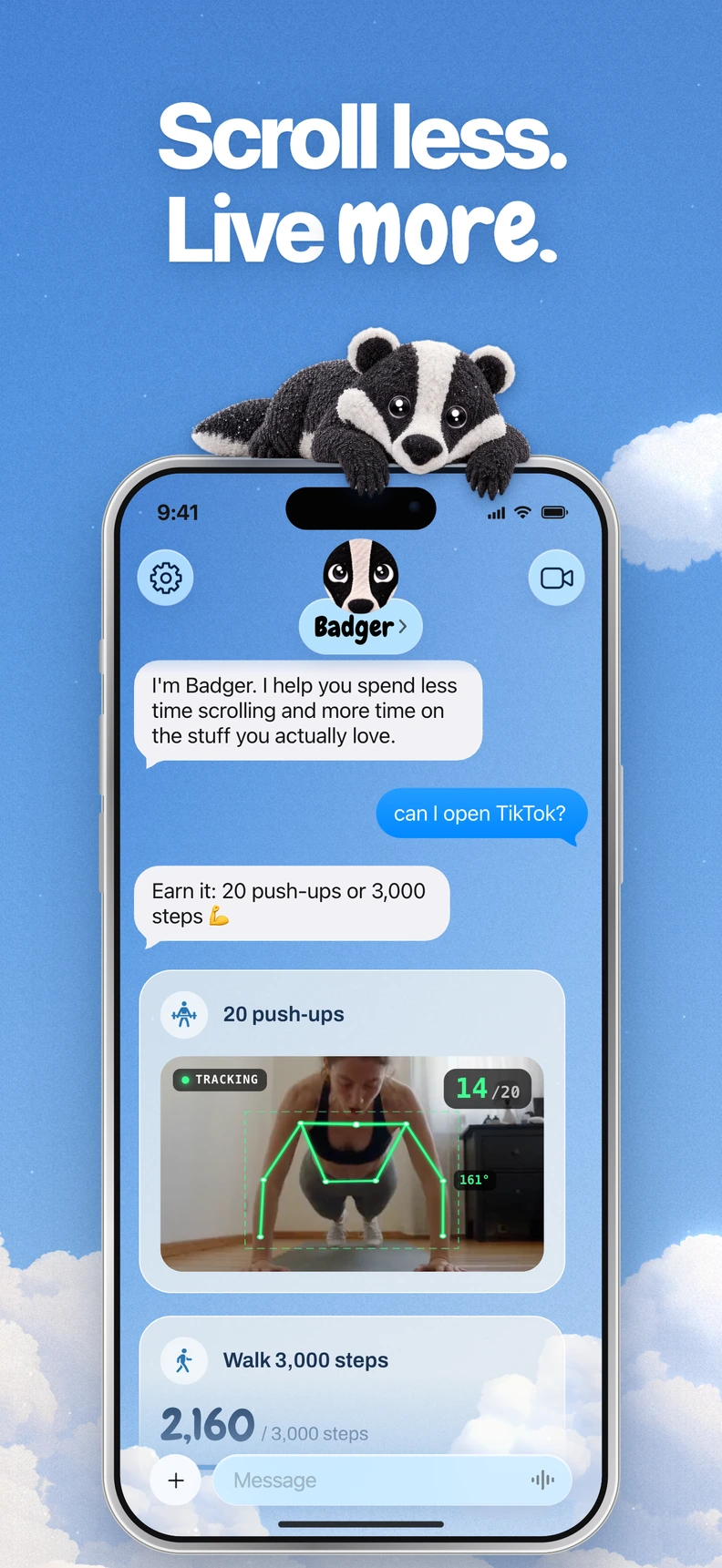


You set a 30 minute limit on TikTok a while back. You've tapped through the prompt so many times the tap happens before you've read it, and when the timer finally holds, you've already moved to Reels, then YouTube Shorts, then a group chat with a link to something you "need to watch."
A custom block list is supposed to fix that. Most of them fail for unglamorous reasons: they were built once in a burst of motivation, nobody gave them a review date, and nobody asked where the scrolling goes when the first app locks. Here's how to build one that survives contact with a Tuesday night.
Pick the Apps That Eat Your Time
Apply one test before you add anything: would a lock on this app at 2 p.m. on a Tuesday annoy you? If yes, it belongs in a group. If a lock would only bother you at 1 a.m., it's a schedule problem, not a block list problem.
Get the evidence first. On the iPhone, open Settings, then Screen Time, then See All Activity, and look at the last seven days. You're hunting for the apps you open without deciding to open them. Time spent is context. The reflex is what a list can interrupt. If you want a second read on what those reports do and don't tell you, this guide to choosing an app that tracks screen time covers the gaps.
Three buckets, then.
- Feeds with no stopping point. TikTok, Instagram Reels, YouTube Shorts. Autoplay turns the end of one post into the start of the next, so there's never a moment where you decide to stop.
- Reward loops. Games with streaks, apps with daily login bonuses, shopping apps whose deals tab you open without wanting anything. Block list, or a daily allowance if you want a little.
- Real life. Messages, maps, banking, your calendar. These keep you employed and able to find the dentist.
Only the first two belong in a block group. The third gets a schedule or stays out of every group.
| App type | Why it pulls you in | Where it goes |
|---|---|---|
| Short-video feeds (TikTok, Instagram Reels, YouTube Shorts) | Autoplay with no natural stopping point | Block list |
| Games and reward apps | Streaks, levels and daily rewards | Block list or daily allowance |
| Shopping and food delivery | Quick browse loops | Schedule during work or study hours |
| Messaging (iMessage, WhatsApp) | Needed for friends, family and work | Schedule or keep out |
| Maps, banking and calendar | Needed for real life | Keep out of every group |
The bottom rows matter more than people expect. Drop messages into a hard block and you'll be fighting your own list by Thursday, which is how lists get deleted in the first place.
A list with ten apps you barely touch is harder to keep than a list with the three apps that eat your afternoons. Coverage isn't the goal. Interruption at the right moment is.
If the reason you reach for a feed at 3 p.m. is that your focus is gone by lunch, that's a different problem, and the Acheloa Wellness focus and burnout guide is worth reading before you blame the app.
iPhone Permissions Your Block List Needs
No authorization, no block. That single rule decides whether anything else here works, so start with it rather than with the app list.
Badger blocks apps through Apple's Screen Time and Family Controls frameworks. Without Screen Time authorization, the group you built is a set of names and nothing happens on the phone.
Apple's own system is the baseline. Screen Time takes limits on individual apps and on whole categories such as Social Networking or Games, one limit can cover several selected apps or categories, and the allowance refreshes daily at midnight, as Apple's Screen Time support page explains. The same page covers the Always Allowed list, which keeps chosen apps and contacts reachable during Downtime. Badger's groups sit on top of that system rather than beside it, which is why the permission matters more than the list.
iOS 18 or later is the floor. Check Settings, then General, then About, before you spend twenty minutes on setup you can't finish.
Then there's the per-phone part. Authorization covers the iPhone you set it up on, so a block on your phone doesn't follow you to a second device. Run two phones and you repeat the setup on each.
| Setting | What it controls | Where to check |
|---|---|---|
| Screen Time authorization | Required before any block can take effect | Settings, then Screen Time |
| iOS version | 18.0 or later | Settings, then General, then About |
| Always Allowed list | Apps and contacts that stay open during Downtime | Settings, then Screen Time, then Always Allowed |
| Per-iPhone setup | A block applies only to the iPhone you authorized | Repeat on each iPhone |
| Emergency unblock limit | Five standard unblocks per calendar month in UTC, no rollover | Inside Badger |
The release valve has a limit
Emergency unblock is the part people ask about, and the honest answer is that it's counted. Five standard unblocks per calendar month, measured in UTC, with no rollover into the next month. Once those are used, a longer emergency unblock stays available, and the feature works whether or not you've touched your AI allowance.
That's deliberate, not punitive. A release valve that never runs out isn't a release valve, it's a second Ignore button, and you already know how that one ends. Five is enough for a real emergency and too few to spend on a Wednesday because the feed is boring.
Screen Time Alone or Badger on Top
Screen Time is already installed and costs nothing. It limits a single app or a whole category for the duration you pick, and for plenty of people that's enough. If you set a limit six months ago and you've never tapped through it, you don't need another layer.
The honest weakness is ownership. The person being limited also holds the settings, and at 1 a.m. you are the administrator with full access. Hard-lock blockers answer that by taking access away entirely. They work, and they leave you staring at a locked home screen with nothing to do, which is usually where boredom walks you back to the same habit a day later.
Same permission, different job. The authorization was never the interesting part.
What Actually Differs
Badger runs on that same Screen Time authorization and does something else with it. Two differences matter. It steps in based on how long you've been on the apps you named, rather than a fixed rule you set once and forgot, and the strictness adapts. A rough week doesn't push you to delete the app. It goes lighter, then tightens when you're ready. The second difference is what happens after the lock: instead of an empty screen, you get a pact and a group doing the same thing.
There's an optional layer for people who already live inside an assistant. The Model Context Protocol specification describes tools as functions a model can invoke, with explicit user consent required before a tool runs and available tools depending on the scopes granted for that request. That's how a connection works in practice: you authorize it, it finds an approved blocking tool, and it can only act inside the permissions you handed over. Useful if you plan your day in a chat window. Irrelevant if you don't.
The comparison of Badger and Apple Screen Time gets into the specifics if you're choosing between the two.
Build the Group and Choose When It Kicks In
Half the work is naming. A group called "Productivity" tells you nothing in six weeks. Feeds after 10 p.m. tells you exactly what it's for, and Study hours tells you when to argue with it.
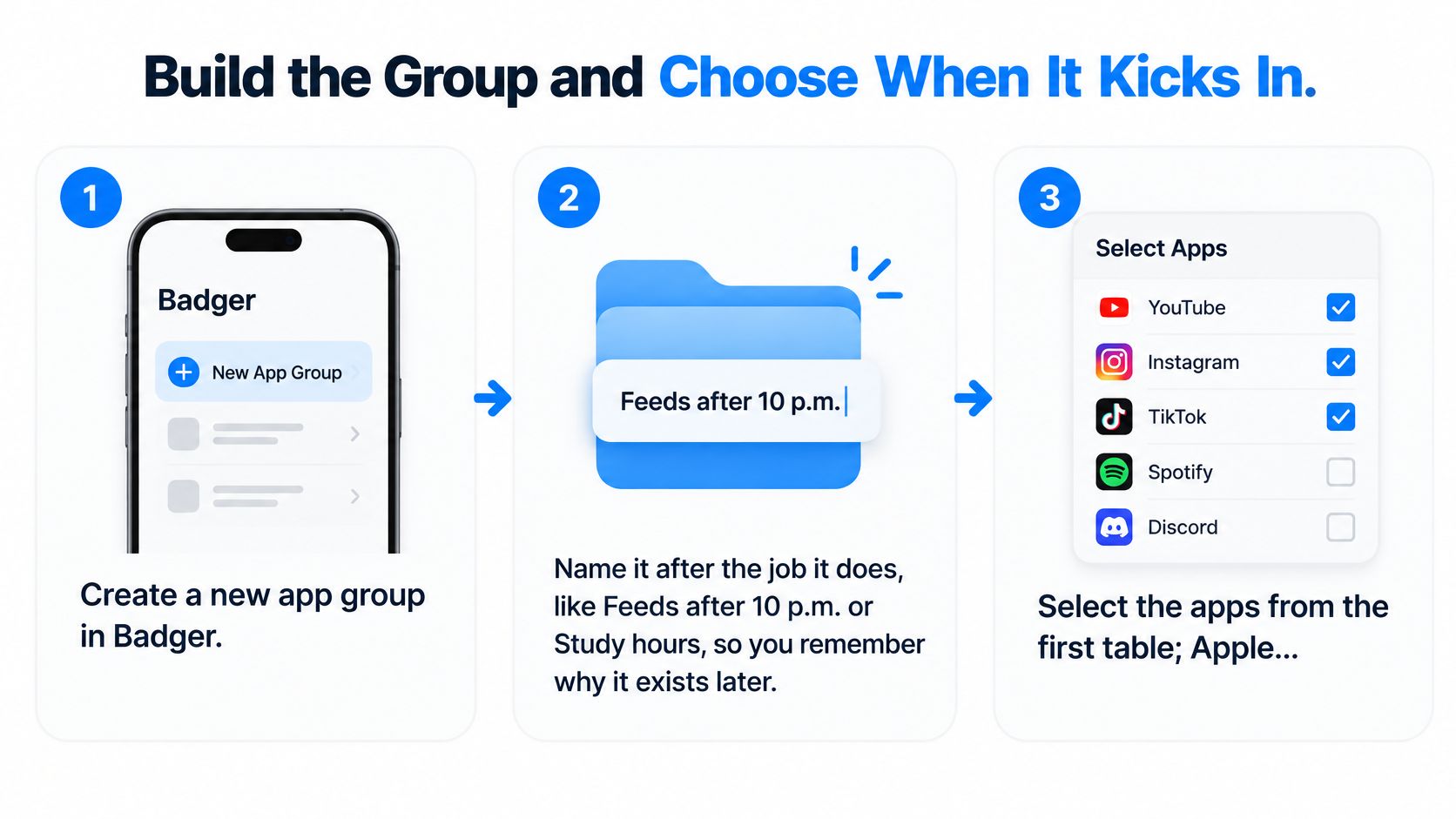
Here's the build, in order.
- Create a new app group in Badger. A group rather than a single app, because you'll want to move things in and out of it later.
- Name it after the job it does, like Feeds after 10 p.m., Study hours, or No games until the essay is done.
- Select the apps from the first table. Apple categories such as Social Networking catch the apps you forgot to add, so check that they don't also catch something you need.
- Confirm the apps landed where you expect. Badger Settings shows the apps and categories in each group. Then ask two questions. Is the group too broad, meaning it caught an app you need? Is it too narrow, meaning the browser route is still wide open?
- Choose when it applies. Right now, on a schedule, after a daily usage allowance, or on arrival at or leaving a saved place.
Here's the flow, from creating the group to picking what goes in it.
Every group is a rule with a reason, not a permanent verdict. Write the group name, why you made it, and a review date into your notes app. That note is what you edit in three weeks when the list stops working, and editing is far easier than rebuilding.
Four Triggers, Four Different Jobs
| Mode | What triggers it | Best for | Watch out for |
|---|---|---|---|
| Immediate lock | You start it now | A focus session you already planned | Easy to drop under pressure |
| Schedule | A set time of day | A fixed habit, like no feeds after 10 p.m. | Misses scrolling outside the window |
| Daily allowance | Usage reaches your daily limit | Casual scrolling you want to cap | Lets you use up the allowance in one sitting |
| Saved place | You arrive at or leave a saved place | Gym, library or class | Needs location and a saved place |
A schedule suits a habit that lands at a fixed time. A daily allowance suits scrolling you want capped but not banned. A saved place suits the gym, the library, or the class whose first ten minutes you keep losing. An immediate lock suits a focus session you've already committed to, and it's the one most likely to get dropped under pressure, so don't build your whole system on it.
Then test with the app you open. Testing Safari when the thing that eats your evening is TikTok tells you nothing except that the button works.
Start Lighter Than You Think
The strictness question is where most lists get abandoned. Begin lighter than your instincts suggest and tighten only if you keep opening the app anyway. A schedule you survive beats a hard lock you remove on day three. If the block holds all week without a fight, that's your signal to tighten. If you're bargaining with it by Tuesday, loosen the trigger or narrow the group instead of deleting the whole thing.
The exception system matters as much as the block. A hard lock with no legitimate way out gets deleted. A lock with an instant escape hatch never holds. Badger's emergency unblock sits between those extremes: it exists, it works without asking anyone's permission, and because you know it's there you don't need to rip out the whole setup the first time you need an app. Treat reaching for it as information. If you hit it three nights running, the trigger is wrong for your life, not your willpower.
Coverage has its own failure mode. Your alternatives are the browser, the second account, the client you installed last night that isn't in any group. A group that nails the obvious app and misses those is a rule with a hole in it, which is why the review date matters more than the initial build.
False positives deserve the same respect. A University of California, Berkeley study of web filters found the most restrictive filter blocked about 94% of adult webpages appearing in search results and still blocked approximately 13% of clean search results, and filters with lower underblocking rates generally had higher overblocking rates, per the Berkeley statistics technical report. Broader rules buy coverage and pay for it in collateral damage. On a phone, the collateral is the app you needed for work. When a category sweep catches something you use, pull that app out of the group rather than abandoning the group.
Maintenance rule: every group gets a name, a reason and a review date. A rule you can't explain is a rule you'll delete.
Week one tells you whether the group holds or whether you were optimistic about your own evenings. Either answer is useful.
Fix the Leaks Before They Undo Your List
The leak that undoes most lists isn't technical. It's substitution, and almost nobody tests for it.
A three-week field study found participants stayed inside their app-level budgets while total device use barely moved, because attention shifted to apps that weren't restricted, per the study of customizable app-limit enforcement. Sit with that for a second. A list can make you feel in control while the scrolling relocates. Block TikTok and YouTube Shorts absorbs the hour. Block both and Safari takes the shift, then a messaging app with a link to a feed.
So ask where the scrolling goes next, then add that route or put it on a schedule before you call the list finished.
The Mechanical Leaks Are Easier
Most of the rest are mechanical, and each fix takes about two minutes.
| Symptom | Likely cause | Fix |
|---|---|---|
| Scrolling moves to another feed | Substitution to an unblocked app | Add the new feed or put it on a schedule |
| Same site opens in Safari | Browser route not in the group | Block the site's app and its browser route together |
| A new app keeps you hooked | Newly installed app not in a group | Check the group after each install |
| The block never triggers | Screen Time not authorized or wrong group | Confirm authorization and check Badger Settings |
| Emergency unblocks run out early | Trigger is too strict or wrong | Loosen the mode or fix the trigger |
A block that never fires is nearly always a permission or a group problem, not a software mystery. A newly installed app is invisible to a list you built last month, so check the group after every install. Emergency unblocks have their own arithmetic: five per calendar month in UTC with no rollover, so burning them by the second week means the trigger is too strict, not that you lack willpower. And Badger doesn't guarantee that any app gets blocked or unblocked at a particular moment, which is the sensible stance for anything running on a phone that updates underneath you.
Maintenance is the other half. A measurement study of Internet security blocklists found only 7% of blocklists changed at least once per day, and about 30% of entries collected during the first week were never removed, per the blocklist measurement study. Old entries pile up because nobody reviews them. Yours will too.
One leak a week: pick the single route still eating time, close it, and leave the rest of the list alone.
Keep the exception list short and label every exception. A work message is a real need. A feed you open when you're bored is a habit wearing a need's coat. Only the first kind stays unblocked. If the block keeps failing in one specific spot, the guide to why an app blocker stops working on iPhone walks through the usual causes. And fix one phone at a time, since a block applies to the iPhone you authorized and doesn't follow you to a second device.
Pick a Pact for the Time You Get Back
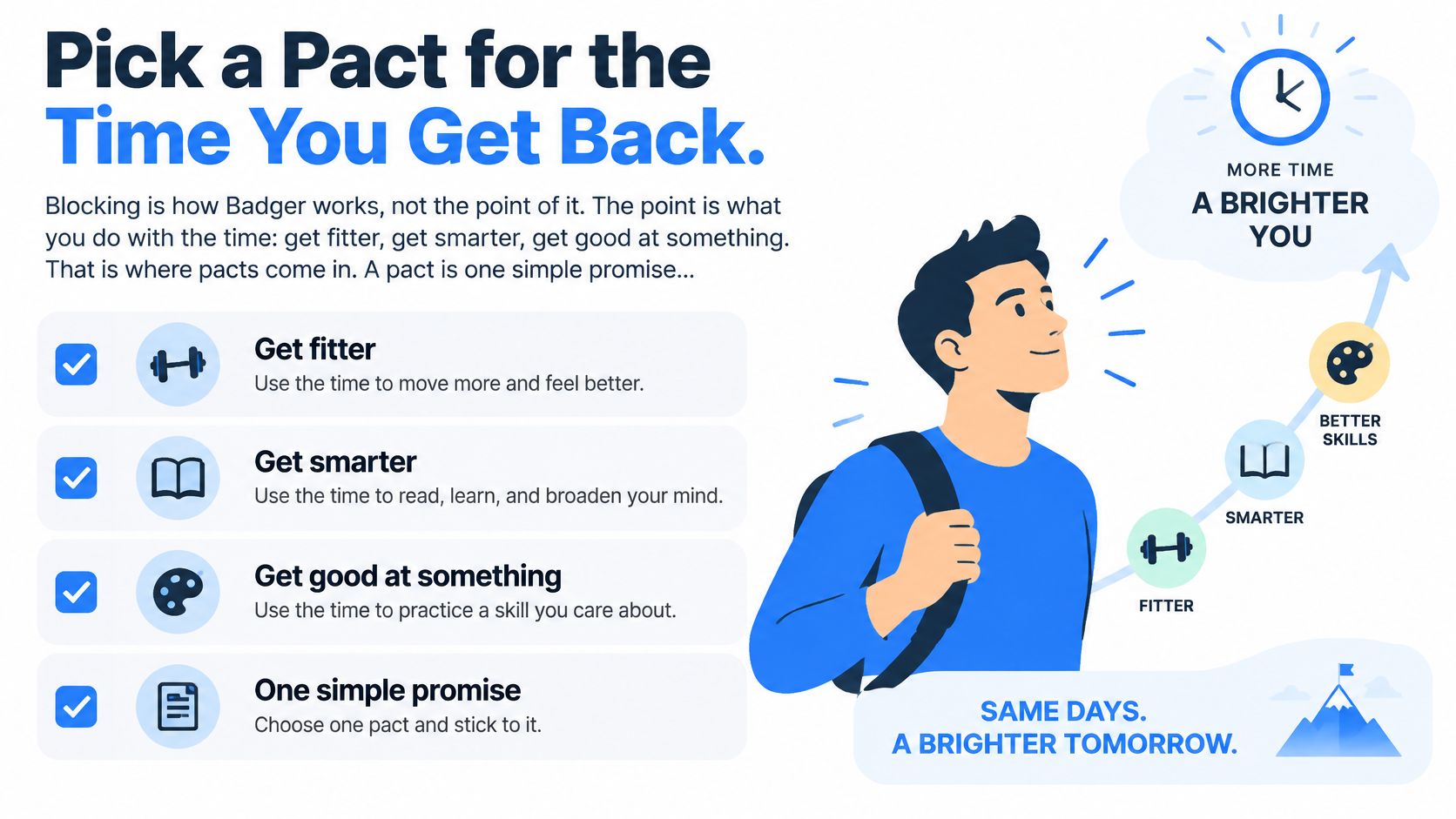
Blocking is how Badger works. The point is what fills the space after a rule closes one more route into scrolling. Get fitter. Get smarter. Get good at something you'd bring up with a friend. A pact is one simple promise you keep with a small group of people, and the good ones sound almost boring: read a few pages every day, walk more, learn Spanish, get better at chess, draw something, touch grass, 75 Hard if you're feeling ambitious. Small enough to start tonight, specific enough that you know whether you did it.
Name the pact by the action, not the mood. "Get healthy" gives you nowhere to report. "Walk every morning before the feed wakes up" is a promise you can keep or break, and your group can see which one happened. That matters when a block creates an awkward half hour and the old app is still one tap away. A clear pact turns that gap into a default.
Why a Group Beats a Private Streak
Accountability is the mechanism. A widely cited goal-setting study led by Gail Matthews followed 267 participants and found people who wrote goals down and sent weekly progress updates reported a 76% success rate, against 43% for people who kept their goals private, per this write-up of the accountability study. That's a goal study, not a screen-time trial, so don't read it as a promise about your scrolling. Read it as the reason a check-in with three people beats a streak nobody can see.
A stopping point helps on the other side of the ledger. A 2024 study of infinite-scroll design compared 30 participants on a normal feed with participants on an interface that required a reaction before the next post, and found the reaction version produced significantly better content recall and higher self-reported attention, according to the study of infinite-scroll design. The endless version was linked to greater absorption and lower self-awareness. Fewer posts, better memory of the ones you saw.
That is the practical reason to pair a custom block list with a pact. A narrow list often pushes scrolling into the next unblocked app. A group check-in gives the blocked minutes a job before your thumb finds the next feed. Poking someone who hasn't done it yet works because the ask is small and specific. Habit maxing, hobby maxing, life maxing, whatever you want to call it, the check-in does more work than the timer ever did. Clear the admin clutter the same way, since AI apps for meetings and calendars can free the hour so the thing you unblocked time for has somewhere to land.
Badger runs on iPhone and requires iOS 18.0 or later. You can change or end a plan whenever you want, and emergency unblock works regardless of your AI allowance.
Questions or corrections? Use Badger Support. More on the Badger blog.