
“Just turn on Restricted Mode” isn't a complete answer when you want to block YouTube videos. It filters some mature content. It doesn't stop a Shorts detour, close Safari, or help when you tap for more time.
You probably want something more useful than a locked screen: time to get fitter, learn Spanish, draw, or finally get good at chess. Start by choosing what needs stopping, the app, the time, the browser, or the feed. Those are different jobs, with different escape routes.
What iPhone Can and Cannot Block on YouTube
iPhone has no built-in switch that blocks one specific YouTube video by its link. You can limit access to YouTube, filter some content, or change recommendations. You can't paste a video link into iPhone settings and make just that video disappear.
That distinction saves a lot of pointless settings archaeology. Pick the control that matches the problem, not the one with the strictest-sounding name.
iPhone controls for YouTube and their gaps
| Method | Where you set it | What it stops | What gets through |
|---|---|---|---|
| Screen Time App Limit | Settings, Screen Time, App Limits | Daily time in the YouTube app | Safari visits to youtube.com; you can ask for more time |
| Downtime | Settings, Screen Time, Downtime | YouTube and other apps you haven't allowed during a set window | Calls, messages, and allowed apps |
| YouTube Restricted Mode | YouTube settings, per browser and device | Much mature content in search and playback | Filtering isn't guaranteed; another browser or signed-out session may have different settings |
| Badger | Badger app after Screen Time permission | Steps in when you go past your line on selected apps | Apps you haven't selected |
| Block one specific video | Not available in iPhone settings | No individual video-link blocking | Any otherwise accessible video you can open by link |
An app limit isn't a website block. YouTube in Safari is a separate target from the YouTube app. Likewise, filtering mature content isn't the same as limiting how long you watch perfectly ordinary videos.
YouTube's Restricted Mode guidance describes filtering based on signals such as titles, metadata, and language, alongside human age-restriction review. That's classification, not a personal list of forbidden videos.
Practical rule: Block the app for access, the time for boundaries, and the feed for unwanted suggestions. Don't expect one setting to do all three.
If you came looking to stop evening scrolling, start with Downtime. If you want fewer unwanted creators, use feed controls. If you need one exact link blocked, iPhone's built-in settings won't deliver that precision.
How to Set Up Screen Time Limits and Downtime
Screen Time is a sensible first move. It's already on your iPhone, and a fixed allowance or schedule may be all you need.
Apple's Screen Time guide confirms that Downtime supports daily or customized schedules, while App Limits can cover categories or individual apps with different allowances by day. Choose YouTube itself unless you also want to restrict the other apps in a category.
Set the limit you'll actually keep
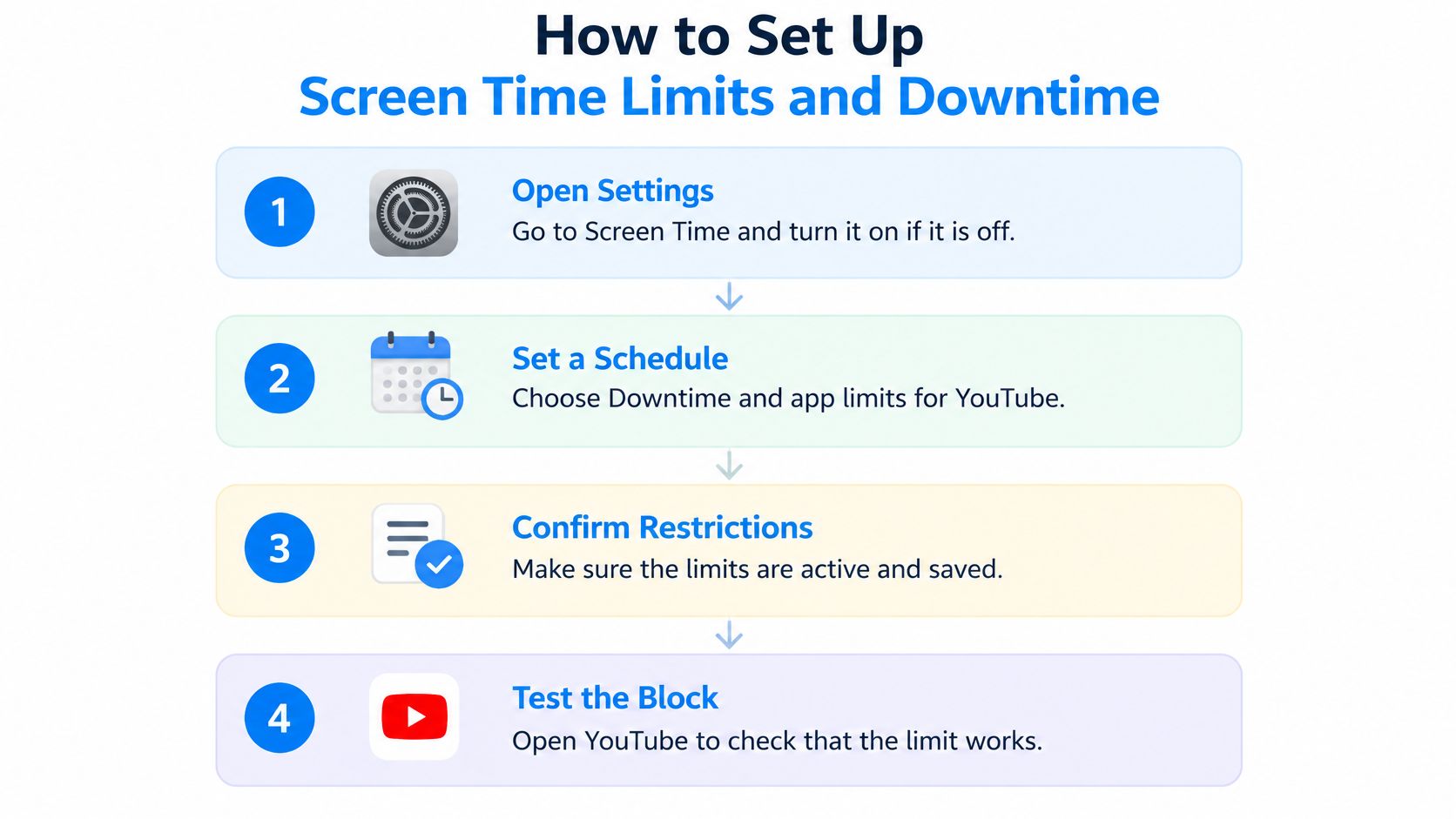
Open Settings, then Screen Time. Turn on App & Website Activity if it's off. Without activity tracking enabled, you won't have the app-limit setup you need.
Set a Screen Time passcode. Use the option to lock Screen Time settings, with wording that may differ by iOS version. A passcode adds friction, but if you know it, you can still change your own rules.
Open App Limits and choose Add Limit. Select YouTube, choose your daily allowance, and customize the days if needed. Pick an allowance you intend to keep, not an impressively tiny one you'll immediately extend.
Open Downtime and set a schedule. Choose the start, end, and days you need. Keep essential communication and other necessary apps available through your allowed list.
Review Always Allowed in Screen Time. Check Maps, your alarm setup, and anything you need during the restricted window. Don't assume every useful app is exempt.
Enable Block at Downtime. If available, enable Block at End of Limit for the App Limit too. Then test the restriction rather than assuming the saved schedule means it's enforced.
Use this visual as a quick setup checklist.
Check the boundary, not just the menu
Open YouTube after the allowance is exhausted or while Downtime is active. Check that the restriction appears and notice which extension options remain available. A warning you can dismiss isn't the same as a boundary you'll keep.
For a family schedule, Pinwheel Crafts LLC's guide to summer screen time balance for kids offers a separate planning resource. Build the schedule around actual activities, rather than filling every free slot with restrictions.
Screen Time handles predictable hours well. If you want to compare that fixed model with a personal agent that steps in based on selected-app use, the Badger versus Apple Screen Time comparison explains the distinction.
Where Blocks Leak and How to Close the Gaps
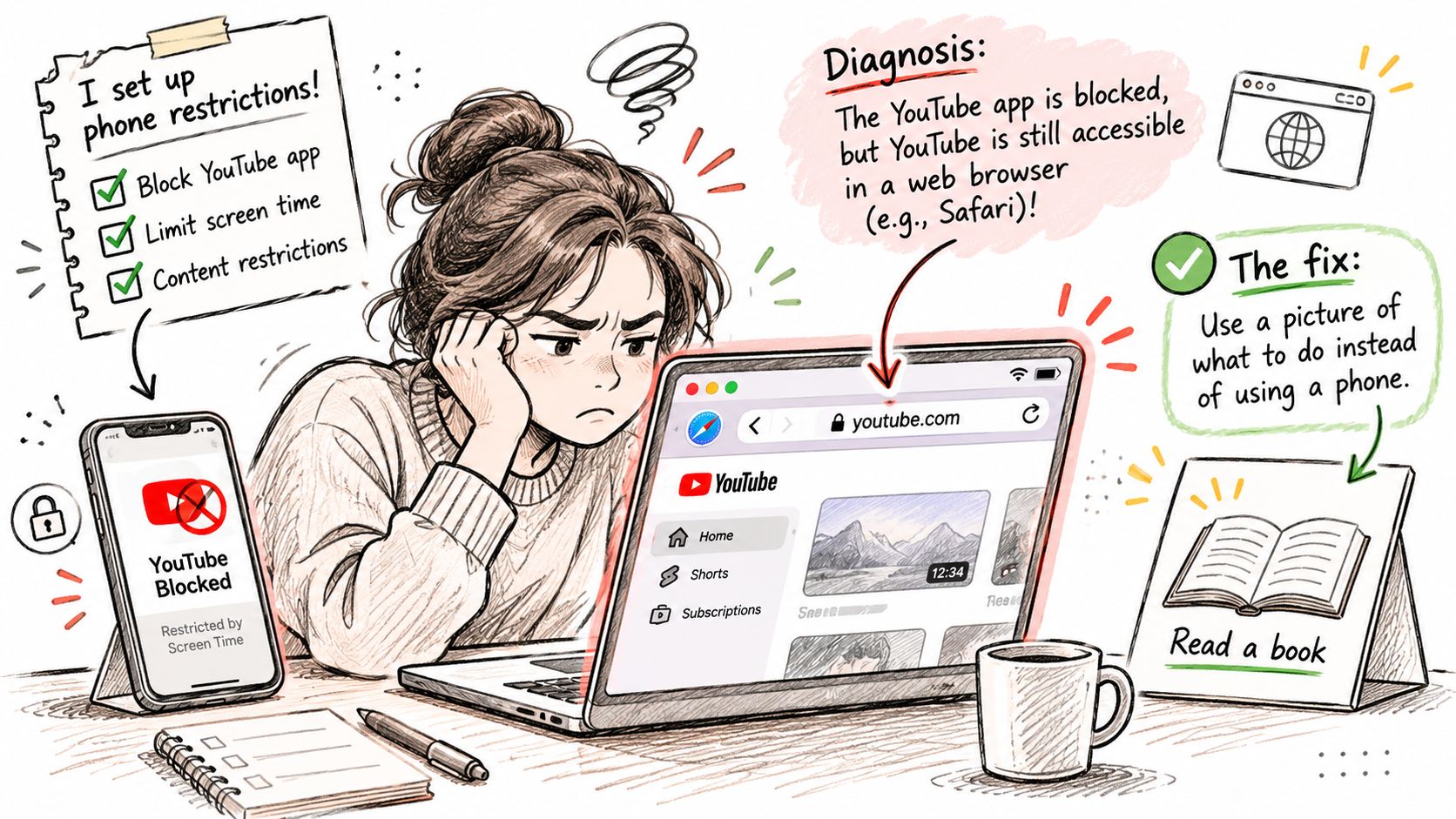
You limited YouTube, then opened it in Safari. Annoying, but not mysterious: you restricted the app and used another route.
Treat each workaround as a diagnosis. Don't rebuild your entire setup because one door stayed open.
This is the mismatch to look for when a restriction seems active but playback still works.
Common leaks and how to close them
| Leak | Why it happens | How to close it |
|---|---|---|
| Safari opens youtube.com | Your app-only limit doesn't cover that route | Restrict web access separately if it counts; set Restricted Mode in each browser for content filtering |
| Mobile data works after Wi-Fi is off | A router or network filter no longer applies | Use device-level controls too, then test Wi-Fi and mobile data |
| Signed out or incognito | That session may not carry the same Restricted Mode setting | Check after sign-in changes and test while logged out |
| A direct link opens a video | Hiding search results or recommendations doesn't necessarily prevent playback | Test direct playback; use access restrictions if playback must stop |
| Tapping Ask for More Time | The allowance permits an extension request | Choose a realistic allowance and review who can authorize extensions |
| Shared phone or second account | YouTube preferences can differ by account; device controls have separate ownership | Check the active YouTube account and who controls Screen Time |
Restricted Mode won't close a time-limit loophole. It may filter content in Safari, but you can still spend the evening watching content that passes the filter. If the web counts toward your boundary, address web access rather than just its maturity settings.
The Whitelist parental-controls guide describes why browser, account, and network changes matter when testing YouTube restrictions. Don't assume a setting follows you everywhere just because you enabled it once.
Match the fix to the cause
If mobile data defeats a block, first identify where the block lives. A Wi-Fi-only filter disappearing on cellular suggests network-level enforcement, not a device-level rule. Switching connections shouldn't be your only test of an iPhone setup.
For account changes, separate YouTube preferences from Screen Time controls. Switching YouTube accounts doesn't automatically remove a device-level App Limit, although it can change recommendations and content settings.
Test the route you actually use, not just the route you restricted.
For a broader troubleshooting checklist, use why an iPhone app blocker isn't working. Then open YouTube through the app, your browsers, a shared link, and both connection types, and note exactly what gets through.
Cut the Feed Instead of the Whole App
Sometimes you don't need less access to YouTube. You need to watch the guitar lesson without accepting the entire internet's suggested follow-up.
Intentional watching has an endpoint. A recommendation feed doesn't give you one, so create your own.
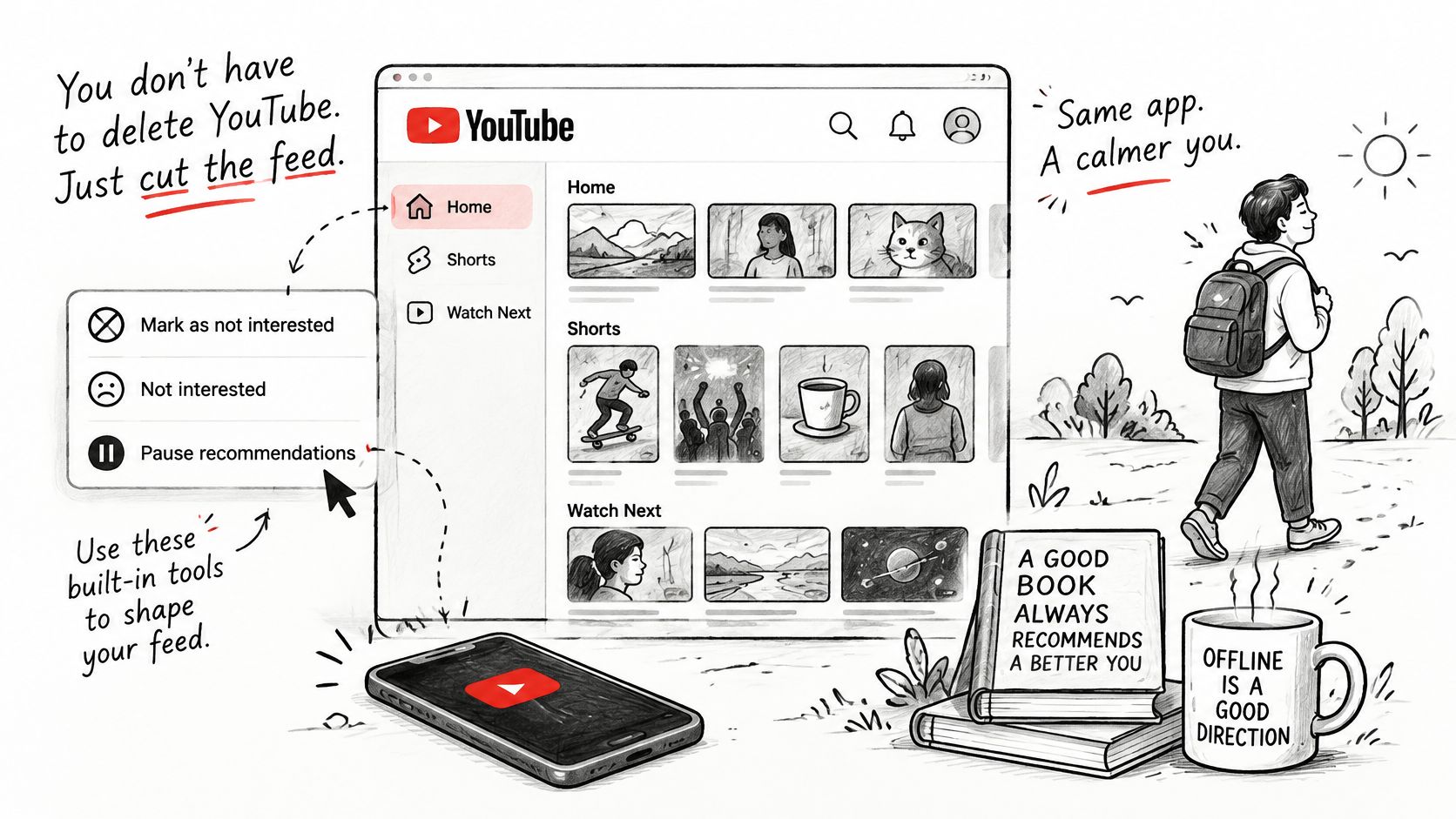
Use these controls to shape what appears, rather than trying to ban every unwanted video.
Clean up suggestions without losing useful videos
YouTube's recommendation controls guide explains the built-in options for Home, Watch Next, and the Shorts section:
- Not interested: Open a video's menu and select this option. Give a reason when offered; it helps shape suggestions, not direct access.
- Don't recommend channel: Use this for a creator you don't want in recommendations. Their videos can still appear through other routes.
- Show fewer Shorts: In the mobile app's Shorts section on Home, use this option when available. It reduces recommendations rather than removing Shorts access.
- Autoplay off: Disable autoplay in the player or relevant settings. This stops the next video from starting automatically, but you can still choose another.
These are feed controls, not a universal blocklist. iPhone has no setting that removes one channel or video from YouTube. Don't recommend channel is the closest recommendation tool; a link someone sends can still play if the video is otherwise accessible.
The embedded player is below; make feed changes in your own YouTube session.
Give watching an endpoint
Keep a short watch list in Notes. Add videos before opening YouTube, then use those links instead of browsing Home for something vaguely useful.
Try that approach for a week. After a few days, notice whether you finish the planned video and leave, or still open Shorts on autopilot. You're checking a habit, not chasing a promised number of minutes saved.
If you keep drifting, shorten the list and choose its purpose more clearly. A Spanish pronunciation lesson is a task. Finding something educational is an invitation to browse forever, wearing a tiny academic hat.
Match the Block to Your Situation
Want to finish studying, sleep better, or get back to drawing? Start with that outcome. The restriction should protect something you want to do, not become another hobby involving settings menus.
Choose the row closest to your situation. You don't need every control switched on.
First layer to try by situation
| Situation | First layer | Why it fits |
|---|---|---|
| Exam week or deadline | Downtime during study hours, plus Badger on selected apps | A scheduled boundary plus an intervention when you pass your line |
| Night scrolling | Downtime from bedtime, autoplay off | Limits access during bedtime and removes automatic video chaining |
| Want less YouTube, not zero | Daily App Limit plus feed controls | Preserves planned viewing while reducing unwanted suggestions |
| Tapped through blockers before | Badger with a sample pact like reading a few pages every day | Gives you a planned activity rather than only an interruption |
| Shared family phone or kid's device | Restricted Mode on each device plus a Screen Time passcode | Combines content filtering with protection against casual settings changes |
For exams, keep access to the lesson you need. A blanket ban that blocks your revision material gives you an excellent excuse to undo the whole thing. For bedtime, make the alternative easy: leave your book where you normally hold your phone.
Give the interruption somewhere to go
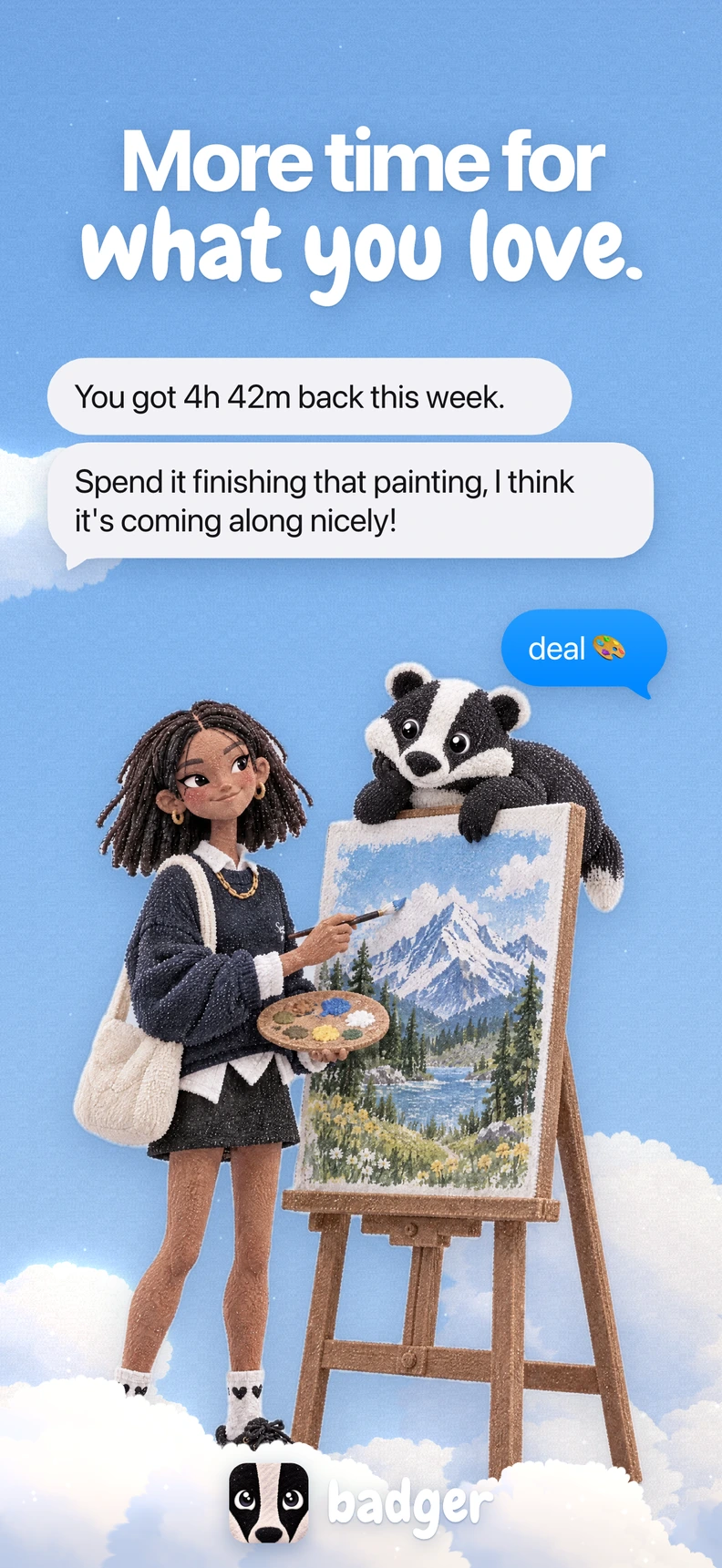
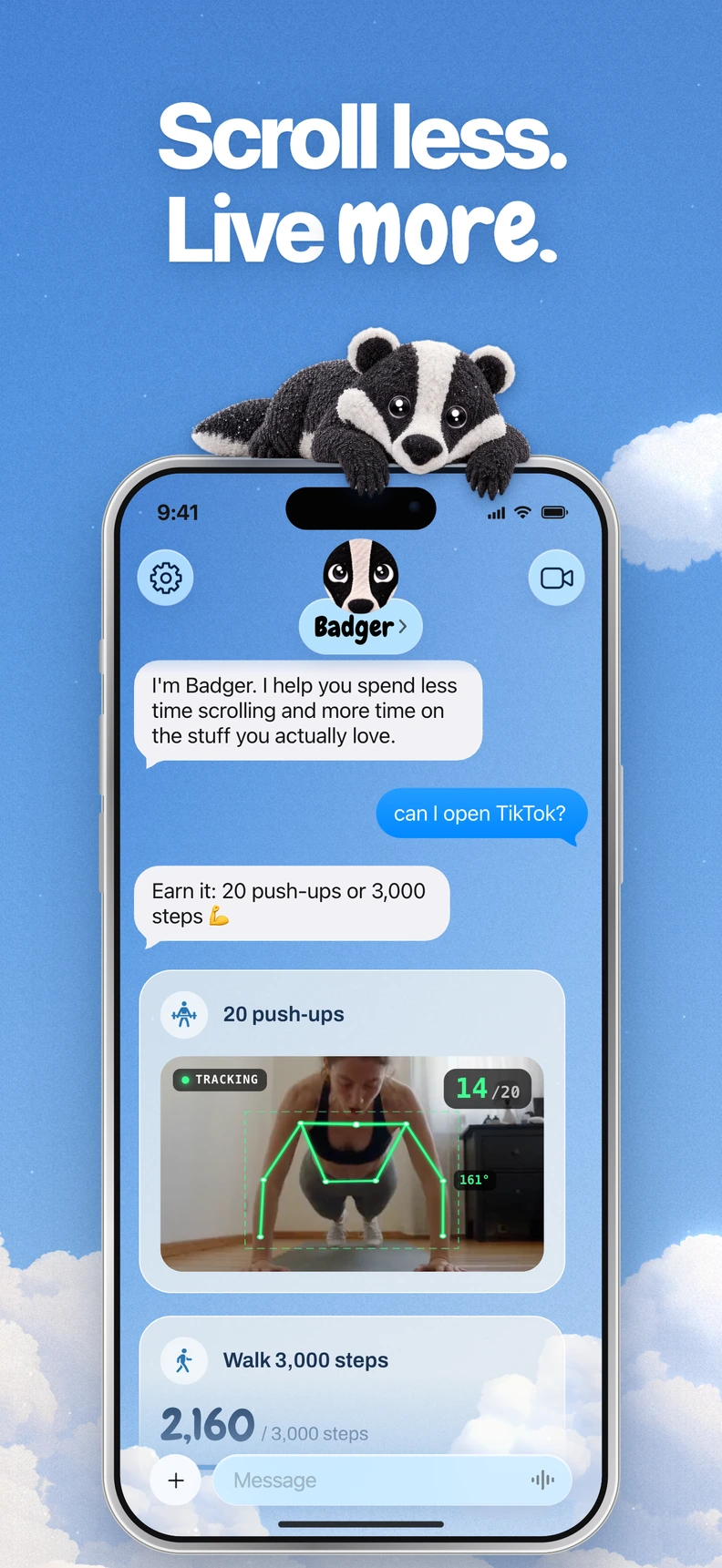
Badger is a personal agent, not just an app blocker. It's currently free and iPhone only. After Screen Time authorization, it steps in on selected apps, adapts how strict it is, and offers something you wanted to do rather than only a locked screen.
A pact is one simple promise kept with a small group. Sample pacts like Read more, Learn Spanish, Draw, or Touch grass can mean reading regularly, practicing words, making something, or getting outside. Your group can check in, share progress, and poke someone who hasn't followed through.
Call it habit maxing, hobby maxing, or life maxing if you like. The useful bit is choosing a real activity, including small side quests, before boredom sends you back.
If you're comparing approaches, this guide to iPhone app blockers can help frame the choice. Fixed schedules do predictable boundaries well; adaptive support suits a different need.
For family planning, Playz's guide to reduce kids' daily device use is an additional resource. Pair settings with a clear explanation of what remains available and who can approve changes.
Start With One Block Today
Pick the route that leaks the most attention and block that one first. A system that covers every app and browser at once tends to get switched off by Friday.
Four layers, four different fixes. If YouTube is fine until Shorts opens, the problem is the feed. If the app pulls you in at bedtime, the problem is the time. If you duck into Safari the moment the app limit hits, the problem is the browser route. Each layer has its own block, and tightening one does nothing for a leak in another.
Before your next scroll
- Set one limit: Choose YouTube or the single access route you keep using. Make the boundary clear enough that you will know whether it worked.
- Turn off autoplay: A decision between videos beats an automatic next start.
- Move the icon: Take YouTube off your first Home Screen. Opening it through search adds a small pause while keeping access intact.
- Prepare something better: Put a book, sketchbook, walking shoes, or language notes within reach. Pick the activity before you hit the restriction, while the choice is still easy.
- Review after a week: Name the workaround you used. Close that gap rather than stacking limits on routes you never touch.
Keep the useful part
Say you use YouTube to learn a song. Keep the lesson available, put your instrument where you can see it, and close the app when practice time starts. The block protects practice time. The song is the point.
If you extend a limit, ask why before you tighten anything. Needing the tutorial calls for a narrower block. An unrealistic allowance calls for a bigger one. An empty evening calls for a better next activity. Three different problems, three different fixes.
A useful boundary protects your next choice. It does not need to punish the last one.
No setting can promise a fixed number of minutes saved. The alternative has to feel worth doing, so choose the thing you want time for first, then set the smallest boundary that protects it.
Badger steps in on the apps you select and offers pacts you can keep with a small group, so the interruption has somewhere useful to lead. It runs on iOS 18.0 or later with Apple's Screen Time authorization; visit Badger for the App Store download.
Questions or corrections? Use Badger Support. More on the Badger blog.