

By Badger / Oasiz, Inc. · Published · Sources checked · Based on linked product documentation.
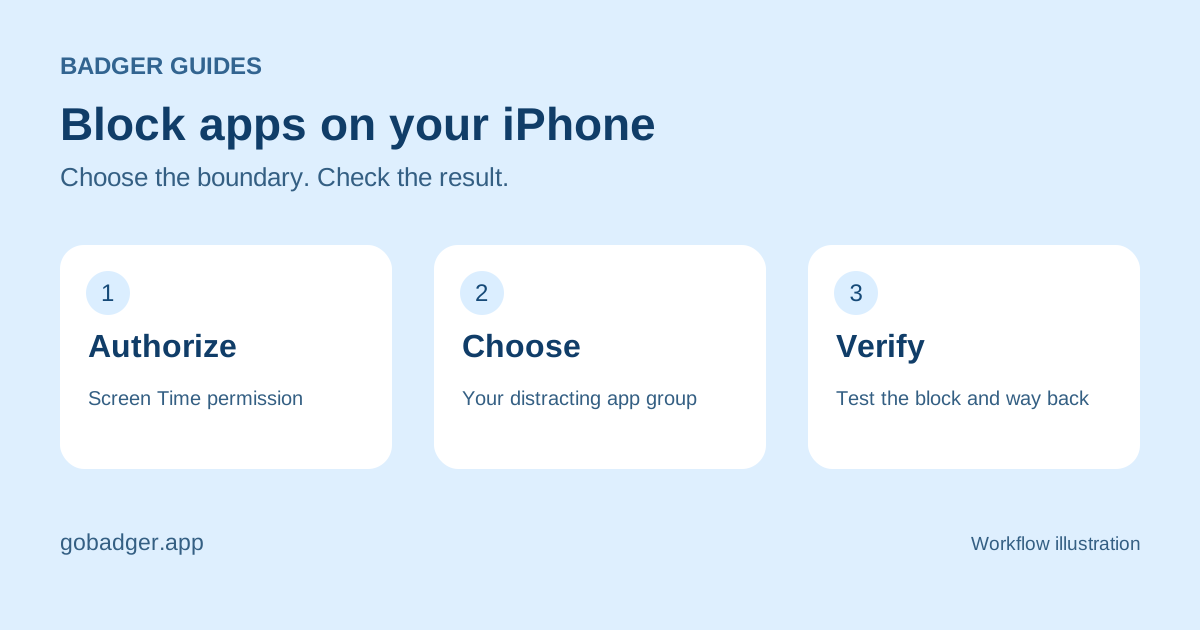
You can block apps on iPhone with Apple's built-in Screen Time controls or with an app blocker such as Badger. Screen Time gives you time allowances and schedules. Badger adds a personal AI agent that can connect access to your goals and help adjust the plan.
Start by deciding what should stay available. Blocking social feeds while leaving messages, maps, transport, and work tools accessible is a more specific plan than trying to lock your whole phone.
Use Screen Time for time allowances and schedules
Apple Screen Time is the built-in starting point for limiting app use on an iPhone. The settings depend on your iOS version.
On iOS 27
Open Settings → Screen Time → Time Allowances to set time by category. For particular periods of the day, use Screen Time Schedule and add a schedule. Review Always Allowed for essential apps and contacts. Apple's current Screen Time guide covers these controls.
On iOS 18–26
- Open Settings, then Screen Time. Turn on App & Website Activity if needed.
- Open App Limits and choose Add Limit. Select the apps or categories, set the time allowance, and save the limit.
- For a recurring break, open Downtime and set its schedule.
- Review Always Allowed so important communication and other essential apps remain available.
Review the blocking and passcode options in your installed iOS version. A reminder you can dismiss is different from a restriction that requires a passcode. Apple's iOS 26 guide explains App Limits and Downtime.
Use Badger when you want an agent to help with the plan
Badger is an iPhone app blocker with a personal AI agent from Oasiz, Inc. Instead of choosing only a timer, you can tell Badger what you want to do and connect app access to an action toward that goal.
- Download Badger: Your Willpower Agent and follow the app's setup.
- Authorize Screen Time and choose the distracting apps in an app group. Existing users can find app groups in Badger's Settings.
- Tell Badger the change you want to make. For example: “I want to walk before opening my social apps.”
- Review which apps the plan affects, what action restores access, and what to do if your circumstances change.
- Try opening a selected app to check that the block is actually applied.
Badger has its own agent; you do not need ChatGPT or another assistant to use it. External assistant connections are an optional extra for compatible assistants.
Check the block and the way back
A chat reply alone does not confirm that an iPhone has applied a block. Test a selected app, then confirm that an essential app still opens. Review the permissions and the access rules before relying on a plan during work or study.
With Badger, a genuine change of circumstances can lead to a different plan, and emergency unblock is available in the app. Asking for access does not automatically end an active commitment. If something is not working, check your app group and authorization, then contact Badger Support.
Choose the smallest setup that solves your problem
Use Screen Time if a daily allowance or a scheduled break fits your routine. Consider Badger if you want to talk through a goal, connect access to an activity, and adapt that strategy with an agent. A plan to earn screen time by walking is one example.
For other approaches, read Badger vs Apple Screen Time or browse the app blocker comparisons. This guide is published by Badger and describes setup choices, not a test of which product reduces screen time the most.
Sources and product details
Questions or corrections? Use Badger Support. Explore all guides or the comparisons.