

By Badger / Oasiz, Inc. · Published · Sources checked · Based on linked product documentation.
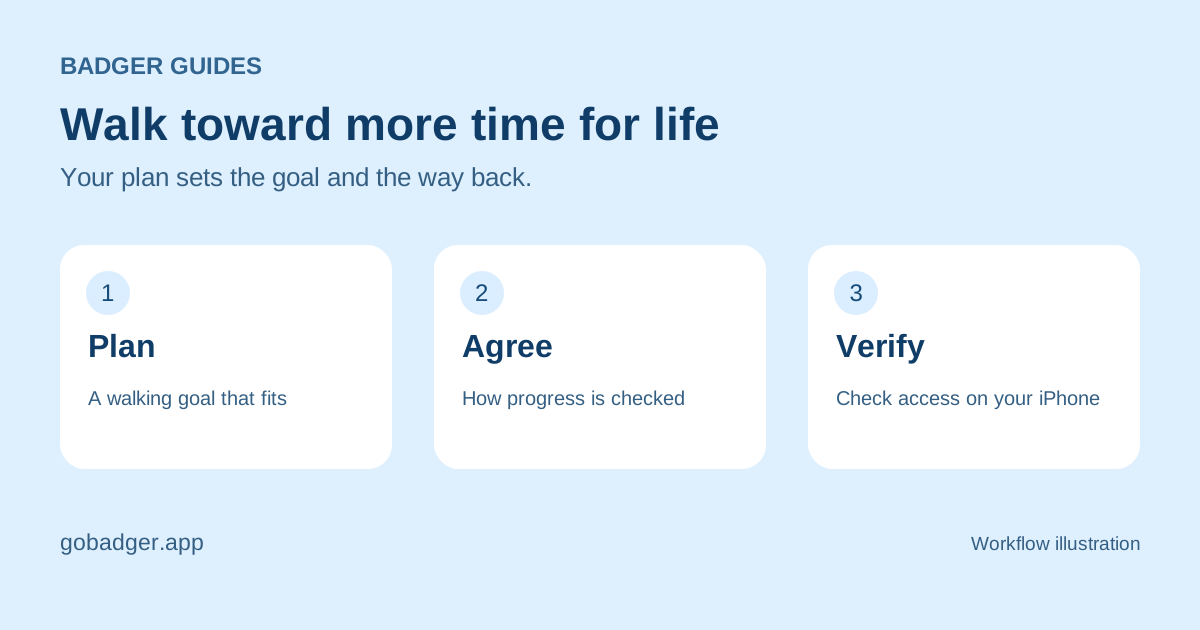
Badger can help you earn time on selected iPhone apps by walking. You make a plan with Badger's personal AI agent, choose the distracting apps, and connect access to progress toward your walking goal. The plan can change when your circumstances change.
Badger's official App Store description includes steps earning app time, gym check-ins unlocking apps, and a kitchen photo helping you get out of bed before scrolling. These are examples of personalized strategies, not a fixed rewards menu.
Make a walking plan with Badger
Start with a clear goal and a small group of distracting apps. A useful first message is: “I want to walk more and spend less time scrolling. Help me make a walking-for-screen-time plan for my social apps.”
- Install Badger on your iPhone and finish the app's setup.
- Create an app group with the apps you want to put behind the plan. Leave essential apps available.
- Tell Badger when scrolling gets in the way, when walking fits your day, and what you want to change.
- Review the proposed action, how progress is checked, and how access returns.
- Try the plan and open a selected app on your phone to verify the result.
There is no universal steps-to-minutes exchange rate stated here. Use the terms of your actual plan in Badger. A sample conversation on a website is not a promise that every account has the same target or reward.
Review the permissions your plan needs
App blocking needs Apple's Screen Time authorization and the apps you select on the iPhone. A walking strategy may also use activity information you choose to share. Read each permission request and Badger's health data policy before enabling it.
Different strategies can use different context. A gym check-in, a photo, and steps are not interchangeable types of evidence. Ask Badger how the specific plan will work rather than enabling every optional permission in advance.
Change the strategy when walking no longer fits
Tell Badger when the plan stops fitting your day. For example: “I cannot take a walk right now. Can we use another action toward my goal?” Badger can propose a different approach, such as a gym check-in, rather than repeat the same walking target.
A change of plan is different from automatically dismissing a block. Review what Badger agrees to, test access on the phone, and keep essential apps outside the blocked group. Emergency unblock is available in Badger.
Common questions about walking for screen time
Does Apple Screen Time turn steps into app time?
Apple's Screen Time guide describes time allowances and schedules. Badger adds the agent-led strategy connecting a goal such as walking to selected-app access.
Do I need another AI assistant?
No. The personal agent is part of Badger. You can separately authorize a compatible external assistant to request changes to selected app groups, but that is not required to start a walking plan.
Does earning time guarantee I will scroll less?
No. A walking-for-screen-time plan creates a boundary and a reason to do something else first. This guide does not claim a measured reduction in screen time. Review whether your actual routine is improving and adjust the plan with Badger.
Where can I compare other ways to block apps?
Read how to block apps on iPhone for setup options, or browse the app blocker comparisons. Learn who makes Badger and find the official download on the About Badger page.
Questions or corrections? Use Badger Support. Explore all guides or the comparisons.